
 MY CART
The Classes List in QuickBooks Online
How to Use the Classes List in QuickBooks Online: Video
This video lesson, titled “How to Use the Classes List in QuickBooks Online,” shows you how to create and manage the classes you use to classify line items or transactions by using the Classes list in QuickBooks Online. This video lesson is from our complete QuickBooks Online tutorial, titled “Mastering QuickBooks Online Made Easy.”
Overview:
How to Enable Classes in QuickBooks Online:
Classes in QuickBooks Online Plus let you categorize transactions. This is helpful for many things, like tracking departmental expenses or tracking amounts by individual line items. To enable class tracking in QuickBooks Online Plus, click the “Settings” button in the QuickBooks Online toolbar and then click the “Account and settings” link under the “Your Company” heading to open the “Settings” window.
Click the “Advanced” button in the menu at the left side of the window. Then click into the “Categories” section to the right to activate its settings. Then click the “Track classes” toggle switch to set it to the “On” position. To show a warning if a transaction is saved without a classification, check the “Warn me when a transaction isn’t assigned a class” checkbox.
To choose how to assign classes in transactions, use the “Assign classes” drop-down to select either the “One to each row in transaction” or “One to entire transaction” choice. To classify line items, select the “One to each row in transaction” choice. To classify an entire transaction, instead select the “One to entire transaction” choice. To save your changes, click the “Save” button in this section. Then click the “X” button in the upper-right corner of the “Settings” window to close it.
How to Open the Classes List:
To manage the classes in QuickBooks Online Plus, click the “Settings” button in the QuickBooks Online toolbar and then click the “All lists” link under the “Lists” heading in the menu that appears to open the “Lists” page. Click the “Classes” link in the “Lists” page to open the “Classes” list page.
How to Create a New Class:
To create a new class, click the “New” button in the upper-right corner of the “Classes” page to open a “Class” window. Enter the name of the class into the “Name” field. To make the class a sub-class of an existing class, check the “Is sub-class” checkbox and then select its parent class from the drop-down that then appears. It is important to note that when creating sub-classes, you can only have five (5) levels of sub-classes, including the top or parent class. To save the new class, click the “Save” button.
How to Run a Report on a Class or Edit a Class:
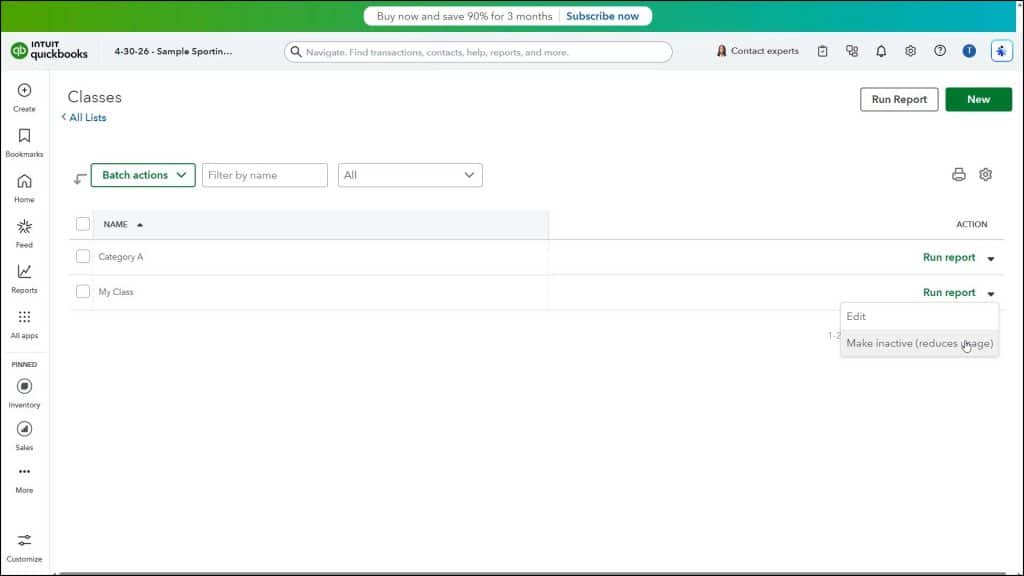
To run a “Class QuickReport” on a class in the classes list, click the “Run report” link under the “Action” column in the desired class’s row. To edit an existing class, click the drop-down under the “Action” column for the class’s row and then click the “Edit” link to open the “Class” window again. Then change any class settings and click the “Save” button to save the changes.
How to Inactivate a Class:
To inactivate a class, which reduces your usage, click the drop-down under the “Action” column for the class’s row and then click the “Make inactive (reduces usage)” link. Then click “Yes” in the confirmation window that appears to confirm your choice.
How to Reactivate an Inactive Class:
To reactivate an inactivated class, if needed, click the “Settings” button in the upper-right corner of the classes list and then check the “Include inactive” checkbox in the drop-down menu that appears. Doing this then shows the inactive classes in your classes list. Then click the “Make active” link that appears under the “Action” column in the inactivated class’s row.



