
 MY CART
How to Use Integrations in QuickBooks Online
How to Use Integrations in QuickBooks Online: Video
This video lesson, titled “How to Extend QuickBooks Online Using Integrations,” shows you how to use integrations in QuickBooks Online. This video lesson is from our complete QuickBooks Online tutorial, titled “Mastering QuickBooks Online Made Easy.”
Overview:
What are Integrations in QuickBooks Online?
Integrations in QuickBooks Online are third-party apps that integrate with your company file in QuickBooks Online. To view the integrations in QuickBooks Online, click the “Integrations” button in the QuickBooks Online toolbar. The “My integrations” panel that then appears shows your integrations, if available.
How to Find Integrations:
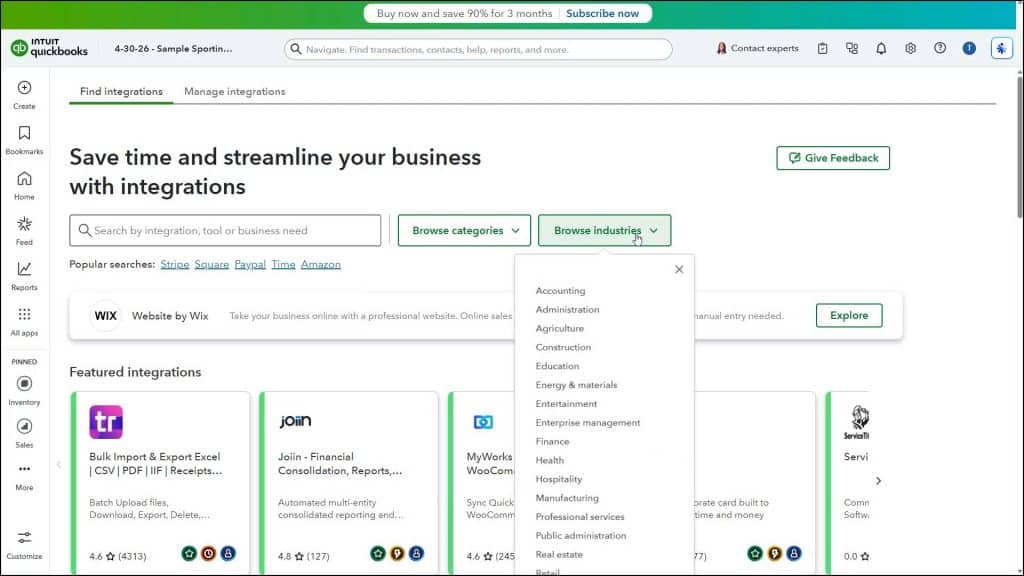
To find integrations, click the “Find integrations” link in the “My integrations” panel to open the “Find integrations” page. The “Find integrations” page in QuickBooks Online shows Intuit and third-party applications that integrate into QuickBooks Online, making it more efficient and easier to use. Many provide features that are not natively available in QuickBooks Online.
There is a large selection of constantly changing apps on the page. Some apps may disappear or change as they are discontinued or updated. An important point to remember is that some apps may require a subscription fee and an account outside of QuickBooks Online Plus to use them. At the top of the page is a large “Search by integration, tool, or business need” field, which you can use to search for integrations.
Alternatively, you can click the “Browse categories” or “Browse industries” drop-downs to select a category or industry by which to view related integrations. If you browse integrations by category or industry, you can click the “Back to Homepage” link in the upper-left corner of the results page to return to the main “Find integrations” page.
How to Learn More about an Integration:
To learn more about an integration, click its description card to open a page for the integration that shows its description and, often, a video. There are tabs across the top of the integration page for “Overview,” “Pricing” “Reviews,” “Similar,” and “FAQs.” Clicking these tabs shows the related information.
How to Get an Integration:
To get an integration, click the green “Get integration now” or “Learn more” button in the integration’s page. Generally, a new tab then opens, and the process starts automatically. Depending on the integration, follow any further instructions to integrate it into QuickBooks Online Plus.
Alternatively, to return to the “Find Apps” page or the category or industry browsing page from which you opened the integration’s page, click the “X” button in the upper-right corner of the integration’s page.
How to View and Manage Installed Integrations:
To view and manage your integrations after you install an integration in QuickBooks Online, click the “Manage integrations” tab at the top of the “Find integrations” page to show the “Manage integrations” page. Your apps appear within the “My integrations” section on this page. To manage the integration, click the triple-dot icon for the integration and then select a command from the menu that appears.



