MY CART
How to Use the Home View of File Explorer in Windows 11: Video Lesson
This video lesson, titled “How to Use the Home View of File Explorer in Windows 11: A Windows 11 Training Tutorial,” shows you how to use the Home view of File Explorer in Windows 11. This video lesson is from our complete Windows tutorial, titled “Mastering Windows Online Made Easy.”
Overview:
What Is the Home View of File Explorer?
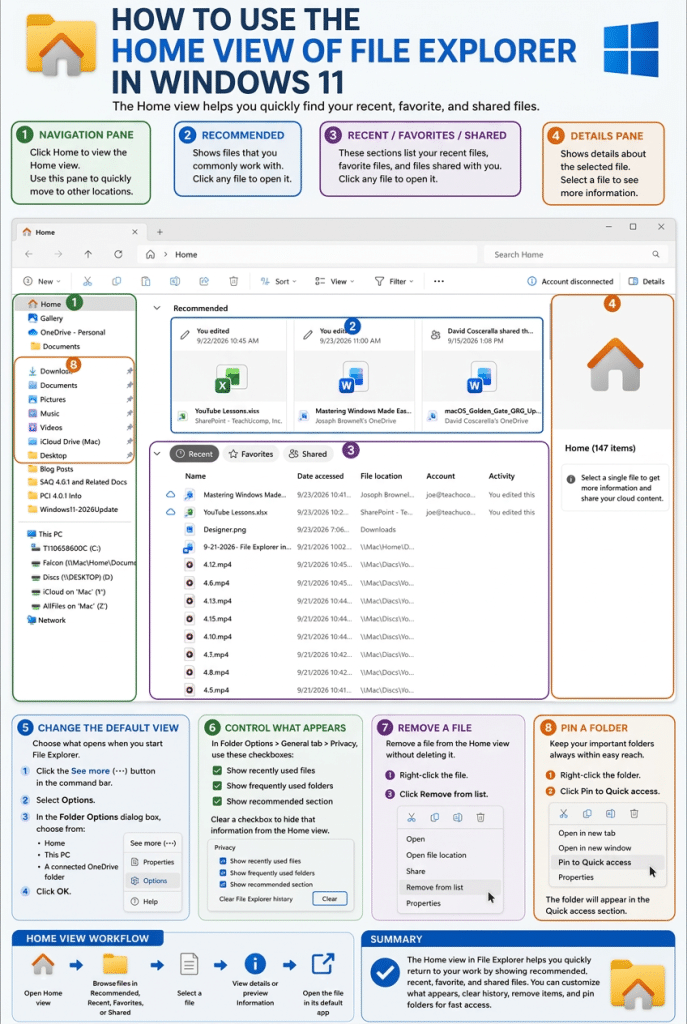
The “Home” view is the default view of File Explorer in Windows 11. You can click the “Home” choice in the Navigation pane at the left side of the File Explorer window to show its contents in the main pane. The “Home” view displays your recently and frequently used files, making it easier to quickly return to your work.
At the top of the “Home” view, you may see a “Recommended” section that displays commonly used files. Below that, additional sections such as “Recent,” “Favorites,” and “Shared” may appear, depending on your activity and settings. You can click any file shown in these sections to open it in its associated app.
How to Change File Explorer’s Default View:
To change which view appears when you open File Explorer, open a File Explorer window and then click the “See more” button in the command bar. Then click the “Options” command in the menu that appears to open the “Folder Options” dialog box. In the “General” tab, select either “Home” or “This PC” from the “Open File Explorer to” drop-down list. You can also select from available OneDrive folders, if connected. Then click the “OK” button to apply the change.
How to Change Which Files and Folders Appear in the Home View:
You can also control which items appear in the “Home” view. In the “General” tab of the “Folder Options” dialog box, use the checkboxes in the “Privacy” section to manage the display of files and folders. For example, select or clear the “Show recently used files,” “Show frequently used folders,” and “Show recommended section” checkboxes to adjust what appears in the “Home” view.
How to Clear File Explorer’s History:
You can clear File Explorer history if desired. To do this, click the “Clear” button in the “Privacy” section of the “General” tab in the “Folder Options” dialog box. This removes the history used to display recent and frequently used items.
How to Remove a File from the Home View:
To remove an individual file from the “Home” view, right-click the file and then click the “Remove from list” command in the menu that appears. This removes the file from the displayed list without deleting it from your computer.
How to Pin a Folder to the Quick Access Section of the Navigation Pane:
Frequently used folders appear in the “Quick access” section in the Navigation pane. To pin a folder so it always appears there, right-click the folder and then click the “Pin to Quick access” command. Pinned folders remain in the “Quick access” section for easy access, even if they are not recently used.