MY CART
How to Sort Files and Folders in File Explorer in Windows 11: Video Lesson
This video lesson, titled “How to Sort Files and Folders in File Explorer in Windows 11: A Windows 11 Training Tutorial,” shows you how to sort files and folders within the current folder shown in File Explorer in Windows 11. This video lesson is from our complete Windows tutorial, titled “Mastering Windows Online Made Easy.”
Overview:
Windows 11 lets you sort the items shown within a folder in the File Explorer window. Sorting changes the order in which files and folders appear based on selected attributes, which can help you locate items more easily. You can sort items in most folder views, except for the content in the default “Home” view.
How to Sort the Files and Folders Shown in the Main Pane of File Explorer:
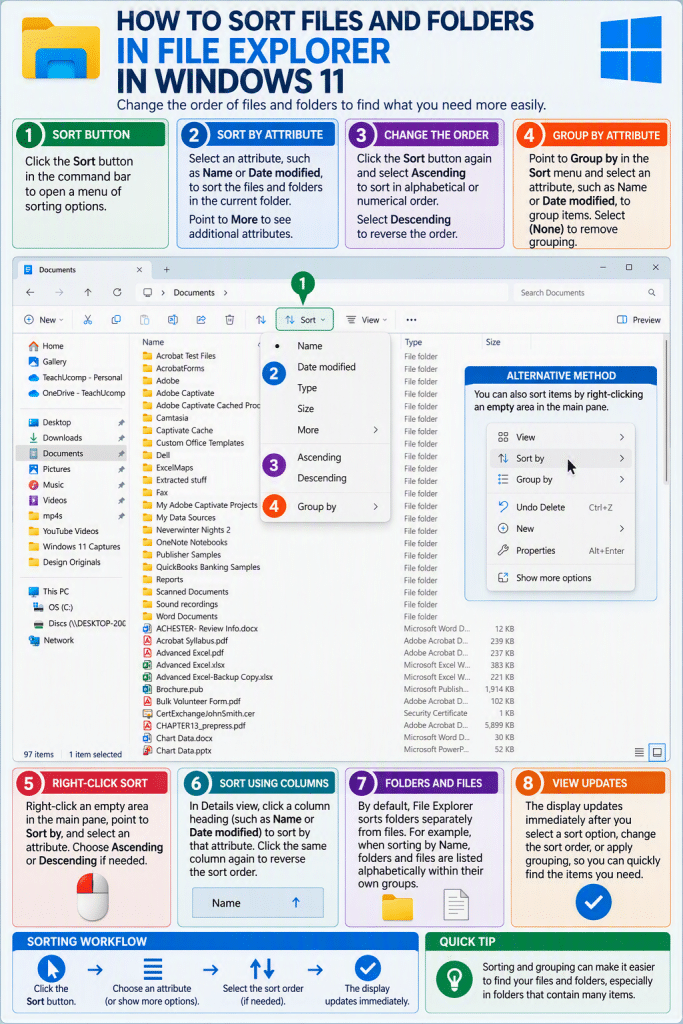
To sort the items shown in the main pane, first display the contents of the folder you want to sort. Then click the “Sort” button in the command bar to open a menu of sorting options. In this menu, click an attribute like “Name” or “Date” to sort the items by that category. To see additional attributes, point to the “More” command and then select another available attribute.
How to Change the Sort Order:
After selecting an attribute, you can control the order in which the items are sorted. To sort in alphabetical or numerical order, click the “Sort” button again and then select “Ascending.” To reverse the order, click the “Sort” button and then select “Descending.” The selected sort order is applied immediately to the items in the folder.
Alternatively, How to Sort Files and Folders Using the Right-Click Context Menu in File Explorer:
You can also sort items by right-clicking an empty area within the main pane of the File Explorer window. In the menu that appears, point to the “Sort by” command to view a list of available attributes. Then click the attribute you want to use and repeat the process to select either “Ascending” or “Descending” if needed.
Alternatively, How to Sort Files and Folders Using the Columns in Details View in File Explorer:
If you are using the “Details” view, you can sort items by clicking the column headings at the top of the file list. For example, click the “Name” column to sort items alphabetically by name or click the “Date modified” column to sort by date. To reverse the sort order, click the same column heading again. The current sort direction is indicated by a small arrow that appears in the column heading.
By default, File Explorer sorts folders separately from files. For example, if you sort items by “Name,” folders and files are listed alphabetically within their own groups. This behavior helps keep folders easy to locate when working within a directory.
How to Group and Ungroup Files and Folders by Attribute in File Explorer:
You can also group items within a folder to organize them visually. To group items, click the “Sort” button, point to the “Group by” command, and then select an attribute like “Name” or “Date modified.” The items are then arranged into sections based on the selected attribute. To remove grouping, repeat the same steps and then select the “(None)” option.