
TeachUcomp, Inc.

 MY CART
  • HOME
  • PRODUCTS
    • Books
      • QuickBooks Online
    • Manuals
      • Adobe
        • Acrobat
        • Lightroom Classic
        • Photoshop
        • Photoshop Elements
      • Crystal Reports
      • For Lawyers
        • Excel for Lawyers
        • Outlook for Lawyers
        • QuickBooks for Lawyers
        • Word for Lawyers
      • HTML
      • JavaScript
      • Microsoft Office
        • Access
        • Excel
        • OneNote
        • Outlook
        • Outlook on the Web
        • PowerPoint
        • Publisher
        • Word
      • Microsoft Project
      • Microsoft Teams
      • QuickBooks Online
      • QuickBooks Pro
      • Sage
        • Peachtree
        • Sage 50
      • SQL
      • Windows
    • Reference Guides
      • Adobe
        • Acrobat
        • Lightroom Classic
        • Photoshop
        • Photoshop Elements 2026
        • Photoshop Elements 2025
        • Photoshop Elements 2024
        • Photoshop Elements 2023
        • Photoshop Elements 2022
        • Photoshop Elements 2021
        • Photoshop Elements 2020
        • Photoshop Elements 2019
        • Photoshop Elements 2018
        • Photoshop Elements 15
      • Chrome OS
        • Chrome OS Keyboard Shortcuts
      • FreshBooks
      • Google
        • Google Classroom for Teachers
        • Google Docs
        • Google Drive
        • Google Forms
        • Google Sheets
        • Google Slides
      • macOS
        • macOS Keyboard Shortcuts
        • macOS Tahoe
      • Microsoft Office
        • Excel Formulas and Functions
        • Excel Keyboard Shortcuts (macOS)
        • Excel Keyboard Shortcuts (PC/Windows)
        • Excel Tables PivotTables and Charts
        • Microsoft 365
          • Access for Microsoft 365
          • Excel for Microsoft 365
          • Microsoft Office 365
          • Outlook for Microsoft 365 Classic Edition
          • Outlook for Microsoft 365 (New Outlook)
          • PowerPoint for Microsoft 365
          • Publisher for Microsoft 365
          • Word for Microsoft 365
        • Microsoft Office 2021
          • Access 2021
          • Excel 2021
          • Microsoft Office 2021
          • OneNote for Windows 10
          • Outlook 2021
          • PowerPoint 2021
          • Publisher 2021
          • Word 2021
        • Microsoft Office 2019
          • Access 2019
          • Excel 2019
          • Microsoft Office 2019
          • Outlook 2019
          • PowerPoint 2019
          • Publisher 2019
          • Word 2019
        • Microsoft Office 2016
          • Access 2016
          • Excel 2016
          • Microsoft Office 2016
          • OneNote 2016
          • Outlook 2016
          • PowerPoint 2016
          • Publisher 2016
          • Word 2016
        • Microsoft Office 2013
          • Excel 2013
          • Microsoft Office 2013
          • OneNote 2013
          • Outlook 2013
          • PowerPoint 2013
          • Word 2013
        • Microsoft Office for iPad
          • Microsoft Office for iPad
        • Word Keyboard Shortcuts (macOS)
        • Word Keyboard Shortcuts (PC/Windows)
      • Microsoft Teams
      • QuickBooks Online
      • QuickBooks Pro
        • QuickBooks Pro 2024
        • QuickBooks Pro 2023
        • QuickBooks Pro 2022
        • QuickBooks Pro 2021
        • QuickBooks Pro 2020
        • QuickBooks Pro 2019
        • QuickBooks Pro 2018
        • QuickBooks Pro 2017
        • QuickBooks Pro 2016
        • QuickBooks Pro 2015
        • QuickBooks Pro 2014
      • Sage 50 Accounting
      • SQL
      • Windows
        • Windows 11
        • Windows 11 and 10 Keyboard Shortcuts
        • Windows 10
    • Video Courses
      • All-Access Subscriptions
      • Course List
        • Accounting
        • Adobe
          • Acrobat
          • Lightroom Classic
          • Photoshop
          • Photoshop Elements
        • Crystal Reports
        • Employment Skills
          • Interview Skills
          • Resume Skills
        • For Lawyers
          • Excel for Lawyers
          • Outlook for Lawyers
          • QuickBooks for Lawyers
          • Word for Lawyers
        • HTML
        • JavaScript
        • Microsoft Office
          • Access
          • Excel
          • Microsoft Office Suite
          • OneNote
          • Outlook
          • Outlook on the Web
          • PowerPoint
          • Publisher
          • Word
        • Microsoft Project
        • Microsoft Teams
        • QuickBooks Online
        • QuickBooks Pro
        • Sage
          • Peachtree
          • Sage 50
        • SQL
        • Windows
      • My Courses
      • Video Course Options
    • Shortcut Stickers
      • Chrome OS
      • macOS
      • Microsoft Office
        • Word and Excel (Mac)
        • Word and Excel (PC/Windows)
      • QuickBooks Desktop
        • QuickBooks Desktop (PC/Windows) 2024
        • QuickBooks Desktop (PC/Windows) 2023
        • QuickBooks Desktop (PC/Windows) 2022-2015
      • QuickBooks Online
      • Windows
  • SHOP BY TOPIC
  • FOR TEAMS
  • SUPPORT
    • Company
      • About Us
      • Blog
      • Our History
      • Our Philosophy
        • Customer Service
        • Mission
      • Policies
      • Testimonials
    • Contact Us
    • FAQ
    • Help
    • Lost Password
    • Register a Product
  • LOGIN
    • Manage My Account
    • Member Login
    • My Courses
Shop Now

How to Select Files in File Explorer in Windows 11

by Joseph Brownell / Tuesday, September 29 2026 / Published in Latest, Microsoft, Windows 11

How to Select Files in File Explorer in Windows 11: Video Lesson

    This video lesson, titled “How to Select Files within File Explorer in Windows 11: A Windows 11 Training Tutorial,” shows you different ways to select files in File Explorer in Windows 11. This video lesson is from our complete Windows tutorial, titled “Mastering Windows Online Made Easy.”

Overview:

How to Select a File in File Explorer:

You must learn how to select files within File Explorer in Windows 11 to perform file management activities. To select a single file in File Explorer, click it once. It is then highlighted. The highlight means the file is selected. When a file is selected, it has the focus of the Windows application and any commands you subsequently perform apply only to the selected file.

How to Deselect Files in File Explorer:

            To deselect selected items in File Explorer, click into the blank or empty area in the right pane in File Explorer. Alternatively, to deselect selected items in File Explorer in Windows 11, click the “See more” button in the Ribbon, which looks like an ellipsis mark, and then choose the “Select none” command from the drop-down menu that appears.

How to Simultaneously Select Multiple Files in File Explorer:

How to Select Multiple Non-adjacent Files:

            You can also simultaneously select multiple files in File Explorer. How you do this depends on how the files are arranged within the right pane of the File Explorer window. If the files are non-adjacent, meaning not next to each other, then click to select the first file within the window, as usual. Then press and hold down the “Ctrl” key on your keyboard while you click any other files to also select. Doing this selects them and retains the selection of the initially selected file. Then release the “Ctrl” key after selecting all the necessary files.

How to Select Multiple Adjacent Files:

            If the files are adjacent, meaning located next to each other, then you can instead click the first file to select it. Then press and hold down the “Shift” key on your keyboard. Then click the last file to select. All the files including and between the first and last files you clicked are then selected. You can then release the “Shift” key.

How to Select Files in File Explorer Using a Selection Marquee:

            Alternatively, to select adjacent files in File Explorer by using a selection marquee, click and drag with your mouse starting in the blank area adjacent to the file or files to select. As you click and drag the mouse pointer onscreen, a light blue selection marquee appears. Continue to click and drag the selection marquee over the files to select. Any file touched by the selection marquee is then selected in the window. Release the mouse button after selecting the files you want.

How to Select Files in File Explorer Using Checkboxes:

            Alternatively, to enable item check boxes in File Explorer in Windows 11 that you can check or uncheck to select files and folders, click the “View” drop-down button in the Ribbon at the top of the File Explorer window. Then roll over the “Show” command in the drop-down menu. Then select the “Item check boxes” command in the side menu that appears to enable them in File Explorer. When you then hover your mouse pointer over an item in the File Explorer window, a checkbox appears to its left. Check the checkbox to select the item or uncheck it to deselect the item. To turn off the checkboxes, select the same “Item check boxes” command from the “View” drop-down button’s menu again.

How to Select All Items within a Folder in File Explorer:

            The “See more” button in the Ribbon of the File Explorer window in Windows 11 also contains commands that help you make file and folder selections. To select all items in the File Explorer window in Windows 11, click the “See more” button in the Ribbon. Then click the “Select all” command to select all items shown in the right pane of the File Explorer window. Alternatively, press the keyboard shortcut of “Ctrl” + “A” on your keyboard to select all the items in the File Explorer window.

How to Invert the Selected Items in File Explorer:

            To invert the selected items in File Explorer in Windows 11, which selects all unselected items and deselects all selected items, click the “See more” button in the Ribbon. Then click the “Invert selection” command to invert the current selection in the File Explorer window.
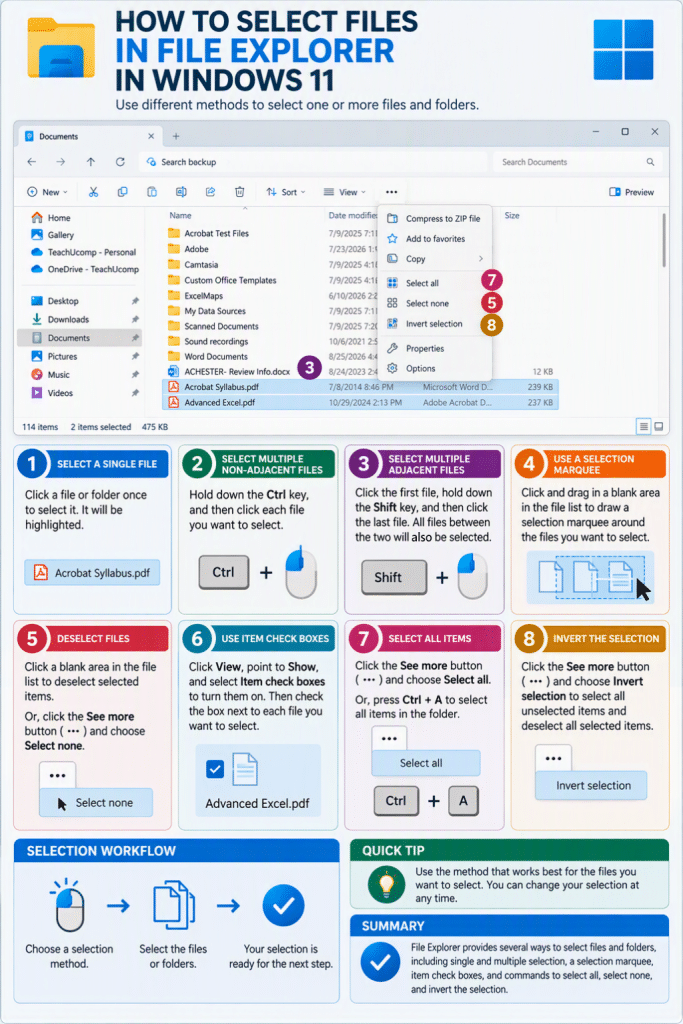
An infographic showing how to select files in File Explorer in Windows 11.

Tagged under: adjacent files, Ctrl click selection, deselect files, file explorer, File Explorer basics, File Explorer tutorial, file management, invert selection, keyboard shortcuts, manage files, multiple file selection, non adjacent files, select all files, select files, select multiple files, selecting files, selection marquee, Shift click selection, teachucomp, Windows 11, windows 11 tutorial, Windows tips, windows training

About Joseph Brownell

Joseph Brownell is founder and Vice President of TeachUcomp, Inc. He is the author of dozens of titles across the TeachUcomp, Inc. product line.
Team Training. Solutions for all team sizes.


Windows 11 Quick Reference Guide. Buy Now.
 

Categories

  • GET SOCIAL

© 2001-2026 Copyright TeachUcomp, Inc. All rights reserved.

TOP
25% Off Everything 2 Days 17 Hours 55 Minutes 44 Seconds      Coupon Code: SAVE25
Shop Now