 MY CART
How to Use the Recycle Bin in Windows 11: Video Lesson
This video lesson, titled “How to Use the Recycle Bin in Windows 11: A Windows 11 Training Tutorial,” shows you how to use the Recycle Bin to restore files you deleted and how to permanently delete files in Windows 11. This video lesson is from our complete Windows tutorial, titled “Mastering Windows Made Easy.”
Overview:
What is the Recycle Bin in Windows 11?
If you mistakenly delete a file from your computer’s “C:” drive, you can often retrieve the file by using the Recycle Bin in Windows 11. Windows includes a file deletion safeguard called the “Recycle Bin,” which temporarily stores files and folders deleted from your computer’s hard drive until you choose to permanently remove them. When you empty the Recycle Bin, Windows permanently deletes the items it contains.
You can think of the Recycle Bin as a paper recycling bin. Paper placed into a recycling bin remains there until it is collected and removed. Similarly, deleted files and folders remain in the Recycle Bin until it is emptied. If you accidentally delete a file, you may be able to recover it from the Recycle Bin before it is permanently removed.
How to Restore Deleted Files Using the Recycle Bin:
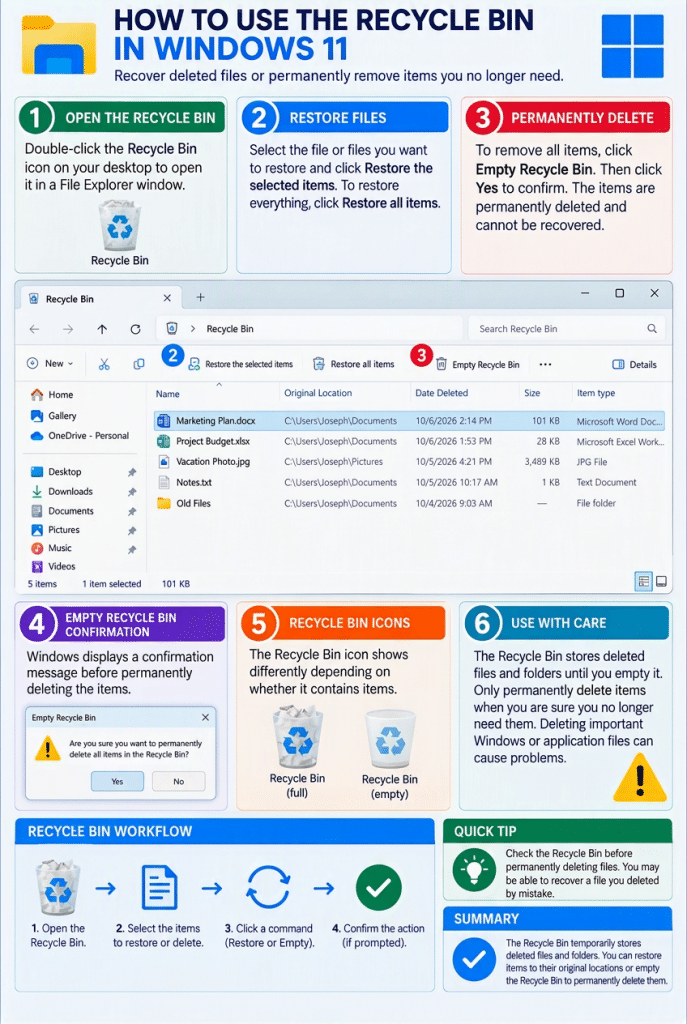
To restore deleted files from the Recycle Bin in Windows 11, double-click the “Recycle Bin” icon on the desktop. The Recycle Bin then opens in a File Explorer window that displays the deleted files and folders it contains. Select the file or files to restore and then click the “Restore the selected items” command in the command bar to return the selected items to their original locations. To restore all items currently stored in the Recycle Bin, click the “Restore all items” command in the command bar.
How to Permanently Delete Files Using the Recycle Bin:
You should periodically remove unwanted items from the Recycle Bin to free storage space on your computer. However, because files deleted from the Recycle Bin are permanently removed from your computer, you should only do so when you are certain that you no longer need the files it contains.
To empty the Recycle Bin in Windows 11, double-click its icon on the desktop to open it. Then click the “Empty Recycle Bin” command in the command bar of the File Explorer window that opens and shows the Recycle Bin. Windows then displays a confirmation message asking whether you are sure you want to permanently delete the items in the Recycle Bin. Click “Yes” to permanently delete the items or click “No” to cancel the operation.