 MY CART
How to Use OneDrive Folders in File Explorer in Windows 11: Video Lesson
This video lesson, titled “How to Use OneDrive Folders within File Explorer in Windows 11: A Windows 11 Training Tutorial,” shows you how to use OneDrive folders in File Explorer in Windows 11. This video lesson is from our complete Windows tutorial, titled “Mastering Windows Made Easy.”
Overview:
How to Use OneDrive Folders in File Explorer in Windows 11:
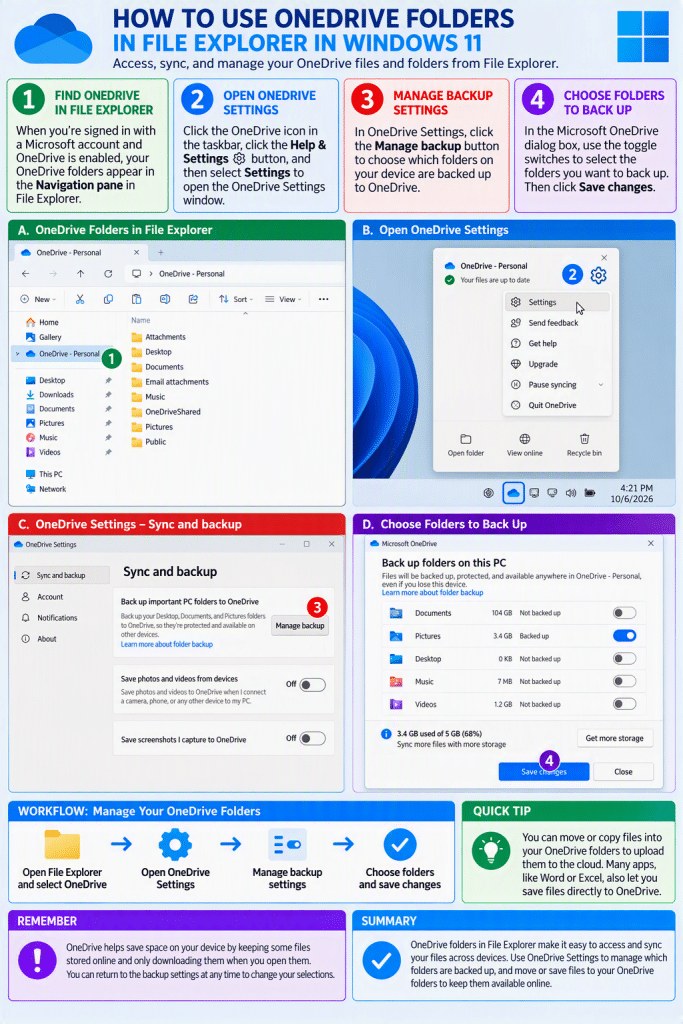
If you are signed in to Windows using an online account, like a Microsoft account or a work or school account, and you have enabled OneDrive, then a local representation of your OneDrive folders appears in the Navigation pane at the left side of the File Explorer window. This allows you to access your OneDrive files directly from File Explorer. Files stored in OneDrive can be kept synchronized across your devices.
You can move or copy files into your OneDrive folders in File Explorer to upload them to your cloud storage. Many applications, like Microsoft Word or Excel, also allow you to save files directly to your OneDrive folders. This makes it easy to access your files from multiple devices.
How to Control the Backup and Sync of the OneDrive Folders in File Explorer in Windows 11:
Files and folders within OneDrive are typically managed using features that control synchronization and backup. OneDrive helps save space on your device by keeping some files stored online and downloading them only when you open them. This allows you to work with files as needed while conserving local storage space.
How to Open the OneDrive Settings:
To manage OneDrive settings, click the OneDrive icon in the notification area at the right end of the taskbar. Then click the “Help & Settings” button in the window that appears, and then click the “Settings” command in the menu to open the “OneDrive Settings” window.
How to Set OneDrive Folder Sync and Backup Settings:
In the “OneDrive Settings” window, the “Sync and backup” section lets you control how your files are backed up. In this section, click the “Manage backup” button to open the “Microsoft OneDrive” dialog box. This dialog box displays folders on your device, such as “Documents,” “Pictures,” “Desktop,” “Music,” and “Videos.”
In the “Microsoft OneDrive” dialog box, use the toggle switches next to each folder to control whether it is backed up to OneDrive. When a folder is enabled, its contents are backed up and available in OneDrive. When a folder is disabled, its contents are no longer backed up, but existing files remain available in your OneDrive account online.
After making your selections, click the “Save changes” button to apply your settings. You can close the dialog box after saving your changes to return to the OneDrive settings window.
You can return to these settings at any time to change which folders are backed up. This allows you to control which files are synchronized with OneDrive and available across your devices.