
TeachUcomp, Inc.

 MY CART
  • HOME
  • PRODUCTS
    • Books
      • QuickBooks Online
    • Manuals
      • Adobe
        • Acrobat
        • Lightroom Classic
        • Photoshop
        • Photoshop Elements
      • Crystal Reports
      • For Lawyers
        • Excel for Lawyers
        • Outlook for Lawyers
        • QuickBooks for Lawyers
        • Word for Lawyers
      • HTML
      • JavaScript
      • Microsoft Office
        • Access
        • Excel
        • OneNote
        • Outlook
        • Outlook on the Web
        • PowerPoint
        • Publisher
        • Word
      • Microsoft Project
      • Microsoft Teams
      • QuickBooks Online
      • QuickBooks Pro
      • Sage
        • Peachtree
        • Sage 50
      • SQL
      • Windows
    • Reference Guides
      • Adobe
        • Acrobat
        • Lightroom Classic
        • Photoshop
        • Photoshop Elements 2027
        • Photoshop Elements 2026
        • Photoshop Elements 2025
        • Photoshop Elements 2024
        • Photoshop Elements 2023
        • Photoshop Elements 2022
        • Photoshop Elements 2021
        • Photoshop Elements 2020
        • Photoshop Elements 2019
        • Photoshop Elements 2018
        • Photoshop Elements 15
      • Chrome OS
        • Chrome OS Keyboard Shortcuts
      • FreshBooks
      • Google
        • Google Classroom for Teachers
        • Google Docs
        • Google Drive
        • Google Forms
        • Google Sheets
        • Google Slides
      • macOS
        • macOS Keyboard Shortcuts
        • macOS Tahoe
      • Microsoft Office
        • Excel Formulas and Functions
        • Excel Keyboard Shortcuts (macOS)
        • Excel Keyboard Shortcuts (PC/Windows)
        • Excel Tables PivotTables and Charts
        • Microsoft 365
          • Access for Microsoft 365
          • Excel for Microsoft 365
          • Microsoft Office 365
          • Outlook for Microsoft 365 Classic Edition
          • Outlook for Microsoft 365 (New Outlook)
          • PowerPoint for Microsoft 365
          • Publisher for Microsoft 365
          • Word for Microsoft 365
        • Microsoft Office 2021
          • Access 2021
          • Excel 2021
          • Microsoft Office 2021
          • OneNote for Windows 10
          • Outlook 2021
          • PowerPoint 2021
          • Publisher 2021
          • Word 2021
        • Microsoft Office 2019
          • Access 2019
          • Excel 2019
          • Microsoft Office 2019
          • Outlook 2019
          • PowerPoint 2019
          • Publisher 2019
          • Word 2019
        • Microsoft Office 2016
          • Access 2016
          • Excel 2016
          • Microsoft Office 2016
          • OneNote 2016
          • Outlook 2016
          • PowerPoint 2016
          • Publisher 2016
          • Word 2016
        • Microsoft Office 2013
          • Excel 2013
          • Microsoft Office 2013
          • OneNote 2013
          • Outlook 2013
          • PowerPoint 2013
          • Word 2013
        • Microsoft Office for iPad
          • Microsoft Office for iPad
        • Word Keyboard Shortcuts (macOS)
        • Word Keyboard Shortcuts (PC/Windows)
      • Microsoft Teams
      • QuickBooks Online
      • QuickBooks Pro
        • QuickBooks Pro 2024
        • QuickBooks Pro 2023
        • QuickBooks Pro 2022
        • QuickBooks Pro 2021
        • QuickBooks Pro 2020
        • QuickBooks Pro 2019
        • QuickBooks Pro 2018
        • QuickBooks Pro 2017
        • QuickBooks Pro 2016
        • QuickBooks Pro 2015
        • QuickBooks Pro 2014
      • Sage 50 Accounting
      • SQL
      • Windows
        • Windows 11
        • Windows 11 and 10 Keyboard Shortcuts
        • Windows 10
    • Video Courses
      • All-Access Subscriptions
      • Course List
        • Accounting
        • Adobe
          • Acrobat
          • Lightroom Classic
          • Photoshop
          • Photoshop Elements
        • Crystal Reports
        • Employment Skills
          • Interview Skills
          • Resume Skills
        • For Lawyers
          • Excel for Lawyers
          • Outlook for Lawyers
          • QuickBooks for Lawyers
          • Word for Lawyers
        • HTML
        • JavaScript
        • Microsoft Office
          • Access
          • Excel
          • Microsoft Office Suite
          • OneNote
          • Outlook
          • Outlook on the Web
          • PowerPoint
          • Publisher
          • Word
        • Microsoft Project
        • Microsoft Teams
        • QuickBooks Online
        • QuickBooks Pro
        • Sage
          • Peachtree
          • Sage 50
        • SQL
        • Windows
      • My Courses
      • Video Course Options
    • Shortcut Stickers
      • Chrome OS
      • macOS
      • Microsoft Office
        • Word and Excel (Mac)
        • Word and Excel (PC/Windows)
      • QuickBooks Desktop
        • QuickBooks Desktop (PC/Windows) 2024
        • QuickBooks Desktop (PC/Windows) 2023
        • QuickBooks Desktop (PC/Windows) 2022-2015
      • QuickBooks Online
      • Windows
  • SHOP BY TOPIC
  • FOR TEAMS
  • SUPPORT
    • Company
      • About Us
      • Blog
      • Our History
      • Our Philosophy
        • Customer Service
        • Mission
      • Policies
      • Testimonials
    • Contact Us
    • FAQ
    • Help
    • Lost Password
    • Register a Product
  • LOGIN
    • Manage My Account
    • Member Login
    • My Courses
Shop Now

How to Change OneDrive Settings in Windows 11

by Joseph Brownell / Tuesday, October 20 2026 / Published in Latest, Microsoft, Windows 11

How to Change OneDrive Settings in Windows 11: Video Lesson

    This video lesson, titled “How to Change OneDrive Settings in Windows 11: A Windows 11 Training Tutorial,” shows you how to change OneDrive settings in Windows 11. This video lesson is from our complete Windows tutorial, titled “Mastering Windows Made Easy.”

Overview:

How to Access OneDrive Settings in Windows 11:

To access your personal OneDrive settings in Windows 11 when signed in using a Microsoft account, click the OneDrive icon in the notification area at the right end of the taskbar. In the OneDrive pane that appears, click the “Help & Settings” button in the upper-right corner of the pane. Then select the “Settings” command from the menu that appears to open the “OneDrive Settings” window.

Select a Settings Section and Change Its Settings:

            The navigation pane at the left side of the “OneDrive Settings” window contains the available settings sections, which include “Sync and backup,” “Account,” “Notifications,” and “About.” Selecting a section displays its related settings in the pane to the right.

The Sync and Backup Settings:

            The “Sync and backup” section contains settings related to file synchronization, backups, storage management, and network usage. In the “Back up important PC folders to OneDrive” setting, click the “Manage backup” button to choose whether folders such as “Desktop,” “Documents,” and “Pictures” are backed up to OneDrive. The “Save photos and videos from devices” and “Save screenshots I capture to OneDrive” settings contain switches that control whether photos, videos, and screenshots are automatically saved to OneDrive. The “Import cloud photos and files” setting contains options for importing content from other cloud storage services into OneDrive.

The Preferences Settings:

            The “Preferences” section contains settings for pausing synchronization when your device enters battery saver mode or connects to a metered network. To view additional synchronization settings, click the “Advanced settings” link. The advanced settings contain options for limiting upload and download rates, excluding selected file extensions from OneDrive backups, and managing “Files On-Demand.” The “Files On-Demand” section contains buttons that let you free disk space by making files available online only or download all files for offline use.

The Account Settings:

            The “Account” section displays information about the currently connected OneDrive account. This section lets you add additional OneDrive accounts, choose which OneDrive folders are available on the device by clicking the “Choose folders” button, and configure settings for “Personal Vault.” You can also view account information and manage the connection between OneDrive and the current device.

The Notifications Settings:

            The “Notifications” section contains settings that control which notifications OneDrive displays. These settings determine whether OneDrive shows notifications for events such as synchronization activity, file sharing activity, cloud file deletions, memories, and other account-related information.

The About Settings:

            The “About” section displays information about the installed version of OneDrive and the current OneDrive device ID. It also provides access to related information and support links. In this section, you can also choose whether to receive preview releases by participating in the OneDrive Insider program.

How to View OneDrive Storage Usage, Upgrade OneDrive Storage, or Install the OneDrive Mobile App:

            The lower-left corner of the “OneDrive Settings” window displays information about your available OneDrive storage space and contains links to upgrade your storage plan or install the OneDrive mobile app. After making any changes to the OneDrive settings, simply close the “OneDrive Settings” window to save and apply the changes.
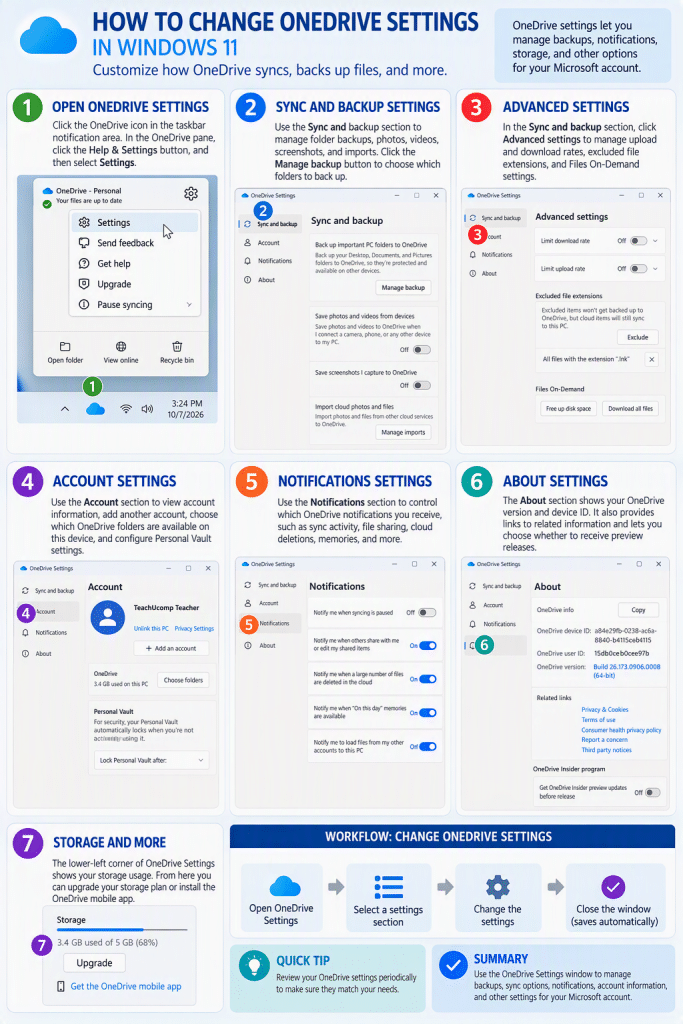
An infographic showing how to change OneDrive settings in Windows 11.

Tagged under: backup files, choose folders, cloud backup, cloud storage, file explorer, file synchronization, Files On-Demand, Microsoft 365, Microsoft OneDrive, offline files, OneDrive account settings, OneDrive configuration, OneDrive folders, OneDrive settings, OneDrive setup, OneDrive sync, OneDrive tutorial, online files, sync files, teachucomp, Windows 11, windows 11 tutorial, Windows tips, windows training

About Joseph Brownell

Joseph Brownell is founder and Vice President of TeachUcomp, Inc. He is the author of dozens of titles across the TeachUcomp, Inc. product line.
Team Training. Solutions for all team sizes.


Windows 11 Quick Reference Guide. Buy Now.
 

Categories

  • GET SOCIAL

© 2001-2026 Copyright TeachUcomp, Inc. All rights reserved.

TOP
25% Off Everything 5 Days 5 Hours 46 Minutes 20 Seconds      Coupon Code: SAVE25
Shop Now