
TeachUcomp, Inc.

 MY CART
  • HOME
  • PRODUCTS
    • Books
      • QuickBooks Online
    • Manuals
      • Adobe
        • Acrobat
        • Lightroom Classic
        • Photoshop
        • Photoshop Elements
      • Crystal Reports
      • For Lawyers
        • Excel for Lawyers
        • Outlook for Lawyers
        • QuickBooks for Lawyers
        • Word for Lawyers
      • HTML
      • JavaScript
      • Microsoft Office
        • Access
        • Excel
        • OneNote
        • Outlook
        • Outlook on the Web
        • PowerPoint
        • Publisher
        • Word
      • Microsoft Project
      • Microsoft Teams
      • QuickBooks Online
      • QuickBooks Pro
      • Sage
        • Peachtree
        • Sage 50
      • SQL
      • Windows
    • Reference Guides
      • Adobe
        • Acrobat
        • Lightroom Classic
        • Photoshop
        • Photoshop Elements 2027
        • Photoshop Elements 2026
        • Photoshop Elements 2025
        • Photoshop Elements 2024
        • Photoshop Elements 2023
        • Photoshop Elements 2022
        • Photoshop Elements 2021
        • Photoshop Elements 2020
        • Photoshop Elements 2019
        • Photoshop Elements 2018
        • Photoshop Elements 15
      • Chrome OS
        • Chrome OS Keyboard Shortcuts
      • FreshBooks
      • Google
        • Google Classroom for Teachers
        • Google Docs
        • Google Drive
        • Google Forms
        • Google Sheets
        • Google Slides
      • macOS
        • macOS Keyboard Shortcuts
        • macOS Tahoe
      • Microsoft Office
        • Excel Formulas and Functions
        • Excel Keyboard Shortcuts (macOS)
        • Excel Keyboard Shortcuts (PC/Windows)
        • Excel Tables PivotTables and Charts
        • Microsoft 365
          • Access for Microsoft 365
          • Excel for Microsoft 365
          • Microsoft Office 365
          • Outlook for Microsoft 365 Classic Edition
          • Outlook for Microsoft 365 (New Outlook)
          • PowerPoint for Microsoft 365
          • Publisher for Microsoft 365
          • Word for Microsoft 365
        • Microsoft Office 2021
          • Access 2021
          • Excel 2021
          • Microsoft Office 2021
          • OneNote for Windows 10
          • Outlook 2021
          • PowerPoint 2021
          • Publisher 2021
          • Word 2021
        • Microsoft Office 2019
          • Access 2019
          • Excel 2019
          • Microsoft Office 2019
          • Outlook 2019
          • PowerPoint 2019
          • Publisher 2019
          • Word 2019
        • Microsoft Office 2016
          • Access 2016
          • Excel 2016
          • Microsoft Office 2016
          • OneNote 2016
          • Outlook 2016
          • PowerPoint 2016
          • Publisher 2016
          • Word 2016
        • Microsoft Office 2013
          • Excel 2013
          • Microsoft Office 2013
          • OneNote 2013
          • Outlook 2013
          • PowerPoint 2013
          • Word 2013
        • Microsoft Office for iPad
          • Microsoft Office for iPad
        • Word Keyboard Shortcuts (macOS)
        • Word Keyboard Shortcuts (PC/Windows)
      • Microsoft Teams
      • QuickBooks Online
      • QuickBooks Pro
        • QuickBooks Pro 2024
        • QuickBooks Pro 2023
        • QuickBooks Pro 2022
        • QuickBooks Pro 2021
        • QuickBooks Pro 2020
        • QuickBooks Pro 2019
        • QuickBooks Pro 2018
        • QuickBooks Pro 2017
        • QuickBooks Pro 2016
        • QuickBooks Pro 2015
        • QuickBooks Pro 2014
      • Sage 50 Accounting
      • SQL
      • Windows
        • Windows 11
        • Windows 11 and 10 Keyboard Shortcuts
        • Windows 10
    • Video Courses
      • All-Access Subscriptions
      • Course List
        • Accounting
        • Adobe
          • Acrobat
          • Lightroom Classic
          • Photoshop
          • Photoshop Elements
        • Crystal Reports
        • Employment Skills
          • Interview Skills
          • Resume Skills
        • For Lawyers
          • Excel for Lawyers
          • Outlook for Lawyers
          • QuickBooks for Lawyers
          • Word for Lawyers
        • HTML
        • JavaScript
        • Microsoft Office
          • Access
          • Excel
          • Microsoft Office Suite
          • OneNote
          • Outlook
          • Outlook on the Web
          • PowerPoint
          • Publisher
          • Word
        • Microsoft Project
        • Microsoft Teams
        • QuickBooks Online
        • QuickBooks Pro
        • Sage
          • Peachtree
          • Sage 50
        • SQL
        • Windows
      • My Courses
      • Video Course Options
    • Shortcut Stickers
      • Chrome OS
      • macOS
      • Microsoft Office
        • Word and Excel (Mac)
        • Word and Excel (PC/Windows)
      • QuickBooks Desktop
        • QuickBooks Desktop (PC/Windows) 2024
        • QuickBooks Desktop (PC/Windows) 2023
        • QuickBooks Desktop (PC/Windows) 2022-2015
      • QuickBooks Online
      • Windows
  • SHOP BY TOPIC
  • FOR TEAMS
  • SUPPORT
    • Company
      • About Us
      • Blog
      • Our History
      • Our Philosophy
        • Customer Service
        • Mission
      • Policies
      • Testimonials
    • Contact Us
    • FAQ
    • Help
    • Lost Password
    • Register a Product
  • LOGIN
    • Manage My Account
    • Member Login
    • My Courses
Shop Now

How to Use the Notification Center and Quick Settings in Windows 11

by Joseph Brownell / Wednesday, October 21 2026 / Published in Latest, Microsoft, Windows 11

How to Use the Notification Center and Quick Settings in Windows 11: Video Lesson

    This video lesson, titled “How to Use the Notification Center and Quick Settings in Windows 11: A Windows 11 Training Tutorial,” shows you how to use the Notification Center and how to change Quick Settings in Windows 11. This video lesson is from our complete Windows tutorial, titled “Mastering Windows Online Made Easy.”

Overview:

The Notification Area in the Windows Taskbar:

The notification area at the right end of the Windows 11 taskbar provides access to notifications, the calendar, quick settings, and status information for your device. These features help you view important information and quickly adjust commonly used settings without opening the “Settings” app.

How to View Notifications and the Calendar in Windows 11:

            To view notifications and the calendar, click the date and time displayed at the right end of the taskbar. A pane then appears that shows any available notifications at the top and a calendar below. If there are no notifications to display, a “No new notifications” message appears instead. You can scroll through notifications to review them and use the available commands to dismiss or manage them.

            The calendar section shows the current date and month. Use the controls within the calendar to view other months. At the bottom of the calendar, you can use the available controls to start a Focus session or adjust its duration. To close the notifications and calendar pane, click the date and time in the taskbar again.

How to Open the Quick Settings Pane in Windows 11:

            To open the Quick Settings pane, click the network, volume, or battery status icons that appear in the taskbar. The Quick Settings pane then opens and displays frequently used controls and device status information. The available quick settings can vary depending on your device and configuration.

How to Use the Quick Settings Pane:

            Many quick settings can be turned on or off by clicking their buttons. For example, you can click settings such as “Airplane mode,” “Energy saver,” or “Night light” to enable or disable them. Some settings also contain a right-pointing arrow. Clicking the arrow opens a secondary pane that contains additional options and controls related to that setting.

            For example, clicking the arrow for the “Accessibility” setting opens a pane that contains commonly used accessibility features. In these secondary panes, use the available controls to enable, disable, or adjust the associated settings. To return to the main Quick Settings pane, click the “Back” button in the upper-left corner of the pane.

            The Quick Settings pane also shows sound and power information. Use the volume slider to increase or decrease the device volume. Some devices may also display additional audio controls next to the slider. Laptops also often show a screen brightness slider here, too. At the bottom of the pane, Windows displays the current battery percentage, if available. To open the full Settings app, click the “Settings” button, which appears as a gear icon in the lower-right corner of the pane.

            Most Quick Settings buttons also provide access to their related settings. For example, you can often right-click a quick setting and select the “Go to Settings” command to open its related settings page in the “Settings” app. This provides a convenient way to access additional configuration options for the selected feature.
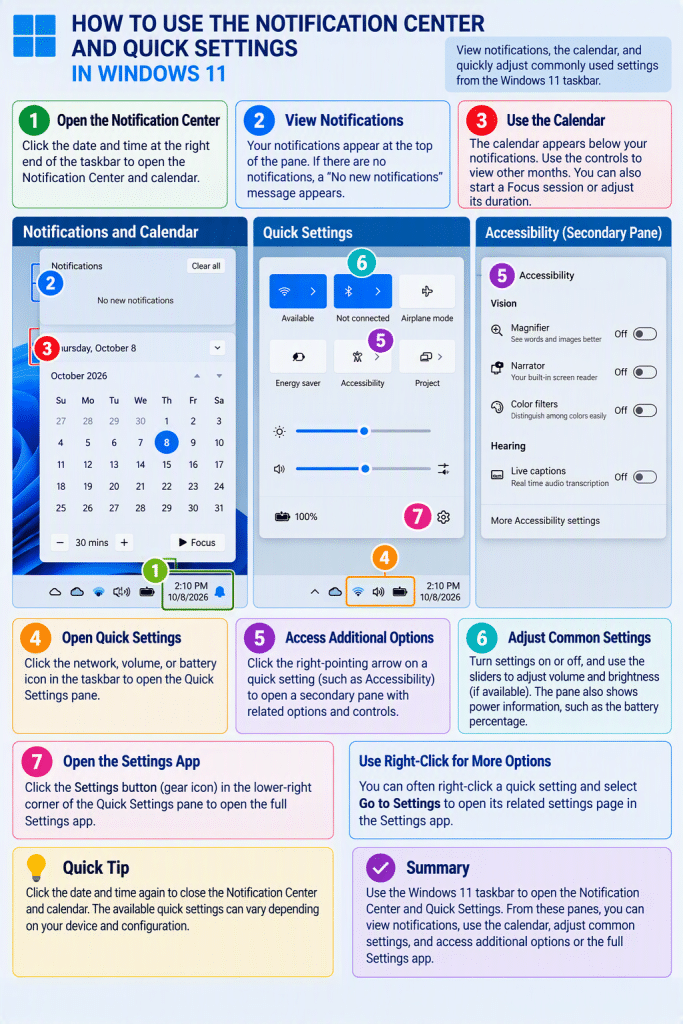
An infographic showing how to use the Notification Center and Quick Settings in Windows 11.

Tagged under: action center, airplane mode, Bluetooth settings, brightness controls, manage notifications, Notification Center, notification panel, notification settings, productivity tips, quick access settings, Quick Settings, Quick Settings menu, system tray, taskbar settings, teachucomp, volume controls, Wi-Fi settings, Windows 11, windows 11 tutorial, Windows alerts, Windows basics, Windows notifications, Windows tips, windows training

About Joseph Brownell

Joseph Brownell is founder and Vice President of TeachUcomp, Inc. He is the author of dozens of titles across the TeachUcomp, Inc. product line.
Team Training. Solutions for all team sizes.


Windows 11 Quick Reference Guide. Buy Now.
 

Categories

  • GET SOCIAL

© 2001-2026 Copyright TeachUcomp, Inc. All rights reserved.

TOP
25% Off Everything 4 Days 1 Hours 20 Minutes 59 Seconds      Coupon Code: SAVE25
Shop Now