
TeachUcomp, Inc.

 MY CART
  • HOME
  • PRODUCTS
    • Books
      • QuickBooks Online
    • Manuals
      • Adobe
        • Acrobat
        • Lightroom Classic
        • Photoshop
        • Photoshop Elements
      • Crystal Reports
      • For Lawyers
        • Excel for Lawyers
        • Outlook for Lawyers
        • QuickBooks for Lawyers
        • Word for Lawyers
      • HTML
      • JavaScript
      • Microsoft Office
        • Access
        • Excel
        • OneNote
        • Outlook
        • Outlook on the Web
        • PowerPoint
        • Publisher
        • Word
      • Microsoft Project
      • Microsoft Teams
      • QuickBooks Online
      • QuickBooks Pro
      • Sage
        • Peachtree
        • Sage 50
      • SQL
      • Windows
    • Reference Guides
      • Adobe
        • Acrobat
        • Lightroom Classic
        • Photoshop
        • Photoshop Elements 2027
        • Photoshop Elements 2026
        • Photoshop Elements 2025
        • Photoshop Elements 2024
        • Photoshop Elements 2023
        • Photoshop Elements 2022
        • Photoshop Elements 2021
        • Photoshop Elements 2020
        • Photoshop Elements 2019
        • Photoshop Elements 2018
        • Photoshop Elements 15
      • Chrome OS
        • Chrome OS Keyboard Shortcuts
      • FreshBooks
      • Google
        • Google Classroom for Teachers
        • Google Docs
        • Google Drive
        • Google Forms
        • Google Sheets
        • Google Slides
      • macOS
        • macOS Keyboard Shortcuts
        • macOS Tahoe
      • Microsoft Office
        • Excel Formulas and Functions
        • Excel Keyboard Shortcuts (macOS)
        • Excel Keyboard Shortcuts (PC/Windows)
        • Excel Tables PivotTables and Charts
        • Microsoft 365
          • Access for Microsoft 365
          • Excel for Microsoft 365
          • Microsoft Office 365
          • Outlook for Microsoft 365 Classic Edition
          • Outlook for Microsoft 365 (New Outlook)
          • PowerPoint for Microsoft 365
          • Publisher for Microsoft 365
          • Word for Microsoft 365
        • Microsoft Office 2021
          • Access 2021
          • Excel 2021
          • Microsoft Office 2021
          • OneNote for Windows 10
          • Outlook 2021
          • PowerPoint 2021
          • Publisher 2021
          • Word 2021
        • Microsoft Office 2019
          • Access 2019
          • Excel 2019
          • Microsoft Office 2019
          • Outlook 2019
          • PowerPoint 2019
          • Publisher 2019
          • Word 2019
        • Microsoft Office 2016
          • Access 2016
          • Excel 2016
          • Microsoft Office 2016
          • OneNote 2016
          • Outlook 2016
          • PowerPoint 2016
          • Publisher 2016
          • Word 2016
        • Microsoft Office 2013
          • Excel 2013
          • Microsoft Office 2013
          • OneNote 2013
          • Outlook 2013
          • PowerPoint 2013
          • Word 2013
        • Microsoft Office for iPad
          • Microsoft Office for iPad
        • Word Keyboard Shortcuts (macOS)
        • Word Keyboard Shortcuts (PC/Windows)
      • Microsoft Teams
      • QuickBooks Online
      • QuickBooks Pro
        • QuickBooks Pro 2024
        • QuickBooks Pro 2023
        • QuickBooks Pro 2022
        • QuickBooks Pro 2021
        • QuickBooks Pro 2020
        • QuickBooks Pro 2019
        • QuickBooks Pro 2018
        • QuickBooks Pro 2017
        • QuickBooks Pro 2016
        • QuickBooks Pro 2015
        • QuickBooks Pro 2014
      • Sage 50 Accounting
      • SQL
      • Windows
        • Windows 11
        • Windows 11 and 10 Keyboard Shortcuts
        • Windows 10
    • Video Courses
      • All-Access Subscriptions
      • Course List
        • Accounting
        • Adobe
          • Acrobat
          • Lightroom Classic
          • Photoshop
          • Photoshop Elements
        • Crystal Reports
        • Employment Skills
          • Interview Skills
          • Resume Skills
        • For Lawyers
          • Excel for Lawyers
          • Outlook for Lawyers
          • QuickBooks for Lawyers
          • Word for Lawyers
        • HTML
        • JavaScript
        • Microsoft Office
          • Access
          • Excel
          • Microsoft Office Suite
          • OneNote
          • Outlook
          • Outlook on the Web
          • PowerPoint
          • Publisher
          • Word
        • Microsoft Project
        • Microsoft Teams
        • QuickBooks Online
        • QuickBooks Pro
        • Sage
          • Peachtree
          • Sage 50
        • SQL
        • Windows
      • My Courses
      • Video Course Options
    • Shortcut Stickers
      • Chrome OS
      • macOS
      • Microsoft Office
        • Word and Excel (Mac)
        • Word and Excel (PC/Windows)
      • QuickBooks Desktop
        • QuickBooks Desktop (PC/Windows) 2024
        • QuickBooks Desktop (PC/Windows) 2023
        • QuickBooks Desktop (PC/Windows) 2022-2015
      • QuickBooks Online
      • Windows
  • SHOP BY TOPIC
  • FOR TEAMS
  • SUPPORT
    • Company
      • About Us
      • Blog
      • Our History
      • Our Philosophy
        • Customer Service
        • Mission
      • Policies
      • Testimonials
    • Contact Us
    • FAQ
    • Help
    • Lost Password
    • Register a Product
  • LOGIN
    • Manage My Account
    • Member Login
    • My Courses
Shop Now

How to Take Screenshots in Windows 11

by Joseph Brownell / Friday, October 23 2026 / Published in Latest, Microsoft, Windows 11

How to Take Screenshots in Windows 11: Video Lesson

    This video lesson, titled “How to Take Screenshots in Windows 11: A Windows 11 Training Tutorial,” shows you how to take a screenshot in Windows 11 and use the Snipping Tool. This video lesson is from our complete Windows tutorial, titled “Mastering Windows Online Made Easy.”

Overview:

What is the Snipping Tool in Windows 11?

Windows 11 includes the “Snipping Tool” app, which lets you capture screenshots and screen recordings. You can use the Snipping Tool to capture a selected area of the screen, a specific window, or the entire screen.

How to Take a Screenshot Using the Snipping Tool:

            To quickly capture a screenshot using the Snipping Tool, press the “Windows” + “Shift” + “S” keys on your keyboard. Alternatively, depending on your keyboard settings, pressing the “Print Screen” key may also open the Snipping Tool capture toolbar.

            When the capture toolbar appears, click the “Snipping area” button and then select the type of capture to take. The available capture types include “Rectangle,” “Window,” “Full screen,” and “Freeform.” After selecting a capture type, perform the capture. For example, if using the “Rectangle” option, click and drag over the area to capture. If using the “Window” option, click the window to capture. If using the “Full screen” option, Windows captures the entire screen.

            After taking a screenshot, a notification appears that lets you open the captured image in the “Snipping Tool” app. Within the app, you can review the screenshot, make basic edits, copy it to the Clipboard, or save it as a file.

How to Open the Snipping Tool App:

            To open the full “Snipping Tool” app, open the Start menu and click the “Snipping Tool” app. The app contains controls for taking screenshots and recording video from your screen. Use the “Snip” and “Record” toggle button at the top of the window to switch between these modes.

How to Change the Snipping Tool’s Settings:

            To change the Snipping Tool settings, open the app and click the “See more” button in the upper-right corner of the window. Then select the “Settings” command from the menu that appears. The settings are grouped into sections for “Snipping,” “Screen recording,” “Shortcuts,” and “Appearance.”

            Most settings are controlled by toggle switches that let you turn the associated feature on or off. Some settings can also be expanded to show additional options. For example, settings that automatically save screenshots or screen recordings can be expanded to display the folder currently used for saving files. You can then click the available button or link to open the folder or select a different location.

The Snipping and Screen Recording Settings:

            The “Snipping” settings contain options related to copying screenshots to the Clipboard, automatically saving screenshots, prompting to save edited screenshots, opening screenshots in separate windows, adding borders to screenshots, and correcting screenshot colors on HDR displays. The “Screen recording” settings contain similar options for recordings, along with settings that control whether microphone input and system audio are included when recording.

The Shortcuts Setting:

            The “Shortcuts” section contains a link to the Settings app to let you change whether pressing the “Print Screen” key opens the Snipping Tool capture interface. This lets you choose whether to use the Snipping Tool as the default screenshot tool in Windows.

The Appearance Setting:

            The “Appearance” section contains an option for choosing the appearance of the app. Unlike most other settings, you click this setting and then select an option button to choose the desired appearance. You can choose between the “Light” and “Dark” themes or configure the app to use the current Windows theme setting.
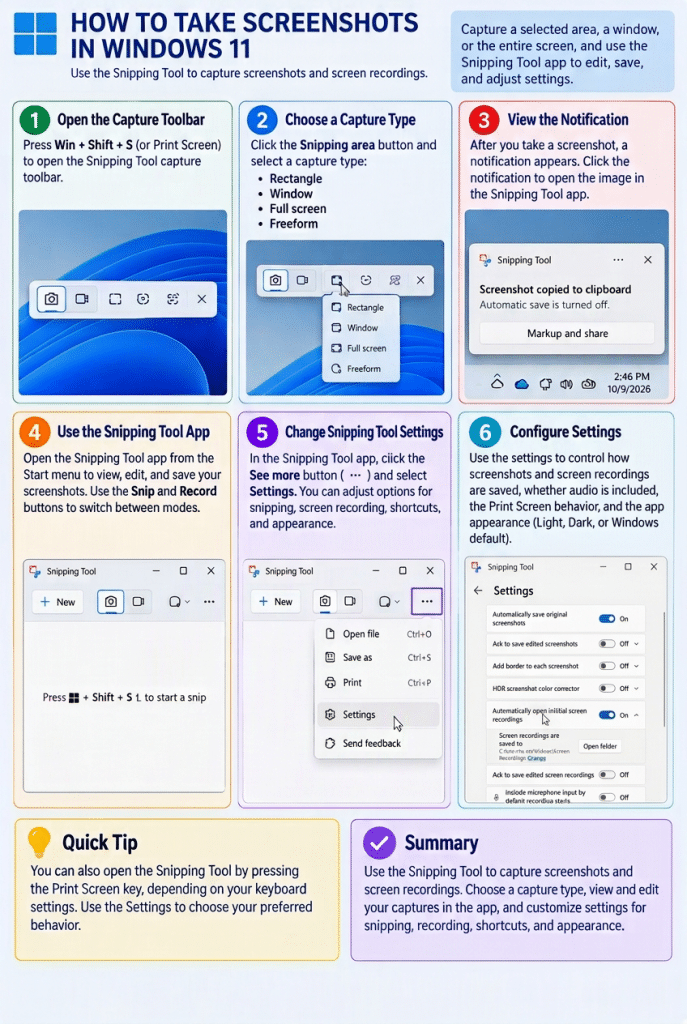
A picture showing how to take screenshots in Windows 11.

Tagged under: capture screen, copy screenshot, edit screenshots, freeform snip, full screen snip, Print Screen, record screen, rectangle snip, save screenshots, screen capture, screen recorder, screen recording, screenshot Windows 11, snipping tool, snipping tool tutorial, take a screenshot, teachucomp, window snip, Windows 11, windows 11 tutorial, Windows screenshot shortcut, Windows Shift S, Windows tips, windows training

About Joseph Brownell

Joseph Brownell is founder and Vice President of TeachUcomp, Inc. He is the author of dozens of titles across the TeachUcomp, Inc. product line.
Team Training. Solutions for all team sizes.


Windows 11 Quick Reference Guide. Buy Now.
 

Categories

  • GET SOCIAL

© 2001-2026 Copyright TeachUcomp, Inc. All rights reserved.

TOP
25% Off Everything 4 Days 10 Hours 33 Minutes 4 Seconds      Coupon Code: SAVE25
Shop Now