 MY CART
How to Use Microsoft Edge in Windows 11: Video Lesson
This video lesson, titled “How to Use Microsoft Edge in Windows 11: A Windows 11 Training Tutorial,” shows you how to use Microsoft Edge in Windows 11. This video lesson is from our complete Windows tutorial, titled “Mastering Windows Made Easy.”
Overview:
What Is Microsoft Edge?
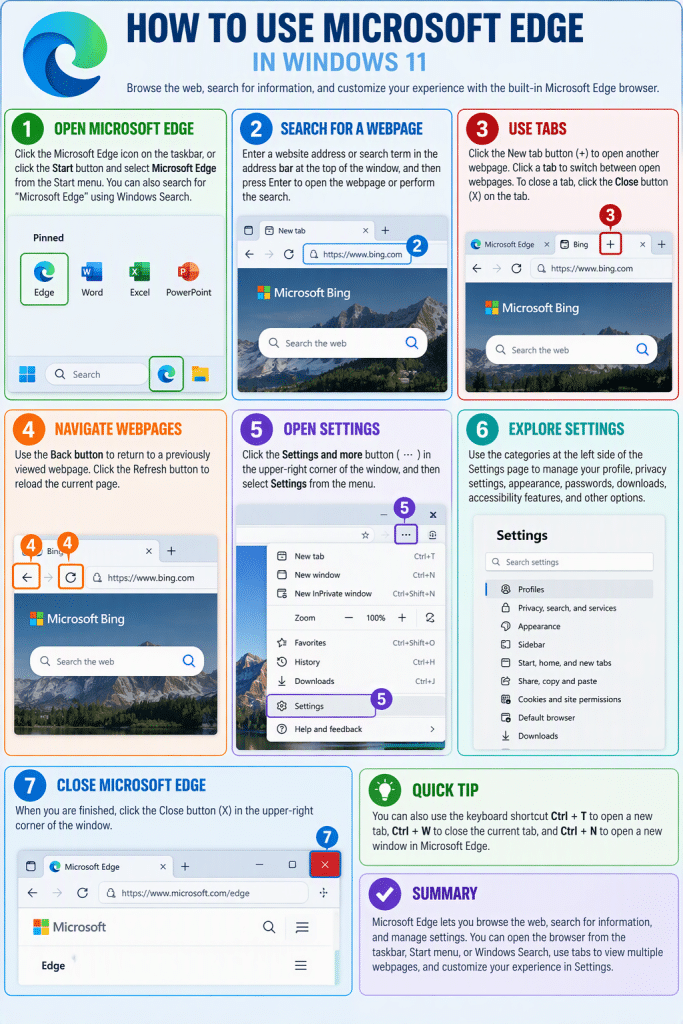
Microsoft Edge is the web browser included with Windows 11. You can use Microsoft Edge to browse websites, search the internet, download files, and access online services. If Microsoft Edge is not installed on your computer, you can download it from the Microsoft Edge website or from the Microsoft Store.
How to Open Microsoft Edge:
To open Microsoft Edge in Windows 11, click its icon in the taskbar, if available. Alternatively, click the “Start” button and then click the “Microsoft Edge” app in the Start menu. You can also search for “Microsoft Edge” by using Windows Search and then selecting it from the search results.
How to Search for and View Webpages in Microsoft Edge:
When Microsoft Edge opens, use the address bar at the top of the window to enter a website address or search term. Then press the “Enter” key on your keyboard to open the webpage or perform the search.
How to Open a New Tab in Microsoft Edge, Switch between Tabs, and Close Tabs:
To open another webpage while keeping the current webpage open, click the “New tab” button, which appears as a plus sign (+) to the right of the open tabs. You can browse between open webpages by clicking their tabs near the top of the browser window. To close a tab, click the “Close” button that appears in the tab.
How to Return to Previously Viewed Webpages or Refresh a Webpage:
To return to a previously viewed webpage, click the “Back” button in the toolbar. To reload the current webpage, click the “Refresh” button in the toolbar.
How to Change Settings in Microsoft Edge:
To manage Microsoft Edge settings, click the “Settings and more” button in the upper-right corner of the window, which appears as three dots. Then click the “Settings” command in the menu that appears. The settings categories at the left side of the window let you manage your profile information, privacy settings, appearance, passwords, downloads, accessibility features, and other browser settings.
How to Close Microsoft Edge:
To close Microsoft Edge when finished, click the “Close” button in the upper-right corner of the browser window.