
TeachUcomp, Inc.

 MY CART
  • VIDEO COURSES
    • All-Access Subscriptions
    • Business Licensing
    • Course List
      • Accounting
      • Adobe
        • Acrobat
        • Lightroom Classic
        • Photoshop
        • Photoshop Elements
      • Crystal Reports
      • Employment Skills
        • Interview Skills
        • Resume Skills
      • For Lawyers
        • Excel for Lawyers
        • Outlook for Lawyers
        • QuickBooks for Lawyers
        • Word for Lawyers
      • HTML
      • JavaScript
      • Microsoft Office
        • Access
        • Excel
        • Microsoft Office Suite
        • OneNote
        • Outlook
        • Outlook on the Web
        • PowerPoint
        • Publisher
        • Word
      • Microsoft Project
      • Microsoft Teams
      • QuickBooks Online
      • QuickBooks Pro
      • Sage
        • Peachtree
        • Sage 50
      • SQL
      • Windows
    • My Courses
    • Video Course Options
  • SUBSCRIPTIONS
  • MANUALS
    • Adobe
      • Acrobat
      • Lightroom Classic
      • Photoshop
      • Photoshop Elements
    • Crystal Reports
    • For Lawyers
      • Excel for Lawyers
      • Outlook for Lawyers
      • QuickBooks for Lawyers
      • Word for Lawyers
    • HTML
    • JavaScript
    • Microsoft Office
      • Access
      • Excel
      • OneNote
      • Outlook
      • Outlook on the Web
      • PowerPoint
      • Publisher
      • Word
    • Microsoft Project
    • Microsoft Teams
    • QuickBooks Online
    • QuickBooks Pro
    • Sage
      • Peachtree
      • Sage 50
    • SQL
    • Windows
  • BOOKS
    • QuickBooks Online
  • REFERENCE CARDS
    • Adobe
      • Acrobat
      • Lightroom Classic
      • Photoshop
      • Photoshop Elements 2026
      • Photoshop Elements 2025
      • Photoshop Elements 2024
      • Photoshop Elements 2023
      • Photoshop Elements 2022
      • Photoshop Elements 2021
      • Photoshop Elements 2020
      • Photoshop Elements 2019
      • Photoshop Elements 2018
      • Photoshop Elements 15
    • Chrome OS
      • Chrome OS Keyboard Shortcuts
    • FreshBooks
    • Google
      • Google Classroom for Teachers
      • Google Docs
      • Google Drive
      • Google Forms
      • Google Sheets
      • Google Slides
    • macOS
      • macOS Keyboard Shortcuts
      • macOS Tahoe
    • Microsoft Office
      • Excel Formulas and Functions
      • Excel Keyboard Shortcuts (macOS)
      • Excel Keyboard Shortcuts (PC/Windows)
      • Excel Tables PivotTables and Charts
      • Microsoft 365
        • Access for Microsoft 365
        • Excel for Microsoft 365
        • Microsoft Office 365
        • Outlook for Microsoft 365 Classic Edition
        • Outlook for Microsoft 365 (New Outlook)
        • PowerPoint for Microsoft 365
        • Publisher for Microsoft 365
        • Word for Microsoft 365
      • Microsoft Office 2021
        • Access 2021
        • Excel 2021
        • Microsoft Office 2021
        • OneNote for Windows 10
        • Outlook 2021
        • PowerPoint 2021
        • Publisher 2021
        • Word 2021
      • Microsoft Office 2019
        • Access 2019
        • Excel 2019
        • Microsoft Office 2019
        • Outlook 2019
        • PowerPoint 2019
        • Publisher 2019
        • Word 2019
      • Microsoft Office 2016
        • Access 2016
        • Excel 2016
        • Microsoft Office 2016
        • OneNote 2016
        • Outlook 2016
        • PowerPoint 2016
        • Publisher 2016
        • Word 2016
      • Microsoft Office 2013
        • Excel 2013
        • Microsoft Office 2013
        • OneNote 2013
        • Outlook 2013
        • PowerPoint 2013
        • Word 2013
      • Microsoft Office for iPad
        • Microsoft Office for iPad
      • Word Keyboard Shortcuts (PC/Windows)
    • Microsoft Teams
    • QuickBooks Online
    • QuickBooks Pro
      • QuickBooks Pro 2024
      • QuickBooks Pro 2023
      • QuickBooks Pro 2022
      • QuickBooks Pro 2021
      • QuickBooks Pro 2020
      • QuickBooks Pro 2019
      • QuickBooks Pro 2018
      • QuickBooks Pro 2017
      • QuickBooks Pro 2016
      • QuickBooks Pro 2015
      • QuickBooks Pro 2014
    • Sage 50 Accounting
    • SQL
    • Windows
      • Windows 11
      • Windows 11 and 10 Keyboard Shortcuts
      • Windows 10
  • STICKERS
    • Chrome OS
    • macOS
    • Microsoft Office
      • Word and Excel (Mac)
      • Word and Excel (PC/Windows)
    • QuickBooks Desktop
      • QuickBooks Desktop (PC/Windows) 2024
      • QuickBooks Desktop (PC/Windows) 2023
      • QuickBooks Desktop (PC/Windows) 2022-2015
    • QuickBooks Online
    • Windows
  • SUPPORT
    • Company
      • About Us
      • Blog
      • Contact Us
      • Our History
      • Our Philosophy
        • Customer Service
        • Mission
      • Policies
      • Testimonials
    • FAQ
      • Contact Us
    • Help
    • Lost Password
    • Register a Product
  • LOGIN
    • Manage My Account
    • Member Login
    • My Courses
Shop Now

Convert a Company File to Sage 50 – Instructions

by Joseph Brownell / Thursday, November 30 2023 / Published in Latest, Sage50, Small Business Accounting

Convert a Company File to Sage 50: Video Lesson

            This video lesson, titled “How to Convert a Company File in Sage 50 Accounting,” shows how to convert a company file from QuickBooks or DacEasy to Sage 50 Accounting. This video lesson is from our complete Sage 50 tutorial, titled “Mastering Sage 50 Made Easy.”

Overview:

            Sage 50 converts existing company files from either QuickBooks or DacEasy. However, note the conversion process doesn’t create perfect replicas of the existing company files from these other programs. While you can convert much of the data, you will also lose some of it. You must check your company file after the conversion to correct any data errors that occur or add missing data. However, this can still save you time if converting from one of these accounting programs to Sage 50.

            Additionally, if converting from QuickBooks Desktop, the version of Sage 50 Accounting you use must be one year ahead of the version of QuickBooks Desktop from which you are converting. For example, if converting to Sage 50 Accounting 2023, you must use QuickBooks 2022 or earlier or you cannot convert the file using this utility.

How to Convert a Company File from QuickBooks or DacEasy:

            To convert a company file from QuickBooks or DacEasy to Sage 50, select “File| Convert a Company…” from the Menu Bar. Alternatively, click the “Convert from another accounting program” hyperlink in the “Sage 50 Accounting” screen that appears when no company file is opened to open the “Convert a Company” dialog box. This dialog box lists the versions of each software program from which you can convert to your version of Sage 50. If needed, to open a guide that can help you if converting from QuickBooks, click the “View the QuickBooks Conversion Guide” link in this dialog box.

            Then select the type of company file to convert by clicking the corresponding option button for either “QuickBooks” or “DacEasy.” Then click the “OK” button to continue. Depending on your selection, the conversion wizard for the selected type of company file then opens and guides you through rest of the conversion process. Read each screen in the conversion wizard and answer any questions posed. Click the “Next >” button to continue through the screens until you complete the wizard. Then click the “Finish” button.
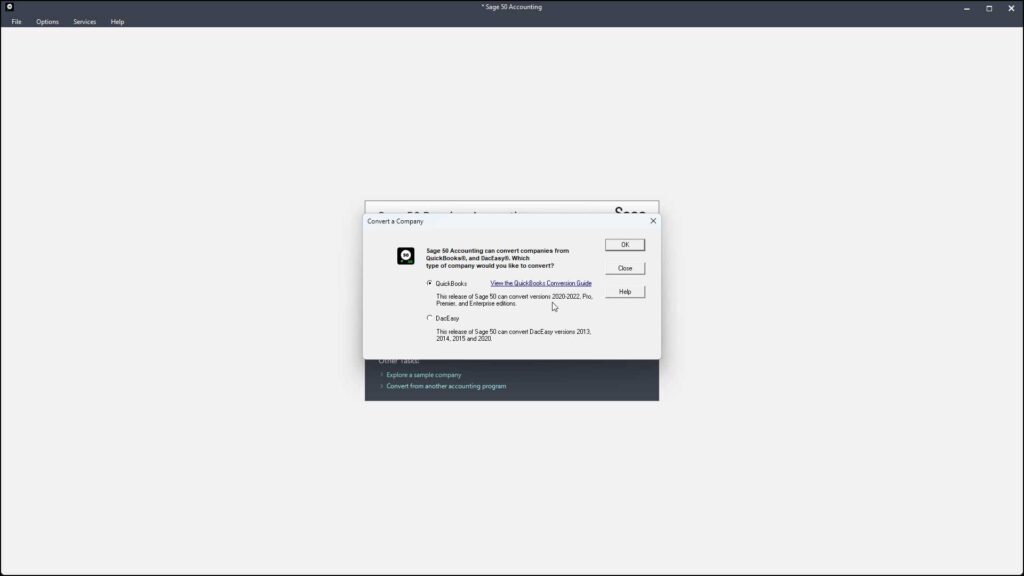
A picture showing how to convert a company file to Sage 50 Accounting using the “Convert a Company” dialog box.

            After converting the file, then perform any follow-up instructions or guidance given by the conversion wizard to finish setting up your converted company file in Sage 50.

Instructions:

  1. To convert a company file from QuickBooks or DacEasy to Sage 50, either select “File| Convert a Company…” from the Menu Bar or click the “Convert from another accounting program” hyperlink in the “Sage 50 Accounting” screen that appears if there is no company file is opened in Sage 50 to then open the “Convert a Company” dialog box.
  2. Optionally, to open a guide that can help you if converting from QuickBooks, click the “View the QuickBooks Conversion Guide” link in this dialog box.
  3. Then select the type of company file to convert by clicking the corresponding option button for either “QuickBooks” or “DacEasy.”
  4. Then click the “OK” button to continue.
  5. Depending on your selection, the conversion wizard for your selected option then opens and guides you through rest of the conversion process.
  6. Read each screen in the conversion wizard and answer any questions posed.
  7. Click the “Next >” button to continue through the screens until you complete the wizard.
  8. Then click the “Finish” button.
  9. Finally, complete any follow-up instructions or guidance given by the conversion wizard to finish setting up your converted company file in Sage 50.
Tagged under: accounting, company, company file, convert, convert a company to sage 50, convert from daceasy to sage 50, convert from quickbooks to sage 50, converting, converting company files in sage 50, creating, file, help, how to convert a company file to sage 50, how-to, learn, sage 50, sage50, teach, training, tutorial

About Joseph Brownell

Joseph Brownell is founder and Vice President of TeachUcomp, Inc. He is the author of dozens of titles across the TeachUcomp, Inc. product line.
Sale! One Year Online Entire Library $29. Click here to see the deals.


Categories

  • GET SOCIAL

© 2001-2026 Copyright TeachUcomp, Inc. All rights reserved.

TOP
SALE! $29 All-Access 2 Days 19 Hours 52 Minutes 39 Seconds      $199 $29 Entire Library!
See Deal