
 MY CART
Create a Delayed Charge in QuickBooks Online
Create a Delayed Charge in QuickBooks Online: Video
This video lesson, titled “How to Create a Delayed Charge in QuickBooks Online,” shows how to create a delayed charge in QuickBooks Online. This video lesson is from our complete QuickBooks Online tutorial, titled “Mastering QuickBooks Online Made Easy.”
Overview:
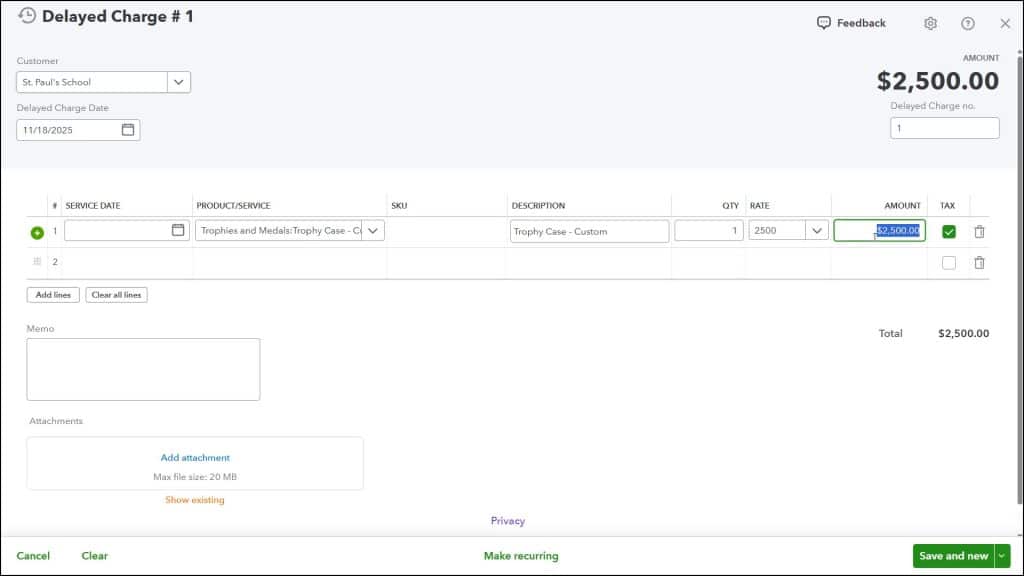
A delayed charge in QuickBooks Online is helpful when you have a product you may need to create and then ship. A delayed charge lets you create the charge and then convert it to an invoice when you ship the product, or the customer picks it up. To create a delayed charge in QuickBooks Online, hover over the “+ Create” button in the Navigation Bar. Then click the “Delayed charge” link under the “Customers” heading to open the “Delayed Charge” page.
Enter the Customer and Transaction-Level Information:
Use the “Customer” drop-down to select from your list of customers or click the “Add new” choice to add a new customer. The “Delayed Charge Date” field shows the current date by default, but you can change it, if needed. If you enabled custom transaction numbers in sales forms, you can change the “Delayed Charge no.” field at the right side of the window, if needed. If you enabled location tracking, a “Location” drop-down also appears here. If you enabled class tracking on a transaction level, then a “Class” drop-down also appears here.
Enter the Products and Services and Add Any Optional Notes:
Then enter the products and/or services for which you are charging the customer into the “Product/Service,” “Description,” “QTY,” “Rate,” “Amount,” and “Tax” fields in the line items area. You may also enter data into the “Service Date,” “SKU,” and “Class” fields that may appear here, depending on which fields you enabled in your sales forms. You use this area in the same way as you use it when creating sales receipts. You can enter a note about the delayed charge into the “Memo” field. The “Attachments” field lets you attach a file(s) up to 20MB in size.
Save the Delayed Charge:
The toolbar at the bottom of the page contains a “Cancel” button, a “Clear” button, a “Make recurring” button, and a drop-down “Save and new” or “Save and close” button. To cancel creating the delayed charge, click the “Cancel” button. To clear the “Delayed Charge” window, click the “Clear” button.
To create a recurring delayed charge, click the “Make recurring” button to open the “Recurring Delayed Charge” page and fill out the delayed charge information. If needed, you can click the “Cancel” button in this window to return to the main “Delayed Charge” window. After creating the delayed charge, to save it and then open a new window or close the window, click the “Save and new” or “Save and close” drop-down button choices, respectively.
Add the Delayed Charge to an Invoice:
To later add a delayed charge to an invoice, select the “Sales transactions” command under the “Sales & Get Paid” app in the “All apps” bar to open the “Sales transactions” page to the right. Then click the “Unbilled income” section of the Money Bar to filter the sales transaction list below to show customers with unbilled items. In this list, click the “Create invoice” link under the “Action” column for the customer for whom to create the invoice.
In the “Invoice” page that opens, the delayed charge’s items appear in the line items area. A chain link icon appears in the column to the right of the “Tax” column in the line item rows for the linked, unbilled activities. To view the linked delayed charge again, if needed, click this chain link icon.
Finally, make any other necessary adjustments to the invoice and then choose one of the save and/or send options in the toolbar at the bottom of the page. If you decide not to create an invoice from the delayed charge, click the “Close” button to close the invoice window and leave the delayed charge as an “Unbilled Activity.” You can also make a choice from the “Save” drop-down button in the lower-right corner of the page to simply save the invoice if you do not need to print it or send it.



