MY CART
How to Change Folder Views within File Explorer in Windows 11: Video Lesson
This video lesson, titled “How to Change Folder Views within File Explorer in Windows 11: A Windows 11 Training Tutorial,” shows you how to change the view of the current folder shown within File Explorer in Windows 11. This video lesson is from our complete Windows tutorial, titled “Mastering Windows Online Made Easy.”
Overview:
You can change how files and folders are displayed in the main pane of the File Explorer window in Windows 11. This is largely a matter of personal preference and can make it easier to view and organize your files. Different views emphasize either visual previews or detailed information.
How to Change of the View of the Current Folder Shown in File Explorer:
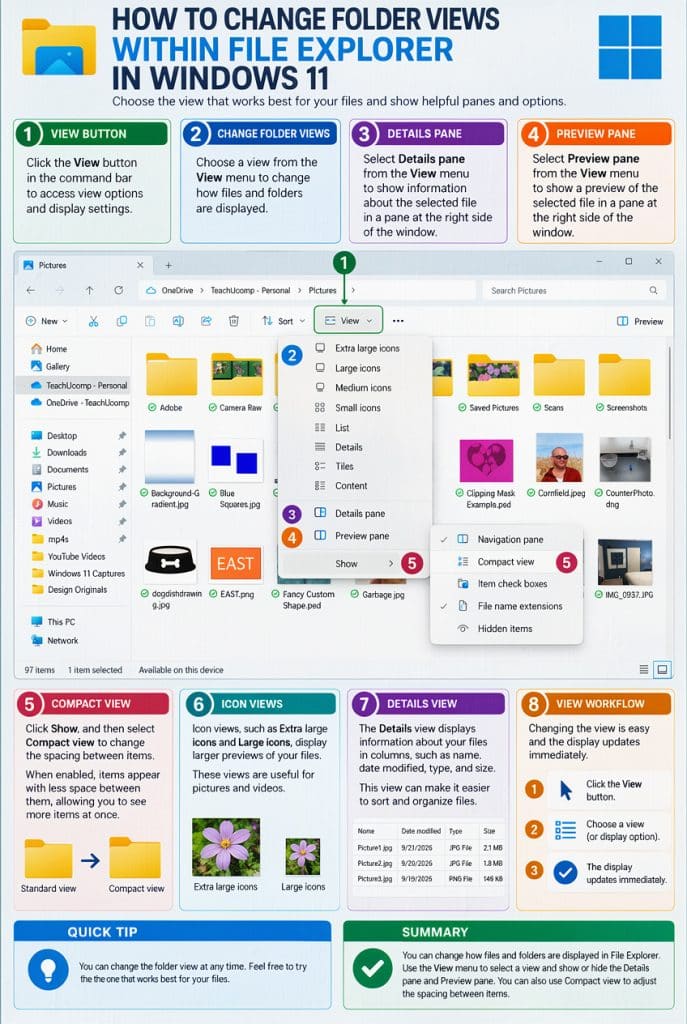
To change the view of the files and folders shown in the main pane, click the “View” button in the command bar. A menu then appears that lists the available view options. These options include “Extra large icons,” “Large icons,” “Medium icons,” “Small icons,” “List,” “Details,” “Tiles,” and “Content.” Click the name of the view you want to apply, and the display updates immediately.
Each view presents information in a different way. Icon views like “Extra large icons” and “Large icons” are useful for pictures and videos because they show larger previews of files. The “Details” view displays file information in columns, which helps you sort and organize items using details like name, date modified, type, and size.
How to Show the Details Pane or Preview Pane:
The “View” menu also contains commands that control additional display options. In this menu, you can select options like “Details pane” or “Preview pane” to change how information is shown at the right side of the window. When you select one of these options, the button at the far-right end of the command bar changes to match your selection.
To show or hide the selected pane, click the button at the far-right end of the command bar, such as the “Details” or “Preview” button. When the pane is visible, it appears at the right side of the File Explorer window and shows information or a preview for the selected file. To hide the pane, click the same button again.
How to Enable or Disable Compact View in File Explorer:
You can also use the “Compact view” setting to change the spacing between items in the main pane. To adjust this setting, click the “View” button, roll down to the “Show” command, and then click the “Compact view” command in the side menu to toggle it on or off. When enabled, items appear with less spacing between them, which allows you to see more items at once.