 MY CART
How to Create Desktop Shortcuts in Windows 11: Video Lesson
This video lesson, titled “How to Create Desktop Shortcuts in Windows 11: A Windows 11 Training Tutorial,” shows you how to create a desktop shortcut in Windows 11. This video lesson is from our complete Windows tutorial, titled “Mastering Windows Made Easy.”
Overview:
What is a Desktop Shortcut in Windows?
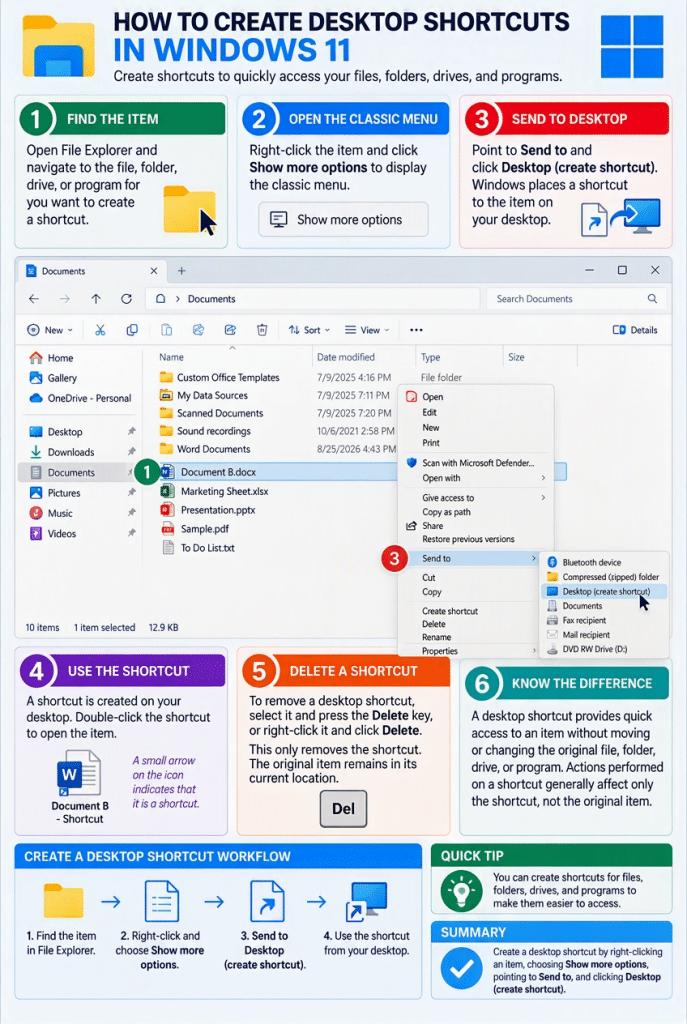
You can create desktop shortcuts in Windows 11 to quickly open files, folders, drives, and programs. A desktop shortcut is an icon that provides quick access to an item without changing its original location. When you double-click a desktop shortcut, Windows opens the associated file, folder, drive, or program.
How to Create and Use a Desktop Shortcut in Windows 11:
To create a desktop shortcut in Windows 11, open a File Explorer window and navigate to the file, folder, drive, or program for which you want to create a shortcut. Then right-click the item and click the “Show more options” command in the shortcut menu. In the classic menu that appears, point to the “Send to” command and then click “Desktop (create shortcut).” Windows then places a shortcut to the selected item on the desktop.
After creating a desktop shortcut, you can open the associated item by double-clicking the shortcut on the desktop. The original file, folder, drive, or program remains in its current location. The shortcut simply provides an additional way to access it.
How to Recognize a Desktop Shortcut Versus a File:
Desktop shortcuts display a small arrow in the lower-left corner of their icons. This arrow indicates that the icon is a shortcut rather than the actual file, folder, drive, or program. Understanding this distinction is important because actions performed on a shortcut generally affect only the shortcut itself and not the item to which it refers.
How to Delete a Desktop Shortcut in Windows 11:
To delete a desktop shortcut, select the shortcut and press the “Delete” key on your keyboard, or right-click the shortcut and click the “Delete” command. Removing a desktop shortcut does not delete the original file, folder, drive, or program. It only removes the shortcut from the desktop.