 MY CART
How to Cut, Copy, and Paste Files and Folders in File Explorer in Windows 11: Video Lesson
This video lesson, titled “How to Cut, Copy and Paste Files and Folders within File Explorer in Windows 11: A Training Tutorial,” shows you how to cut, copy, and paste files and folders within File Explorer in Windows 11. This video lesson is from our complete Windows tutorial, titled “Mastering Windows Made Easy.”
Overview:
What is the Difference between Copy and Paste and Cut and Paste?
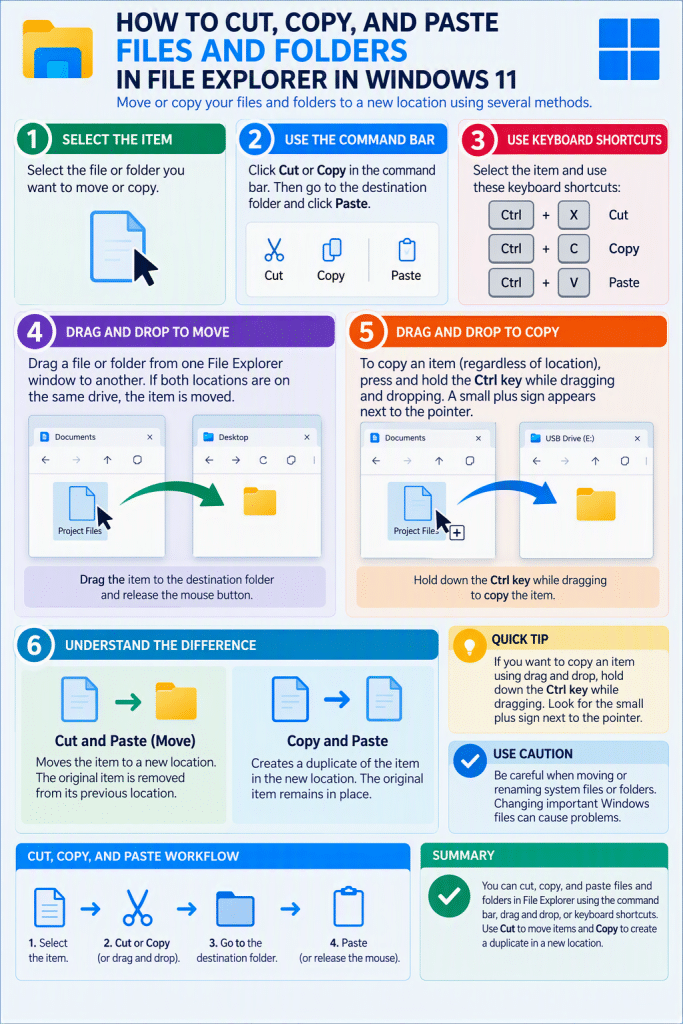
When organizing your files and folders in Windows, you will often want to move or copy items to a new location. When you move a file or folder, you cut the original item and then paste it into a different location. When you copy a file or folder, you create a duplicate of the item and then paste the copy into another location, leaving the original in place.
How to Copy and Paste or Cut and Paste Using Drag-and-Drop:
You can move or copy files and folders in several ways using File Explorer. One common method is to use drag-and-drop between two File Explorer windows. To do this, open the folder that contains the file or folder you want to move or copy. Then open a second File Explorer window and navigate to the destination folder where you want to place the item.
Arrange both File Explorer windows so you can see them at the same time. To move an item, click and hold the file or folder in the first window, drag it into the second window, and then release the mouse button. If both locations are on the same drive, the item is moved to the new location.
If the two locations are on different drives, dragging and dropping typically copies the item instead of moving it. To copy an item regardless of its location, press and hold the “Ctrl” key while dragging and dropping the item. A small plus sign appears next to the pointer to indicate that the item will be copied instead of moved.
How to Copy and Paste or Cut and Paste Using the Command Bar:
You can also use the command bar to cut, copy, and paste items. To do this, select the file or folder you want to copy or move, and then click the “Cut” or “Copy” button in the command bar. Then navigate to the destination folder and click the “Paste” button to place the item into that location.
How to Copy and Paste or Cut and Paste Using Keyboard Shortcuts:
Another way to cut, copy, and paste files and folders is by using keyboard shortcuts. First, select the item you want to move or copy. Then press “Ctrl” + “X” to cut the item or “Ctrl” + “C” to copy it. After navigating to the destination folder, press “Ctrl” + “V” to paste the item into that location.