MY CART
How to Delete Files in File Explorer in Windows 11: Video Lesson
This video lesson, titled “How to Delete Files within File Explorer in Windows 11: A Windows 11 Training Tutorial,” shows you how to delete files and folders within File Explorer in Windows 11. This video lesson is from our complete Windows tutorial, titled “Mastering Windows Online Made Easy.”
Overview:
Why Delete Files in Windows 11?
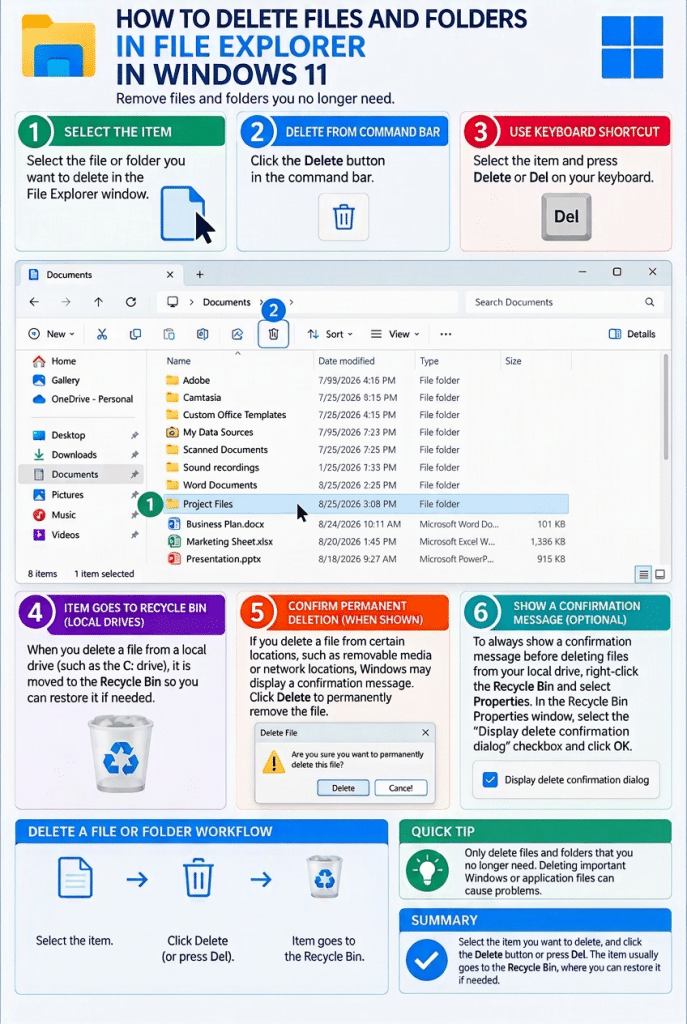
Routinely deleting files you no longer need helps keep your files and folders organized and frees up space on your computer. However, before you delete a file, be sure you no longer need it. Deleting the wrong file can cause problems, especially if the file is required by an application or by Windows.
How to Delete Files or Folders Using File Explorer in Windows 11:
To delete a file or folder in Windows 11, open a File Explorer window and navigate to the folder that contains the item to delete. Then select the file or folder in the main pane. Press the “Delete” or “Del” key on your keyboard to delete the selected item. Alternatively, click the “Delete” button in the command bar at the top of the File Explorer window.
If you delete a file from a local drive, such as the “C:” drive, the file is typically moved to the “Recycle Bin.” The “Recycle Bin” provides a temporary storage location where you can restore deleted files if needed. Files remain in the “Recycle Bin” until you permanently remove them.
If you delete a file from certain locations, such as removable media or network locations, Windows may not send the file to the “Recycle Bin.” In these cases, Windows may display a message asking you to confirm that you want to permanently delete the file. If you confirm the action, the file is deleted immediately and cannot be easily restored.
How to Always Show a Local File Deletion Confirmation Message in Windows 11:
You can choose to display a confirmation message before deleting files from your local drive. To enable this feature, right-click the “Recycle Bin” icon on the desktop and then click the “Properties” command. In the “Recycle Bin Properties” dialog box, select the “Display delete confirmation dialog” checkbox and then click the “OK” button to apply the change.