MY CART
How to Manage the Computer and Drives in File Explorer in Windows 11: Video Lesson
This video lesson, titled “How to Manage the Computer and Drives in Windows 11: A Windows 11 Training Tutorial,” shows you how to manage your computer’s drives and storage locations in File Explorer in Windows 11. This video lesson is from our complete Windows tutorial, titled “Mastering Windows Online Made Easy.”
Overview:
Tools for Managing Drives and Storage in File Explorer:
You can use File Explorer in Windows 11 to view and manage your computer’s drives and storage locations. This allows you to access local drives, removable drives, and network locations from a central location. File Explorer also provides access to several tools for working with drives and storage.
Select “This PC” in the Navigation Pane in File Explorer to See Drives and Storage:
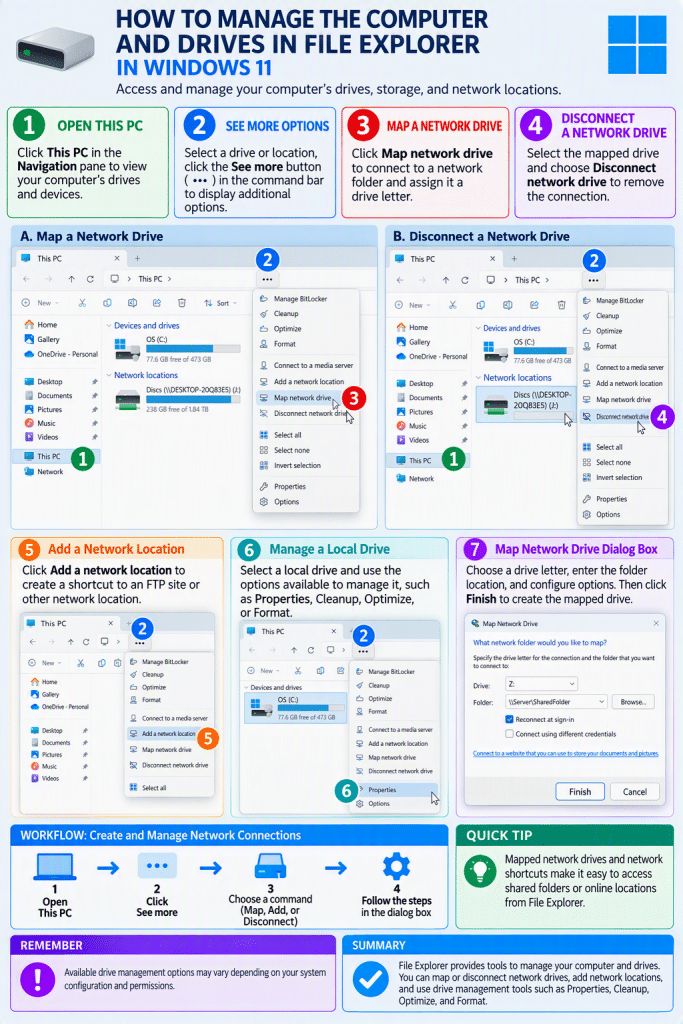
To manage your computer using File Explorer, click “This PC” in the Navigation pane at the left side of a File Explorer window. The main pane then displays available drives and devices on your computer. You can click a drive to select it for management tasks.
Select the Drive to Manage and Click “See more” in the Command Bar:
After selecting a drive or location, you can access additional commands using the command bar. Click the “See more” button in the command bar to display additional options. These commands allow you to perform tasks related to storage, network connections, and device management.
How to Map a Network Drive in File Explorer:
To map a network drive, select “This PC” in the Navigation pane. Then click the “See more” button in the command bar and choose the “Map network drive” command. This opens the “Map Network Drive” dialog box.
In the “Map Network Drive” dialog box, choose a drive letter from the “Drive” drop-down list. Then enter the network folder location into the “Folder” field. If needed, click the “Browse…” button to locate the folder using the “Browse for Folder” dialog box, and then click the “OK” button after selecting it.
To reconnect to the mapped drive automatically when you sign in, ensure that the “Reconnect at sign-in” checkbox is checked. To connect using different credentials, select the “Connect using different credentials” checkbox. After configuring these options, click the “Finish” button to create the mapped network drive, and enter credentials if prompted.
How to Disconnect a Network Drive in File Explorer:
To disconnect a mapped network drive, select the mapped drive in the main pane. Then click the “See more” button in the command bar and select the “Disconnect network drive” command. If no drive is selected, Windows displays a dialog box where you can choose which mapped drive to disconnect.
How to Add a Shortcut to an FTP Site or Network Location in File Explorer:
You can also add a shortcut to an FTP site or other network location. To do this, select “This PC” in the Navigation pane, click the “See more” button, and then select the “Add a network location” command. This opens the “Add Network Location” wizard, where you can follow the steps to specify the location and create the shortcut.
Commands for Managing Local Drives and Storage in File Explorer:
If you select a local drive in the main pane, additional drive management options may be available. These commands vary depending on your system configuration and permissions.
To view basic information about the drive, click “See more” and then select the “Properties” command. This opens a dialog box that displays details about the drive, such as capacity and usage.
Other options, such as “Manage BitLocker,” “Cleanup,” “Optimize,” or “Format,” may also be available depending on the drive. These commands open specialized tools for managing drive security, freeing space, improving performance, or preparing the drive for use.