MY CART
How to Pin Apps to the Taskbar in Windows 11: Video Lesson
This video lesson, titled “How to Pin Apps to the Taskbar in Windows 11: A Windows 11 Training Tutorial,” shows you how to pin apps to the taskbar in Windows 11. This video lesson is from our complete Windows tutorial, titled “Mastering Windows Online Made Easy.”
Overview:
Why Pin an App to the Taskbar in Windows 11?
The taskbar is the bar that appears along the bottom of the Windows 11 desktop, by default. It contains the “Start” button, taskbar items, buttons for open applications, and the notification area. Depending on your version of Windows, device configuration, and personal settings, the taskbar may also contain additional buttons and pinned applications.
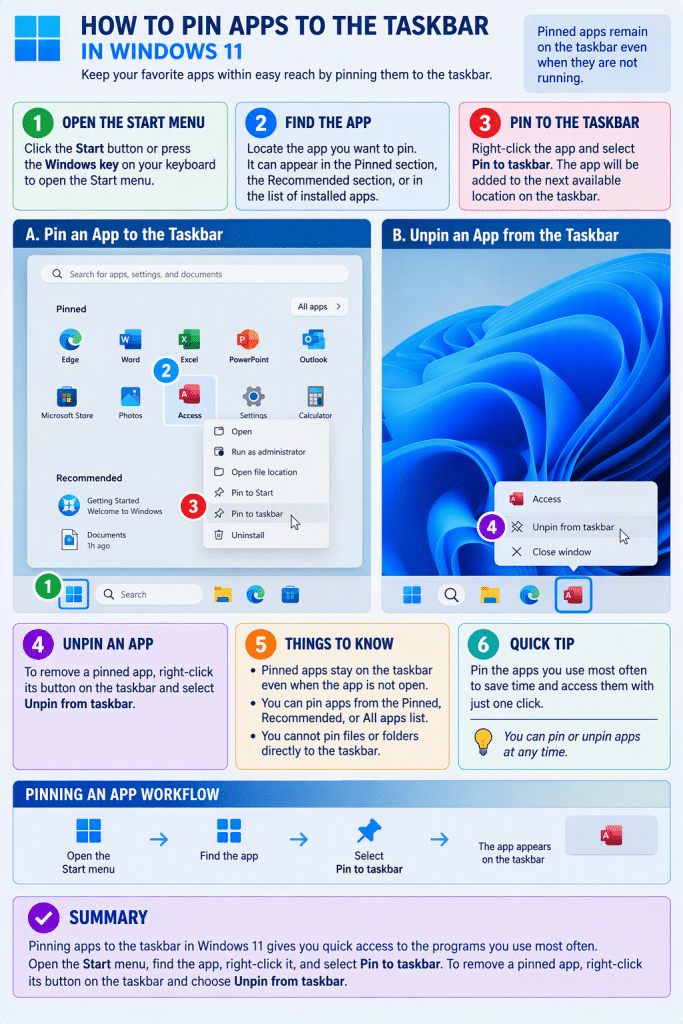
Pinning apps to the taskbar in Windows 11 gives you one-click access to the programs you use most frequently. When an app is pinned to the taskbar, its button remains visible in the taskbar even when the app is not running. You can pin apps to the taskbar, but you cannot pin files or folders directly to it.
How to Pin an App to the Taskbar in Windows 11:
To pin an app to the taskbar in Windows 11, open the Start menu and locate the app to pin. The app can appear in the “Pinned” section, the “Recommended” section, or the list of installed apps. Then right-click the app and click the “Pin to taskbar” command in the menu that appears. Windows then adds the app to the next available location in the taskbar.
How to Unpin an App from the Taskbar in Windows 11:
To remove a pinned app from the taskbar, right-click the app’s button in the taskbar and then click the “Unpin from taskbar” command in the menu that appears.