
 MY CART
How to Record Bad Debt in QuickBooks Online
How to Record Bad Debt in QuickBooks Online: Video
This video lesson, titled “How to Handle Bad Debt in QuickBooks Online,” shows you how to record bad debt in QuickBooks Online. This video lesson is from our complete QuickBooks Online tutorial, titled “Mastering QuickBooks Online Made Easy.”
Overview:
There may come a time when you will be unable to collect money owed from a customer. You want to track this money, so your income reports show you do not expect to collect this money. To do this, you must review and record the bad debt in QuickBooks Online.
How to Review the Invoices to Consider for a Bad Debt Write-off:
To review the invoices to consider for bad debt in QuickBooks Online, run an “Accounts receivable aging detail” report by clicking the “Reports” button in the Navigation Bar, selecting the “Standard Reports” category in the “Reports & Analytics” bar, and then clicking the “Accounts receivable aging detail” report link in the “Who owes you” section of the “Standard reports” page that appears to the right. This report helps you find the invoices to write off as bad debt.
If Needed, Create a “Bad Debt” Expense Account in the Chart of Accounts:
Next, you’ll need to create a bad debts expense account, if you don’t already have one. To create a bad debts expense account, if needed, click the “Settings” button and then click the “Chart of accounts” link under the “Your Company” heading in the menu that appears to open the “Chart of accounts” page.
Click the “New account” button in the upper-right corner of the account list to open a “New account” pane. In this pane, type “Bad Debts” into the “Account name” field. Then select “Expenses” from the “Account type” drop-down. Then select “Bad Debts” from the “Detail type” drop-down. Then click the “Save” button in the lower-right corner of the window to finish creating the bad debts expense account.
If Needed, Create a “Bad Debt” Item in the Products and Services List:
Next, if needed, create a non-inventory item in the “Products & services” list for “Bad Debts” to act as a placeholder for accounting purposes in the credit memos you will later apply to the bad debt invoices. You only need the one item, so if you already created this item when dealing with previous bad debts, you won’t need to create it again.
However, if you need to create a bad debts item, click the “Settings” button in the QuickBooks Online toolbar and then click “Products and services” under the “Lists” heading in the menu that appears to open the “Products & services” page.
In this page, click the “New” button in the upper-right corner of the list and select the “Non-inventory item” choice from the drop-down menu to open a new product/service information pane at the right side of the window. In the “Name” field in the “Basic info” section of the pane, type “Bad debts.” In the “Sales” section of the pane, type “Bad debts” into the “Description” field. Then use the “Income account” drop-down to select the “Bad debts” expense account. Select “Nontaxable” from the “Sales tax category” drop-down. Then click the “Save and close” button in the lower-right corner of the pane to save the item and close the pane.
Create a Credit Memo for Each Customer’s Invoice Amount to Write Off as Bad Debt:
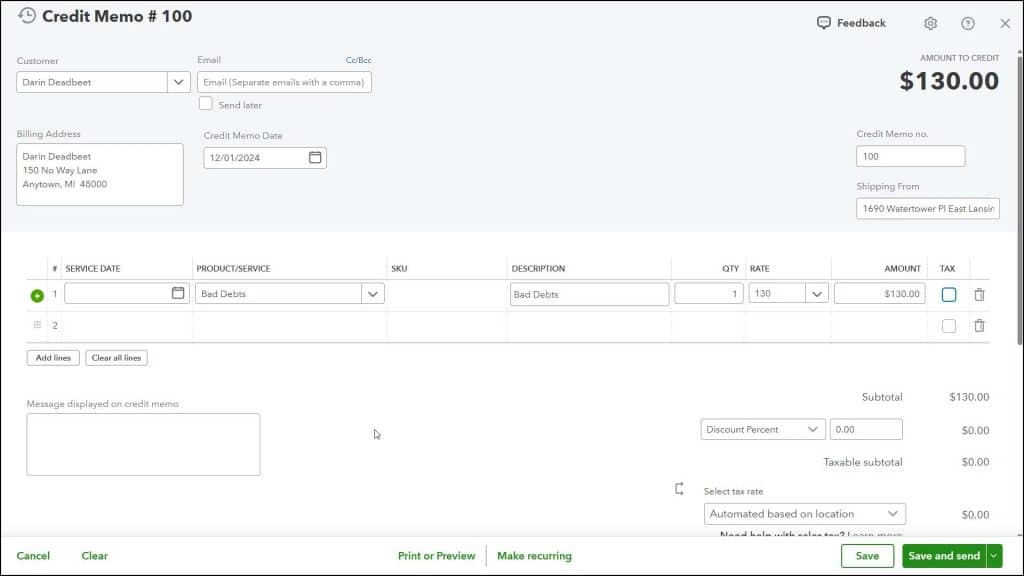
After creating the account and item, if you needed to do that, to then create a credit memo to apply to invoice amounts to write off as bad debt in QuickBooks Online, hover over the “+ Create” button in the Navigation Bar and then select the “Credit memo” command to open the “Credit Memo” window.
Select the name of the customer whose invoice amount you want to write off from the “Customer” drop-down. Then click into the “Product/Service” column in the first line of the line items area below and select the “Bad debts” item. Then enter the amount of bad debt to write off for the corresponding invoice into the “Amount” field. Then type something like “Bad Debt” into the “Message displayed on statement” field. Then select the “Save and close” command from the drop-down button in the window’s toolbar to save and close the credit memo.
Apply the Credit Memo to the Uncollectable Invoice Amount:
If QuickBooks Online is set to automatically apply credits, then the credit memo is then automatically applied to the customer’s oldest invoice in a payment that is automatically created. Alternatively, if you are manually applying customer credits, to then manually apply the bad debt credit memo to the uncollectable invoice, hover over the “+ Create” button in the Navigation Bar and then click the “Receive payment” command under the “Customers” heading in the menu that appears to open the “Receive Payment” window.
In this window, select the name of the customer with the bad debt invoice from the “Customer” drop-down. In the “Outstanding Transactions” list below, make sure the uncollectable invoice is checked to mark it as selected.
In the “Credits” section below that, make sure the credit memo for the corresponding selected invoice amount is also checked and selected. Then click the “Record and close” choice from the drop-down in the toolbar at the bottom of the window to save and close the “Receive Payment” window.
Verify the Recording of the Bad Debt Expense Using Reports:
The amount of bad debt recorded by the received payment is then added to your “Bad Debts” expense account, which appears in your “Profit and Loss” report. If you want to show a detailed report of the credit memos linked to the “Bad Debts” expense account, you can run an Account QuickReport on it by clicking the “Bad Debts” expense account’s “Run report” link under its “Action” column within the “Chart of accounts” list to view those transactions.



