
TeachUcomp, Inc.

 MY CART
  • HOME
  • PRODUCTS
    • Books
      • QuickBooks Online
    • Manuals
      • Adobe
        • Acrobat
        • Lightroom Classic
        • Photoshop
        • Photoshop Elements
      • Crystal Reports
      • For Lawyers
        • Excel for Lawyers
        • Outlook for Lawyers
        • QuickBooks for Lawyers
        • Word for Lawyers
      • HTML
      • JavaScript
      • Microsoft Office
        • Access
        • Excel
        • OneNote
        • Outlook
        • Outlook on the Web
        • PowerPoint
        • Publisher
        • Word
      • Microsoft Project
      • Microsoft Teams
      • QuickBooks Online
      • QuickBooks Pro
      • Sage
        • Peachtree
        • Sage 50
      • SQL
      • Windows
    • Reference Guides
      • Adobe
        • Acrobat
        • Lightroom Classic
        • Photoshop
        • Photoshop Elements 2026
        • Photoshop Elements 2025
        • Photoshop Elements 2024
        • Photoshop Elements 2023
        • Photoshop Elements 2022
        • Photoshop Elements 2021
        • Photoshop Elements 2020
        • Photoshop Elements 2019
        • Photoshop Elements 2018
        • Photoshop Elements 15
      • Chrome OS
        • Chrome OS Keyboard Shortcuts
      • FreshBooks
      • Google
        • Google Classroom for Teachers
        • Google Docs
        • Google Drive
        • Google Forms
        • Google Sheets
        • Google Slides
      • macOS
        • macOS Keyboard Shortcuts
        • macOS Tahoe
      • Microsoft Office
        • Excel Formulas and Functions
        • Excel Keyboard Shortcuts (macOS)
        • Excel Keyboard Shortcuts (PC/Windows)
        • Excel Tables PivotTables and Charts
        • Microsoft 365
          • Access for Microsoft 365
          • Excel for Microsoft 365
          • Microsoft Office 365
          • Outlook for Microsoft 365 Classic Edition
          • Outlook for Microsoft 365 (New Outlook)
          • PowerPoint for Microsoft 365
          • Publisher for Microsoft 365
          • Word for Microsoft 365
        • Microsoft Office 2021
          • Access 2021
          • Excel 2021
          • Microsoft Office 2021
          • OneNote for Windows 10
          • Outlook 2021
          • PowerPoint 2021
          • Publisher 2021
          • Word 2021
        • Microsoft Office 2019
          • Access 2019
          • Excel 2019
          • Microsoft Office 2019
          • Outlook 2019
          • PowerPoint 2019
          • Publisher 2019
          • Word 2019
        • Microsoft Office 2016
          • Access 2016
          • Excel 2016
          • Microsoft Office 2016
          • OneNote 2016
          • Outlook 2016
          • PowerPoint 2016
          • Publisher 2016
          • Word 2016
        • Microsoft Office 2013
          • Excel 2013
          • Microsoft Office 2013
          • OneNote 2013
          • Outlook 2013
          • PowerPoint 2013
          • Word 2013
        • Microsoft Office for iPad
          • Microsoft Office for iPad
        • Word Keyboard Shortcuts (macOS)
        • Word Keyboard Shortcuts (PC/Windows)
      • Microsoft Teams
      • QuickBooks Online
      • QuickBooks Pro
        • QuickBooks Pro 2024
        • QuickBooks Pro 2023
        • QuickBooks Pro 2022
        • QuickBooks Pro 2021
        • QuickBooks Pro 2020
        • QuickBooks Pro 2019
        • QuickBooks Pro 2018
        • QuickBooks Pro 2017
        • QuickBooks Pro 2016
        • QuickBooks Pro 2015
        • QuickBooks Pro 2014
      • Sage 50 Accounting
      • SQL
      • Windows
        • Windows 11
        • Windows 11 and 10 Keyboard Shortcuts
        • Windows 10
    • Video Courses
      • All-Access Subscriptions
      • Course List
        • Accounting
        • Adobe
          • Acrobat
          • Lightroom Classic
          • Photoshop
          • Photoshop Elements
        • Crystal Reports
        • Employment Skills
          • Interview Skills
          • Resume Skills
        • For Lawyers
          • Excel for Lawyers
          • Outlook for Lawyers
          • QuickBooks for Lawyers
          • Word for Lawyers
        • HTML
        • JavaScript
        • Microsoft Office
          • Access
          • Excel
          • Microsoft Office Suite
          • OneNote
          • Outlook
          • Outlook on the Web
          • PowerPoint
          • Publisher
          • Word
        • Microsoft Project
        • Microsoft Teams
        • QuickBooks Online
        • QuickBooks Pro
        • Sage
          • Peachtree
          • Sage 50
        • SQL
        • Windows
      • My Courses
      • Video Course Options
    • Shortcut Stickers
      • Chrome OS
      • macOS
      • Microsoft Office
        • Word and Excel (Mac)
        • Word and Excel (PC/Windows)
      • QuickBooks Desktop
        • QuickBooks Desktop (PC/Windows) 2024
        • QuickBooks Desktop (PC/Windows) 2023
        • QuickBooks Desktop (PC/Windows) 2022-2015
      • QuickBooks Online
      • Windows
  • SHOP BY TOPIC
  • FOR TEAMS
  • SUPPORT
    • Company
      • About Us
      • Blog
      • Our History
      • Our Philosophy
        • Customer Service
        • Mission
      • Policies
      • Testimonials
    • Contact Us
    • FAQ
    • Help
    • Lost Password
    • Register a Product
  • LOGIN
    • Manage My Account
    • Member Login
    • My Courses
Shop Now

How to Resize a Desktop Window in Windows 11

by Joseph Brownell / Monday, August 24 2026 / Published in Latest, Microsoft, Windows 11

How to Resize a Desktop Window in Windows 11: Video Lesson

    This video lesson, titled “How to Use Windows 11 Apps and App Windows: A Windows 11 Training Tutorial,” shows you how to resize a desktop window in Windows 11. This video lesson is from our complete Windows tutorial, titled “Mastering Windows Online Made Easy.”

Overview:

What is a Window in Windows 11?

A window is one of the basic elements of the Windows operating system. You perform most activities within windows when using applications. Most windows share a similar structure and layout, and they appear within a frame on the desktop.

The Title Bar and Window Buttons:

            At the top of a window is the title bar, which usually displays the name of the application or its contents. At the right end of the title bar are the Minimize, Maximize or Restore, and Close buttons. You can use these buttons to control how the window appears on the desktop.

How to Minimize a Window:

            To minimize a window, click the Minimize button. The window is then hidden from the desktop and appears as an icon in the taskbar. Although you cannot see the window, it remains open. To display the window again, click its icon in the taskbar.

How to Select a Window in the Taskbar:

            When multiple windows from the same application are open, they are grouped together under a single icon in the taskbar. To view the individual windows in a group, position the mouse pointer over the taskbar icon. A preview appears showing each open window. You can then click a preview to select and display that window.

How to Maximize or Restore a Window:

            To maximize a window, click the Maximize button. A maximized window fills the entire screen, allowing you to view more information. To return a maximized window to a smaller size, click the same button again. This changes the window to Restore mode.

How to Resize and Move a Restore Mode Window:

            When a window is in Restore mode, you can change its size and position. To resize the window, position the mouse pointer over the edge or corner of the window until the pointer changes to a double-pointed arrow. Then click and drag to adjust the size of the window. Release the mouse button when the window is the desired size.

            To move a window in Restore mode, click and drag the title bar to reposition the window on the desktop. Release the mouse button when the window is in the desired position. To close a window, click the Close button, which appears as an “X.”

How to Switch Between Multiple Windows:

            If you have multiple windows open, you can switch between them by clicking their icons in the taskbar. You can also press the Alt + Tab keyboard shortcut to cycle through open windows. To do this, hold down the Alt key and press the Tab key until the desired window is selected, and then release the Alt key to display it.
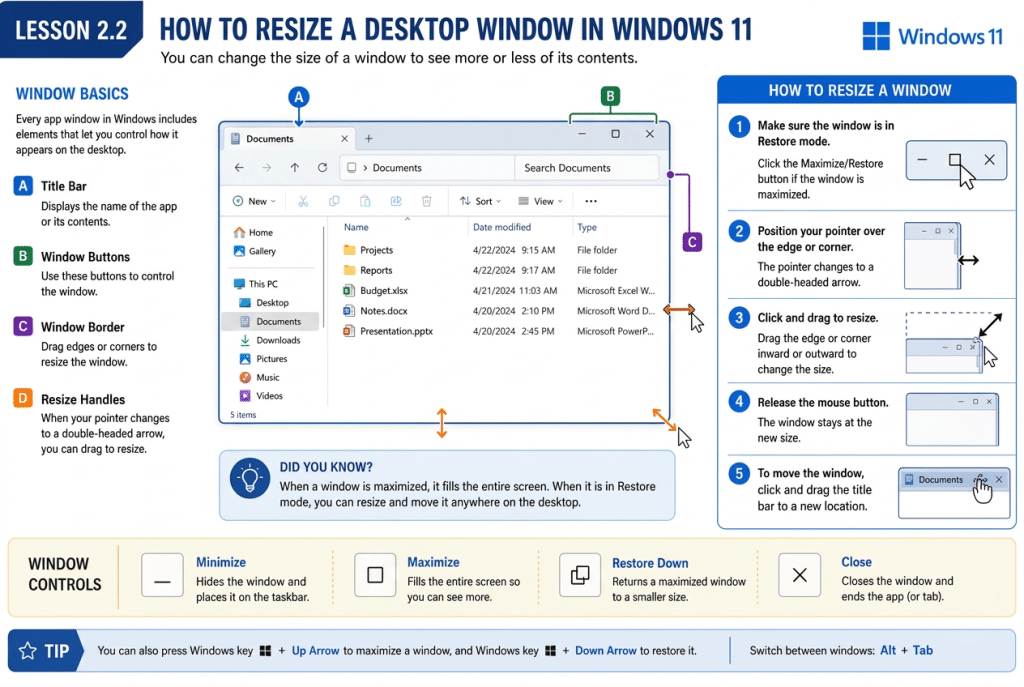
An infographic showing how to resize a desktop window in Windows 11.

Tagged under: app windows Windows 11, beginner Windows 11, desktop navigation, desktop window tutorial, drag window border, maximize window Windows 11, microsoft windows course, minimize window, resize app window, resize application window, resize window Windows 11, restore down window, teachucomp, title bar controls, window controls, windows 11 training, Windows 11 window size, Windows desktop basics, Windows productivity, windows tutorial, Windows user guide, working with windows

About Joseph Brownell

Joseph Brownell is founder and Vice President of TeachUcomp, Inc. He is the author of dozens of titles across the TeachUcomp, Inc. product line.
Team Training. Solutions for all team sizes.


Windows 11 Quick Reference Guide. Buy Now.
 

Categories

  • GET SOCIAL

© 2001-2026 Copyright TeachUcomp, Inc. All rights reserved.

TOP
25% Off Everything 4 Days 4 Hours 34 Minutes 8 Seconds      Coupon Code: SAVE25
Shop Now