MY CART
How to Transfer the Primary Admin in QuickBooks Online
How to Transfer the Primary Admin in QuickBooks Online: Video
The following video lesson, titled “How to Transfer the Primary Admin User in QuickBooks Online,” shows you how to transfer the Primary admin in QuickBooks Online. This video lesson is from our complete QuickBooks Online tutorial titled “Mastering QuickBooks Online Made Easy.”
Overview:
Only the current Primary admin can transfer the role of Primary admin to another user in QuickBooks Online. The user to whom the Primary admin role is transferred must be an active Company admin with a valid email account. There can only be one Primary admin user per company file. The existing Primary admin becomes a Company admin upon relinquishing the Primary admin role.
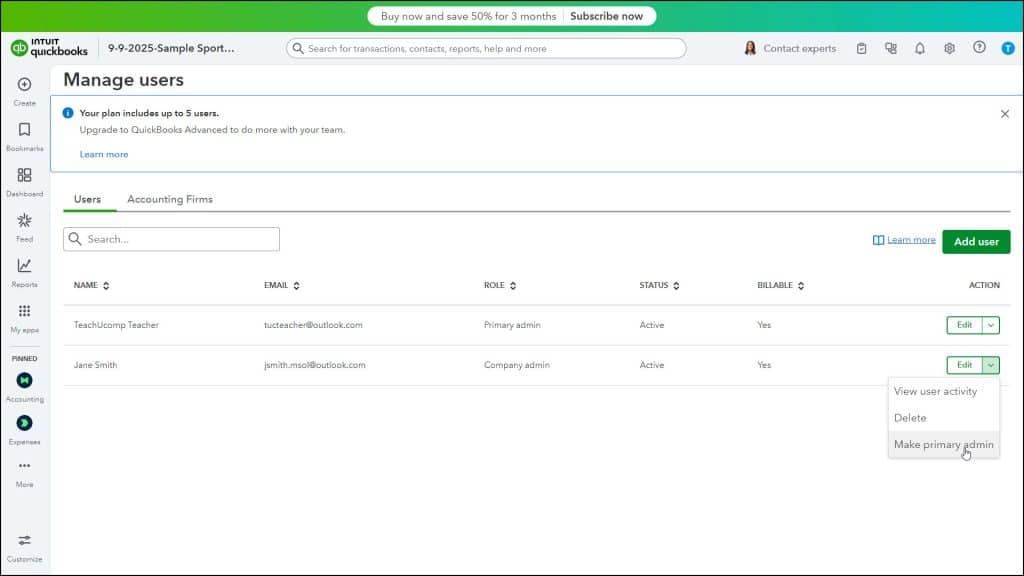
To transfer the Primary admin role in QuickBooks Online to an existing user who has the Company admin role, click the “Settings” button in the QuickBooks Online toolbar. Then click the “Manage users” link under the “Your Company” heading in the menu to show the “Users” tab of the “Manage users” page.
Then find the current Company admin to whom to transfer the Primary admin role within the list of users. Click the drop-down under the “Action” column within that user’s row, and then select the “Make primary admin” command. In the pop-up confirmation window that then opens, click the “Change primary admin” button to confirm the change or click the “Cancel” button to cancel the change.