MY CART
How to Use Help in QuickBooks Online
Using Help in QuickBooks Online: Video
This video lesson, titled “Using Help in QuickBooks Online,” shows you how to use help in QuickBooks Online. This video lesson is from our complete QuickBooks Online tutorial, titled “Mastering QuickBooks Online Made Easy.”
Overview:
How to Use the Help Features in QuickBooks Online:
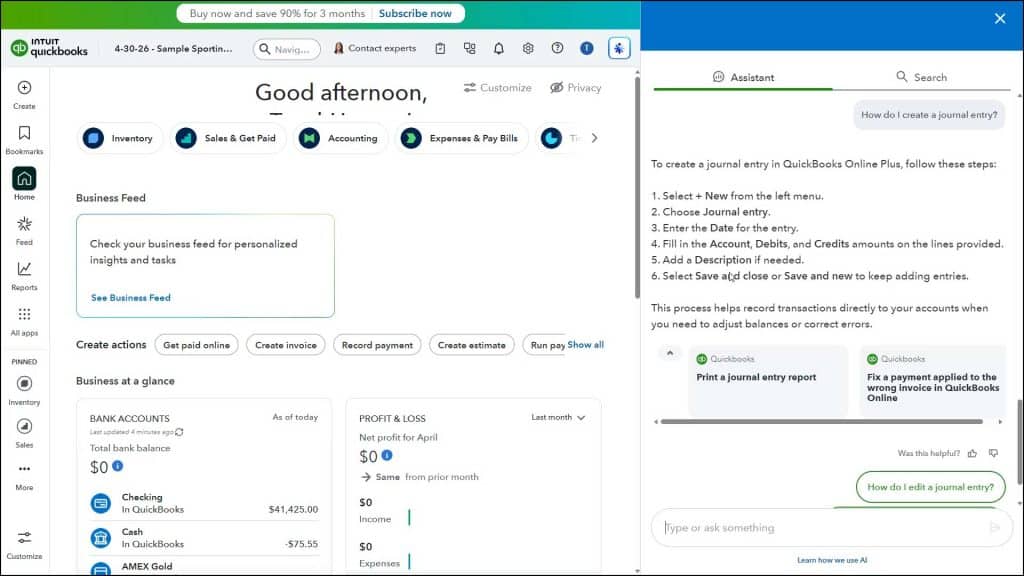
To use the help features in QuickBooks Online, click the “Help” button in the QuickBooks Online toolbar to open a “Help” window at the right side of the page. The “Help” window contains two tabs, named “Assistant” and “Search,” that you can click to view different help content. The “Assistant” tab’s content appears by default.
How to Use the AI Assistant Help in QuickBooks Online:
The “Assistant” tab contains an AI assistant chatbot that can provide answers to basic QuickBooks questions. Note that this AI assistant has told us in a conversation that it is basically the same AI assistant that appears if you instead click the “Intuit Intelligence” button in the QuickBooks Online toolbar, although the answers that appear on the “Assistant” tab do not appear in the Intuit Intelligence Audit Log report as of the date of this writing.
To ask it a simple question, type your question into the field at the bottom of the tab and then press the “Enter” key on your keyboard or click the button that then appears to the right of the field as you type. The assistant will then try to determine what you want to do and show instructions and/or related help topics. If shown, you can click these help topics to then show them in the pane. If needed, then click the “< Back” link to return to the “Help” window.
How to Manually Search for Help Topics in QuickBooks Online:
Alternatively, to manually search for help topics in QuickBooks Online, click the “Search” tab at the top of the “Help” window. Then type the search term, question, or topic for which to search into the “Search questions, keywords or topics” field at the top of the pane. As you type, suggestions appear in a list below the field. Either click to select a suggested help topic in this list or continue typing and then press the “Enter” key on your keyboard or click the “magnifying glass” icon to the left of the field to search for the topic you typed.
A generative AI response to your search term and a list of matching help results then appear in a list in this window. You can click any help result to show its contents within this window. To return to the previous page, click the “< Back” link that appears in the upper-left corner of the help result. To start a new search, click into the search term field shown at the top of the window and then repeat the process.
How to Get Expert Support, if Needed:
To get expert support for QuickBooks Online, click the “Contact Us” button at the bottom of the “Search” tab in the “Help” window after running a search. You then switch over to the “Assistant” tab, where you can click the desired button on the page and follow the onscreen prompts. To close the “Help” window, click the “X” button in its upper-right corner.
How to Use the Inuit Intelligence AI Help Feature in QuickBooks Online:
Alternatively, to use the Intuit Intelligence AI feature for help in QuickBooks Online, click the “Intuit Intelligence” button in the QuickBooks Online toolbar to open an “Intuit Intelligence” pane at the right side of the window. Then type your question into the field at the bottom of the pane and press the “Enter” key on your keyboard or press the button that then appears at the right end of the field. Alternatively, to dictate a question, click the “Microphone” button in this field and then dictate your question. To add up to 5 files at a time with a 5MB limit, if needed, click the “+” button at the left end of the field and then select the files by using the dialog box that opens.
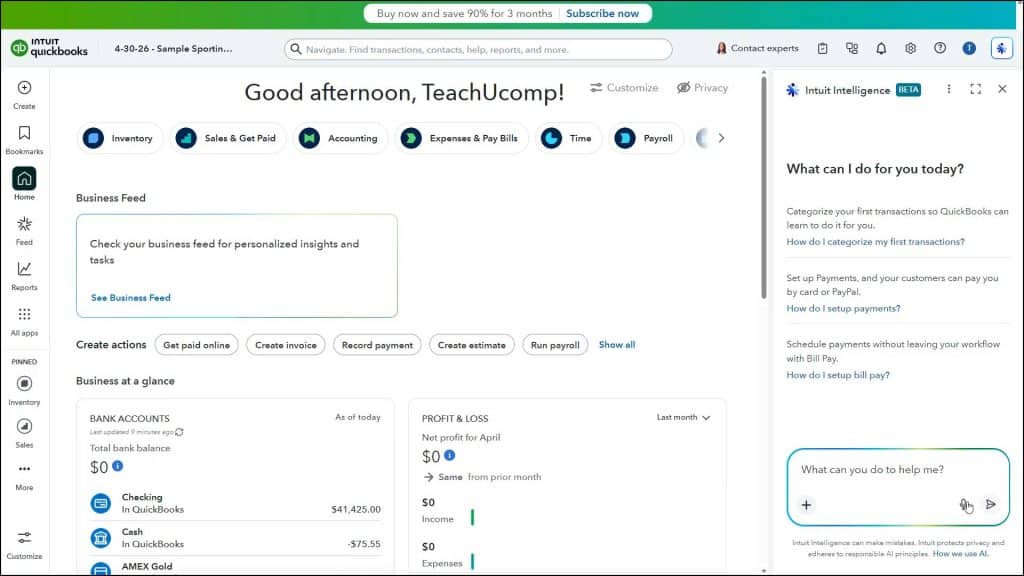
The answer to your query then appears within the “Intuit Intelligence” pane. You can use the buttons at the bottom of the response to send feedback about the response, copy its text, and, if applicable, download or view related QuickBooks data. You can then continue the conversation by repeating the same steps. Note that these conversations and queries are recorded to the Intuit Intelligence Audit Log if you need to review them in the future. To close the pane, when finished, click the “X” button in its upper-right corner.