MY CART
How to Use the Notification Center and Quick Settings in Windows 11: Video Lesson
This video lesson, titled “How to Use the Notification Center and Quick Settings in Windows 11: A Windows 11 Training Tutorial,” shows you how to use the Notification Center and how to change Quick Settings in Windows 11. This video lesson is from our complete Windows tutorial, titled “Mastering Windows Online Made Easy.”
Overview:
The Notification Area in the Windows Taskbar:
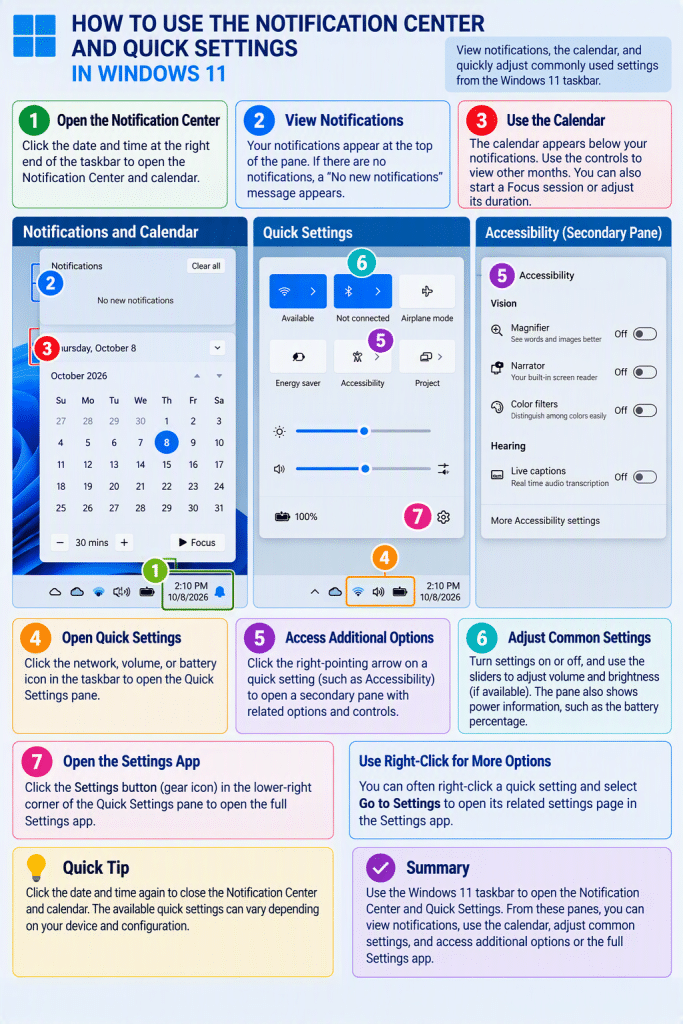
The notification area at the right end of the Windows 11 taskbar provides access to notifications, the calendar, quick settings, and status information for your device. These features help you view important information and quickly adjust commonly used settings without opening the “Settings” app.
How to View Notifications and the Calendar in Windows 11:
To view notifications and the calendar, click the date and time displayed at the right end of the taskbar. A pane then appears that shows any available notifications at the top and a calendar below. If there are no notifications to display, a “No new notifications” message appears instead. You can scroll through notifications to review them and use the available commands to dismiss or manage them.
The calendar section shows the current date and month. Use the controls within the calendar to view other months. At the bottom of the calendar, you can use the available controls to start a Focus session or adjust its duration. To close the notifications and calendar pane, click the date and time in the taskbar again.
How to Open the Quick Settings Pane in Windows 11:
To open the Quick Settings pane, click the network, volume, or battery status icons that appear in the taskbar. The Quick Settings pane then opens and displays frequently used controls and device status information. The available quick settings can vary depending on your device and configuration.
How to Use the Quick Settings Pane:
Many quick settings can be turned on or off by clicking their buttons. For example, you can click settings such as “Airplane mode,” “Energy saver,” or “Night light” to enable or disable them. Some settings also contain a right-pointing arrow. Clicking the arrow opens a secondary pane that contains additional options and controls related to that setting.
For example, clicking the arrow for the “Accessibility” setting opens a pane that contains commonly used accessibility features. In these secondary panes, use the available controls to enable, disable, or adjust the associated settings. To return to the main Quick Settings pane, click the “Back” button in the upper-left corner of the pane.
The Quick Settings pane also shows sound and power information. Use the volume slider to increase or decrease the device volume. Some devices may also display additional audio controls next to the slider. Laptops also often show a screen brightness slider here, too. At the bottom of the pane, Windows displays the current battery percentage, if available. To open the full Settings app, click the “Settings” button, which appears as a gear icon in the lower-right corner of the pane.
Most Quick Settings buttons also provide access to their related settings. For example, you can often right-click a quick setting and select the “Go to Settings” command to open its related settings page in the “Settings” app. This provides a convenient way to access additional configuration options for the selected feature.