MY CART
How to Use Windows 11 Apps and App Windows: Video Lesson
This video lesson, titled “How to Use Windows 11 Apps and App Windows: A Windows 11 Training Tutorial,” shows you how to use Windows 11 apps and app windows. This video lesson is from our complete Windows tutorial, titled “Mastering Windows Online Made Easy.”
Overview:
What Are Windows 11 Apps?
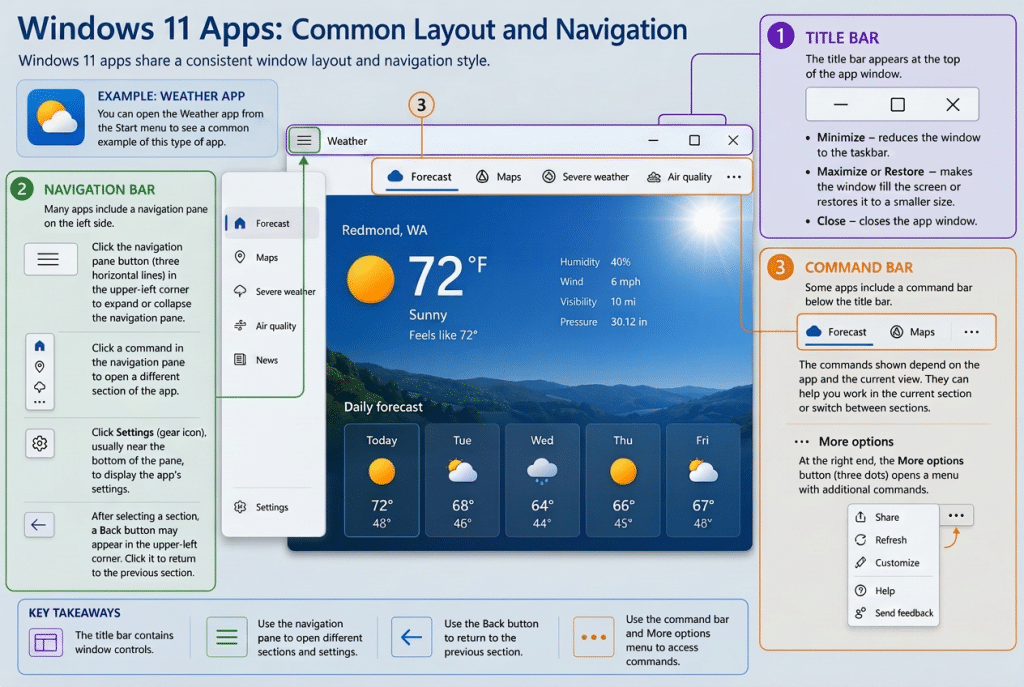
Windows 11 includes many apps that share a common window layout and navigation style. These apps use a consistent interface across many built-in Windows apps. This lesson shows you the general layout of these app windows and the navigation features you will often encounter. You can open the Weather app from the Start menu to see a common example of this type of app.
How to Use the Title Bar a Windows 11 App:
At the top of the app window is a title bar. At the right end of the title bar are the Minimize, Maximize or Restore, and Close buttons. To close the app window, click the Close button, which appears as an “X.” To change the size of the app window, click the Minimize or Maximize or Restore buttons.
How to Use the Navigation Bar in a Windows 11 App:
Many Windows apps include a navigation pane at the left side of the app window. This pane can often be expanded or collapsed. To expand the navigation pane and show its commands, click the navigation pane button in the upper-left corner of the app window. This button often appears as three horizontal lines. To collapse the navigation pane, click the same button again. When the navigation pane is collapsed, only the icons for the commands may be shown.
To open different sections of the app, click the commands shown in the navigation pane. These commands vary depending on the app. In many apps, a Settings button appears within the navigation pane, often near the bottom. This button usually appears as a gear icon. To display the settings for the app, click the Settings button. The available settings vary depending on the app.
After selecting a section within an app, you may see a Back button appear in the upper-left corner of the app window. To return to the previous section, click the Back button.
How to Use the Command Bar in a Windows 11 App:
Some Windows apps include a command bar that appears below the title bar. The command bar contains commands you can use within the current section of the app. The commands shown depend on the app and the current view. In some cases, the command bar may also be used to switch between sections of the app.
At the right end of the command bar, you may see a “More options” button, which appears as three dots. To display additional commands, click the “More options” button to show a menu of available options.