MY CART
How to View Your Company Information in QuickBooks Online
How to View Your Company Information in QuickBooks Online: Video
This video lesson, titled “How to View Your Company Information in QuickBooks Online,” shows you how to view and change your company info in QuickBooks Online. This video lesson is from our complete QuickBooks Online tutorial, titled “Mastering QuickBooks Online Made Easy.”
Instructions:
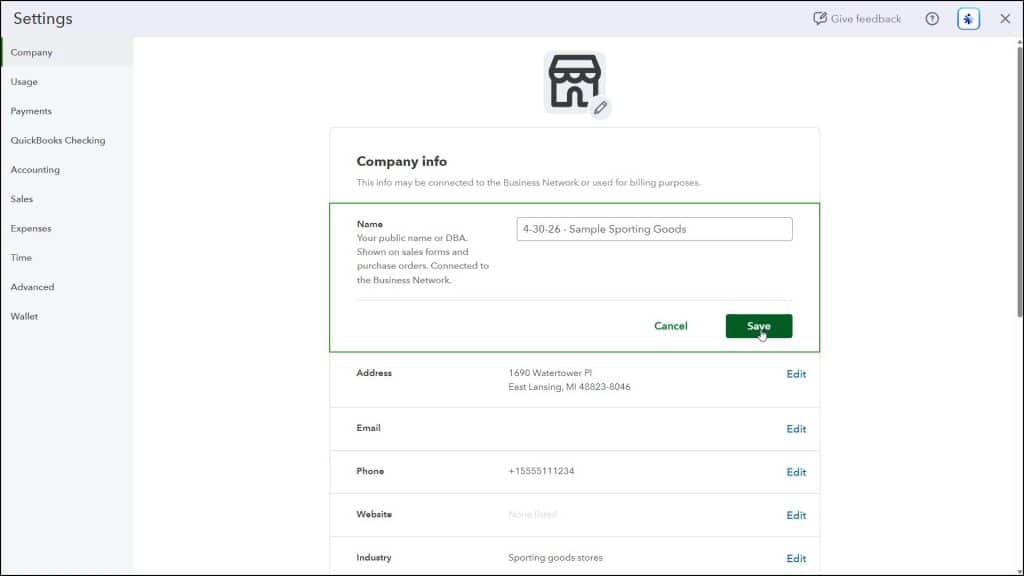
To view or update your company information in QuickBooks Online, click the “Settings” button in the QuickBooks Online toolbar and then click the “Account and settings” link under the “Your Company” heading in the menu that appears to open the “Settings” window.
All your company’s information appears in the sections at the right side of this page. Click the “Edit” link in any section or on the logo (which looks like a pencil icon) to edit its settings or content. After editing or entering any information within a section, click the “Save” button in the respective section to save the changes. Then click the “X” button in the upper-right corner of the “Settings” window to close it when you are finished.