
 MY CART
Project Reports in QuickBooks Online
How to Use Project Reports in QuickBooks Online: Video
This video lesson, titled “How to Use Project Reports in QuickBooks Online Plus,” shows you how to see on overview of your projects in QuickBooks Online Plus or higher, how to view transactions, how to see project details, and how to run project reports in QuickBooks Online. This video lesson is from our complete QuickBooks Online tutorial, titled “Mastering QuickBooks Online Made Easy.”
Overview:
After creating projects in QuickBooks Online Plus, you can easily view the project’s income and costs on the project’s details page. To view a project’s details page in QuickBooks Online Plus, click the “Projects” link under the “Projects” app in the “All apps” bar to open the “Projects” page to the right. Then click the name of the project to view in the projects list in the “Projects” page to view its project details page.
How to See the Project’s Overview:
To see an overview of the project’s income and costs, click the “Overview” tab in the project’s details page. The project’s income vs. cost bar graph, its overall profit margin, its total open invoices, and its total overdue invoices appear as widgets at the top of the “Overview” tab within the project details page. To change whether the “Costs” section shows hourly costs as set on the “Projects” page for employees or actual payroll expenses, select either “Hourly Costs” or “Payroll Expenses” from the drop-down in the upper-left corner of this tab.
How to See the Project’s Transactions:
To see the project’s transactions, click the “Transactions” tab in the project’s details page. To show any time activities recorded for the project, click the “Time Activity” tab in the project’s details page. We’ll examine this in more detail in the next chapter on “Time Tracking” in this tutorial.
How to See the Project’s Reports:
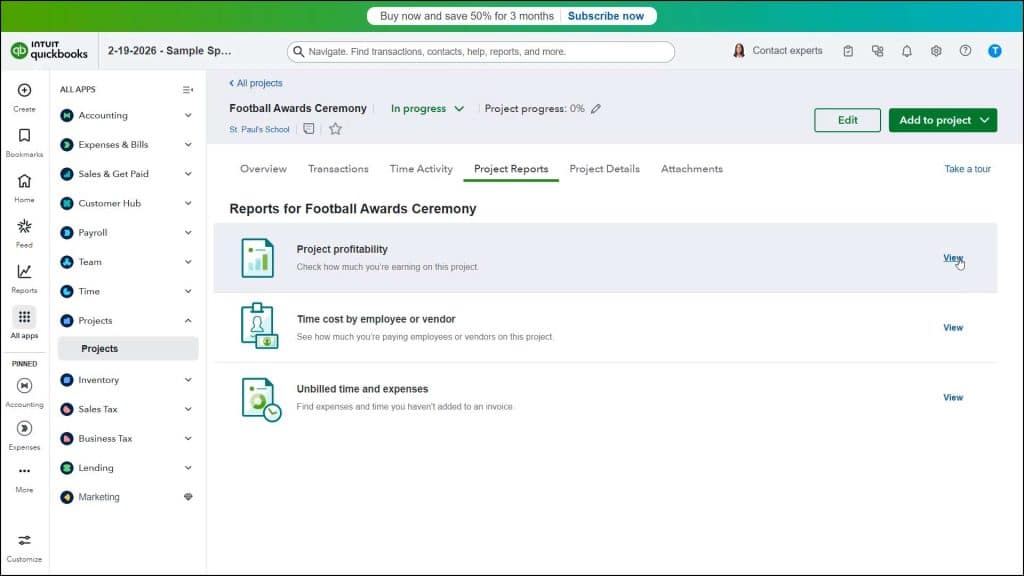
To show the project reports, click the “Project Reports” tab in the project’s details page. The three project reports are named “Project profitability,” “Time cost by employee or vendor,” and “Unbilled time and expenses.” To view any of these reports, click the “View” link to the right of the report’s row to run the report. To return to the project’s details page, if desired, click the “Back to project details” link in the upper-left corner of the report.
How to See the Project’s Details and Attachments:
To show project information, click the “Project Details” tab. To edit this information, if needed, click the “Edit” link to show the project’s details in an “Edit your project” pane that then appears at the right side of the window. Make any editing changes needed in the fields in this pane and then click the “Save” button at the bottom of the pane to save the changes. To add project file attachments, click the “Attachments” tab. Then click the “Upload” button to upload files using a dialog box that appears or drag and drop files onto the upload area in this tab.



