MY CART
Record a Customer Overpayment in QuickBooks Online
How to Record a Customer Overpayment in QuickBooks Online: Video
This video lesson, titled “How to Enter Customer Overpayments in QuickBooks Online,” shows you how to record customer overpayments in QuickBooks Online. This video lesson is from our complete QuickBooks Online tutorial, titled “Mastering QuickBooks Online Made Easy.”
Overview:
While customer overpayments occur less frequently than in the past, if a customer overpays an invoice, QuickBooks Online generates a customer credit when you manually record the customer payment in the “Receive Payment” window. This sometimes happens if a customer pays by check.
Enter the Overpayment in the “Receive Payment” Window to Generate a Customer Credit:
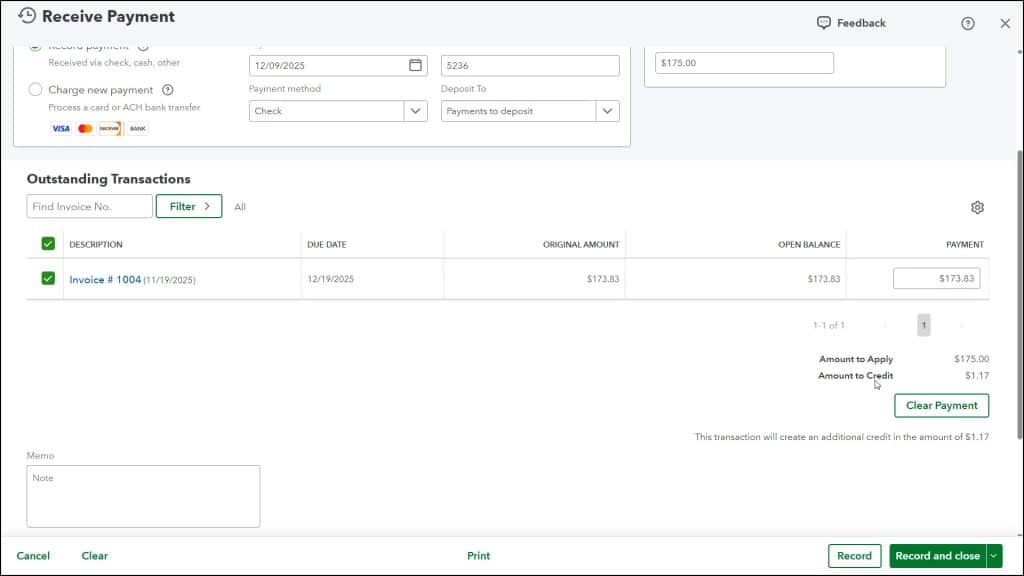
To enter an overpayment in QuickBooks Online, manually enter the payment the same way as you would enter a full payment on an invoice in the “Receive Payment” window. Simply select the customer, and then record the received payment’s date, payment method, deposit account, and amount. QuickBooks Online applies the total amount received to fully pay the oldest customer invoices until the total amount received has been disbursed. The amount attributed to each invoice appears in the “Payment” column for each invoice.
When entering an overpayment, note the “Amount to Credit” field in the lower-right corner of the window, under the list of outstanding transactions. This field shows the amount of the customer overpayment. For example, entering a $150 payment for a customer that has $100 of open invoices shows an “Amount to Credit” of $50.00.
When you record the payment using the one of the buttons in the toolbar at the bottom of the screen, it will generate a customer credit for the selected customer in the amount of the overpayment.