
TeachUcomp, Inc.

 MY CART
  • VIDEO COURSES
    • All-Access Subscriptions
    • Business Licensing
    • Course List
      • Accounting
      • Adobe
        • Acrobat
        • Lightroom Classic
        • Photoshop
        • Photoshop Elements
      • Crystal Reports
      • Employment Skills
        • Interview Skills
        • Resume Skills
      • For Lawyers
        • Excel for Lawyers
        • Outlook for Lawyers
        • QuickBooks for Lawyers
        • Word for Lawyers
      • HTML
      • JavaScript
      • Microsoft Office
        • Access
        • Excel
        • Microsoft Office Suite
        • OneNote
        • Outlook
        • Outlook on the Web
        • PowerPoint
        • Publisher
        • Word
      • Microsoft Project
      • Microsoft Teams
      • QuickBooks Online
      • QuickBooks Pro
      • Sage
        • Peachtree
        • Sage 50
      • SQL
      • Windows
    • My Courses
    • Video Course Options
  • SUBSCRIPTIONS
  • MANUALS
    • Adobe
      • Acrobat
      • Lightroom Classic
      • Photoshop
      • Photoshop Elements
    • Crystal Reports
    • For Lawyers
      • Excel for Lawyers
      • Outlook for Lawyers
      • QuickBooks for Lawyers
      • Word for Lawyers
    • HTML
    • JavaScript
    • Microsoft Office
      • Access
      • Excel
      • OneNote
      • Outlook
      • Outlook on the Web
      • PowerPoint
      • Publisher
      • Word
    • Microsoft Project
    • Microsoft Teams
    • QuickBooks Online
    • QuickBooks Pro
    • Sage
      • Peachtree
      • Sage 50
    • SQL
    • Windows
  • BOOKS
    • QuickBooks Online
  • REFERENCE CARDS
    • Adobe
      • Acrobat
      • Lightroom Classic
      • Photoshop
      • Photoshop Elements 2026
      • Photoshop Elements 2025
      • Photoshop Elements 2024
      • Photoshop Elements 2023
      • Photoshop Elements 2022
      • Photoshop Elements 2021
      • Photoshop Elements 2020
      • Photoshop Elements 2019
      • Photoshop Elements 2018
      • Photoshop Elements 15
    • Chrome OS
      • Chrome OS Keyboard Shortcuts
    • FreshBooks
    • Google
      • Google Classroom for Teachers
      • Google Docs
      • Google Drive
      • Google Forms
      • Google Sheets
      • Google Slides
    • macOS
      • macOS Keyboard Shortcuts
      • macOS Tahoe
    • Microsoft Office
      • Excel Formulas and Functions
      • Excel Keyboard Shortcuts (macOS)
      • Excel Keyboard Shortcuts (PC/Windows)
      • Excel Tables PivotTables and Charts
      • Microsoft 365
        • Access for Microsoft 365
        • Excel for Microsoft 365
        • Microsoft Office 365
        • Outlook for Microsoft 365 Classic Edition
        • Outlook for Microsoft 365 (New Outlook)
        • PowerPoint for Microsoft 365
        • Publisher for Microsoft 365
        • Word for Microsoft 365
      • Microsoft Office 2021
        • Access 2021
        • Excel 2021
        • Microsoft Office 2021
        • OneNote for Windows 10
        • Outlook 2021
        • PowerPoint 2021
        • Publisher 2021
        • Word 2021
      • Microsoft Office 2019
        • Access 2019
        • Excel 2019
        • Microsoft Office 2019
        • Outlook 2019
        • PowerPoint 2019
        • Publisher 2019
        • Word 2019
      • Microsoft Office 2016
        • Access 2016
        • Excel 2016
        • Microsoft Office 2016
        • OneNote 2016
        • Outlook 2016
        • PowerPoint 2016
        • Publisher 2016
        • Word 2016
      • Microsoft Office 2013
        • Excel 2013
        • Microsoft Office 2013
        • OneNote 2013
        • Outlook 2013
        • PowerPoint 2013
        • Word 2013
      • Microsoft Office for iPad
        • Microsoft Office for iPad
      • Word Keyboard Shortcuts (PC/Windows)
    • Microsoft Teams
    • QuickBooks Online
    • QuickBooks Pro
      • QuickBooks Pro 2024
      • QuickBooks Pro 2023
      • QuickBooks Pro 2022
      • QuickBooks Pro 2021
      • QuickBooks Pro 2020
      • QuickBooks Pro 2019
      • QuickBooks Pro 2018
      • QuickBooks Pro 2017
      • QuickBooks Pro 2016
      • QuickBooks Pro 2015
      • QuickBooks Pro 2014
    • Sage 50 Accounting
    • SQL
    • Windows
      • Windows 11
      • Windows 11 and 10 Keyboard Shortcuts
      • Windows 10
  • STICKERS
    • Chrome OS
    • macOS
    • Microsoft Office
      • Word and Excel (Mac)
      • Word and Excel (PC/Windows)
    • QuickBooks Desktop
      • QuickBooks Desktop (PC/Windows) 2024
      • QuickBooks Desktop (PC/Windows) 2023
      • QuickBooks Desktop (PC/Windows) 2022-2015
    • QuickBooks Online
    • Windows
  • SUPPORT
    • Company
      • About Us
      • Blog
      • Contact Us
      • Our History
      • Our Philosophy
        • Customer Service
        • Mission
      • Policies
      • Testimonials
    • FAQ
      • Contact Us
    • Help
    • Lost Password
    • Register a Product
  • LOGIN
    • Manage My Account
    • Member Login
    • My Courses
Shop Now

Create a New Base Calendar in Microsoft Project

by Joseph Brownell / Monday, August 04 2014 / Published in Latest, Microsoft, Office 2013, Project 2013

Learn How to Create a New Base Calendar in Project: Video Lesson

            This video lesson, “titled Creating New Base Calendars,” shows you how to create a new base calendar in Project 2013. This video is from the complete Microsoft Project 2013 training tutorial named “Mastering Project Made Easy v.2013-2010” by TeachUcomp, Inc.

Learn How to Create a New Base Calendar in Project: Overview

            In Microsoft Project, base calendars, such as the “Standard” calendar or the “Night Shift” calendar, are the calendars you select when initially creating your project file to choose a default work availability schedule for the project. Sometimes, you may need to create a new base calendar for ease of use within your project file.

            For example, you may choose to use the “Standard” calendar for your project file since the majority of your work resources will use that as their default work availability schedule. However, assume that you also used a pool of part time people (work resources) who only had a Monday, Wednesday, and Friday 8AM TO 5PM work schedule availability at all times. In this case, you may want to create a new base calendar you can assign to these work resources when entered into the “Resource Sheet,” so you will not have to individually adjust each resource’s work schedule availability. This can be a real time saver, as you can select a base calendar directly from the “Resource Sheet” view for any work resources that you enter. That way, you will not need to adjust each resource’s work schedule individually.

Learn How to Create a New Base Calendar in Project: Instructions

            You can create a new base calendar by clicking the “Change Working Time” button in the “Properties” button group on the “Project” tab in the Ribbon to open the “Change Working Time” dialog box. This dialog box allows you to change the working time for selected resources or change the default base calendar used for the current project, as well as create a new base calendar.
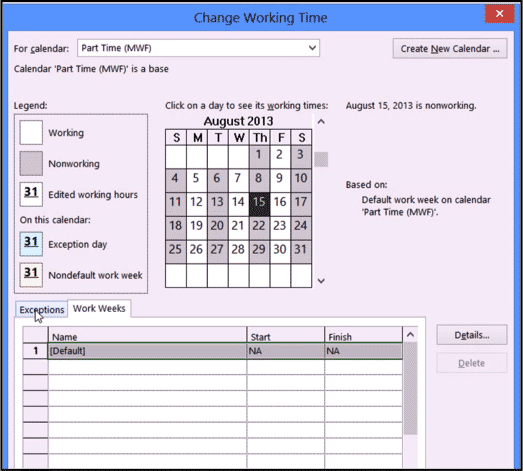
A picture of the "Change Working Time" dialog box in Project 2013 being used to create a new base calendar.

Create a New Base Calendar in Microsoft Project: A picture of the “Change Working Time” dialog box in Project 2013 being used to create a new base calendar.

            To create a new base calendar, click the “Create New Calendar…” button shown within the dialog box. Doing this will open the “Create New Base Calendar” dialog box, where you enter the name you want to give to this calendar into the “Name:” text box. Either you can select to create an entirely new base calendar or you can modify an existing base calendar as the basis for your new base calendar. If you choose to use a copy of another calendar as the basis for your new calendar, select the name of the calendar to copy from the drop-down. When you have made your choices, click the “OK” button to continue.

            In the “Change Working Time” dialog box, you are now viewing the base calendar just created. You should see its name in the “For calendar” box at the top of this dialog box. Next, use the “Work Weeks” tab to set the new default work week schedule for this base calendar. You can also set any base days off on the “Exceptions” tab, if necessary. After you have edited the work availability schedule for the calendar, click the “OK” button in the “Change Working Time” dialog box to save the new base calendar. At this point, you can then select the name of this calendar from the “Base Calendar” drop-down wherever that choice appears in your project file, such as within the “Resource Sheet” view.

Tagged under: base calendar, calendar, create a new base calendar, help, how-to, instructions, learn, lesson, Microsoft Project 2010, Microsoft Project 2013, overview, project, teach, training, tutorial, video

About Joseph Brownell

Joseph Brownell is founder and Vice President of TeachUcomp, Inc. He is the author of dozens of titles across the TeachUcomp, Inc. product line.
Sale! One Year Online Entire Library $29. Click here to see the deals.


Categories

  • GET SOCIAL

© 2001-2026 Copyright TeachUcomp, Inc. All rights reserved.

TOP
SALE! $29 All-Access 7 Days 14 Hours 23 Minutes 13 Seconds      $199 $29 Entire Library!
See Deal