
 MY CART
How to Create Custom Fields in QuickBooks Online
How to Create Custom Fields in QuickBooks Online: Video
This video lesson, titled “How to Create Custom Fields in QuickBooks Online,” shows you how to create custom fields in QuickBooks Online. This video lesson is from our complete QuickBooks Online tutorial, titled “Mastering QuickBooks Online Made Easy.”
Overview:
How to Create and Use Custom Fields in QuickBooks Online:
You can create custom fields in QuickBooks Online for customers, transactions, or timesheets. Custom fields for time are only available in QuickBooks Online for subscribers who also have a QuickBooks Time Premium or better or QuickBooks Payroll Premium or better subscription. Custom fields help you tag customers, transactions, and/or timesheets with the custom information you need for your company.
How to Use Custom Fields in QuickBooks Online:
Depending on the custom field’s category, you enter custom field data either once per customer or once per transaction, but never per line item in a transaction. Custom fields for timesheets are recorded per time event. If you create custom fields for transactions, you can apply them to both purchase and/or sales forms. You can also add custom fields for customers to transaction forms, with some special caveats you should note about their usage within transactions.
Customer custom fields appear in customer records, where you can enter values into the field for a customer. If you add a customer custom field to a customer transaction form, like an invoice, where the primary selected entity in the form is a customer, then the custom field value you entered for the selected customer appears in the form’s customer custom field as its default value. However, any changes you make to that field in the transaction form will not update the existing value in the customer record. Additionally, while you can add customer custom fields to purchasing forms, like a purchase order, the customer’s custom field value will not appear at all for a selected customer, as in the case of a drop ship customer selection within a purchase order, for example.
Separately, transaction custom fields always appear within the transaction forms you select. You always enter values in transaction custom fields when filling out the transaction, as needed. Time custom fields appear for the time entries you make within the QuickBooks Time program.
How to Create a Custom Field in QuickBooks Online:
To create custom fields in QuickBooks Online, click the “Settings” button in the QuickBooks Online toolbar and then select the “Custom fields” command under the “Lists” heading in the menu that appears. To add a new custom field, either click the “Add custom field” button in the center of the page, if adding your first custom field, or click the “Add field” button in the upper-right corner of the page, to create custom fields after creating the first one.
Name the Custom Field and Select Its Category:
In the “Add custom field” pane that then opens, type a name for the custom field into the “Name” field. To then choose the custom field’s category, select either “Customer,” “Transaction,” or, if available, “Time,” in the “Select category” section.
Select the Custom Field’s Data Type:
Next, select the type of data the custom field contains from the “Data type” drop-down. Note that the data type choices shown depend on your previous category selection. For example, the “Number” data type only appears for the “Time” category selection. If you select the “Dropdown list” choice from this drop-down, then select a color (for “Customer” category fields only), enter the drop-down values from which to select into the “Dropdown list item” column, and ensure the “Active” checkbox for each is checked to have it appear in the custom field’s drop-down.
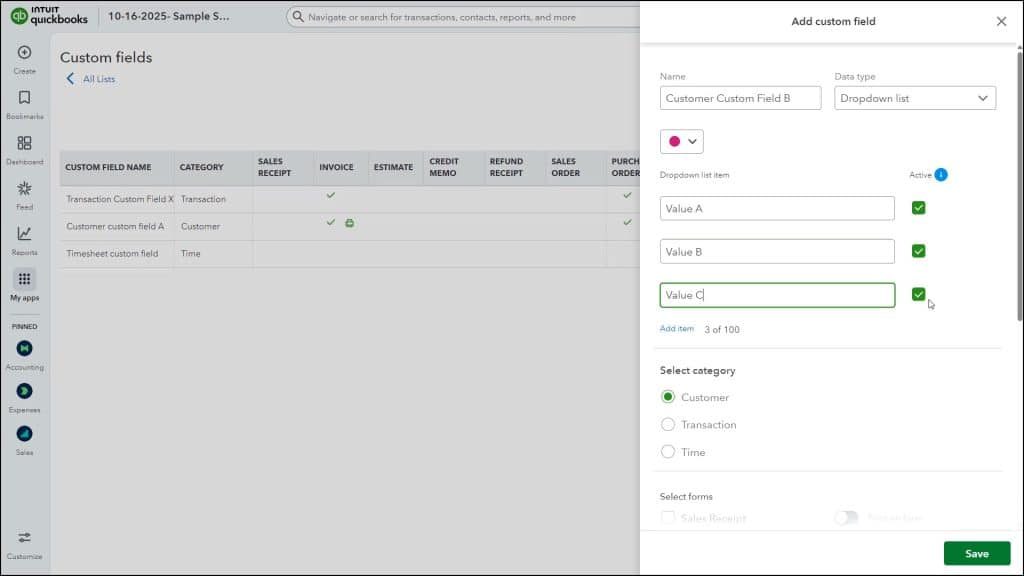
If Needed and If Available, Add the Custom Field to Transaction Forms:
To add the custom field to transaction forms if available and if desired for the type of custom field category you selected, check the checkbox for the desired forms to which to add the custom field under the “Select forms” column. To also print the custom field on a transaction form, if available, click its “Print on form” toggle switch to set it to the “On” position.
Finish and Create the Custom Field:
To finish and create the custom field, click the “Save” button in the pane. Alternatively, to cancel it, click the “X” button in the pane’s upper-right corner and then click “Yes” to leave without saving.
How to Edit, Inactivate, and Reactivate Custom Fields:
After creating a custom field in QuickBooks Online, it appears within the “Custom fields” list. To edit a custom field in the “Custom fields” list, click the “Edit” link under its “Actions” column to open an “Edit custom field” pane, which has the same options as the “Add custom field” pane, and which you use the same way to make the changes you want and then save them.
To inactivate a custom field, which shows it within forms in which you have already used it, but removes it from new forms, click the drop-down under its “Actions” column and then select the “Make inactive” command. Then click the “Yes” button in the confirmation prompt window that appears.
To reactivate an inactive custom field, click the “Include inactive” toggle switch above the custom field list in the “Custom fields” page. Then click the “Make active” link under the “Actions” column for the custom field to reactivate.



