
TeachUcomp, Inc.

 MY CART
  • HOME
  • PRODUCTS
    • Books
      • QuickBooks Online
    • Manuals
      • Adobe
        • Acrobat
        • Lightroom Classic
        • Photoshop
        • Photoshop Elements
      • Crystal Reports
      • For Lawyers
        • Excel for Lawyers
        • Outlook for Lawyers
        • QuickBooks for Lawyers
        • Word for Lawyers
      • HTML
      • JavaScript
      • Microsoft Office
        • Access
        • Excel
        • OneNote
        • Outlook
        • Outlook on the Web
        • PowerPoint
        • Publisher
        • Word
      • Microsoft Project
      • Microsoft Teams
      • QuickBooks Online
      • QuickBooks Pro
      • Sage
        • Peachtree
        • Sage 50
      • SQL
      • Windows
    • Reference Guides
      • Adobe
        • Acrobat
        • Lightroom Classic
        • Photoshop
        • Photoshop Elements 2027
        • Photoshop Elements 2026
        • Photoshop Elements 2025
        • Photoshop Elements 2024
        • Photoshop Elements 2023
        • Photoshop Elements 2022
        • Photoshop Elements 2021
        • Photoshop Elements 2020
        • Photoshop Elements 2019
        • Photoshop Elements 2018
        • Photoshop Elements 15
      • Chrome OS
        • Chrome OS Keyboard Shortcuts
      • FreshBooks
      • Google
        • Google Classroom for Teachers
        • Google Docs
        • Google Drive
        • Google Forms
        • Google Sheets
        • Google Slides
      • macOS
        • macOS Keyboard Shortcuts
        • macOS Tahoe
      • Microsoft Office
        • Excel Formulas and Functions
        • Excel Keyboard Shortcuts (macOS)
        • Excel Keyboard Shortcuts (PC/Windows)
        • Excel Tables PivotTables and Charts
        • Microsoft 365
          • Access for Microsoft 365
          • Excel for Microsoft 365
          • Microsoft Office 365
          • Outlook for Microsoft 365 Classic Edition
          • Outlook for Microsoft 365 (New Outlook)
          • PowerPoint for Microsoft 365
          • Publisher for Microsoft 365
          • Word for Microsoft 365
        • Microsoft Office 2021
          • Access 2021
          • Excel 2021
          • Microsoft Office 2021
          • OneNote for Windows 10
          • Outlook 2021
          • PowerPoint 2021
          • Publisher 2021
          • Word 2021
        • Microsoft Office 2019
          • Access 2019
          • Excel 2019
          • Microsoft Office 2019
          • Outlook 2019
          • PowerPoint 2019
          • Publisher 2019
          • Word 2019
        • Microsoft Office 2016
          • Access 2016
          • Excel 2016
          • Microsoft Office 2016
          • OneNote 2016
          • Outlook 2016
          • PowerPoint 2016
          • Publisher 2016
          • Word 2016
        • Microsoft Office 2013
          • Excel 2013
          • Microsoft Office 2013
          • OneNote 2013
          • Outlook 2013
          • PowerPoint 2013
          • Word 2013
        • Microsoft Office for iPad
          • Microsoft Office for iPad
        • Word Keyboard Shortcuts (macOS)
        • Word Keyboard Shortcuts (PC/Windows)
      • Microsoft Teams
      • QuickBooks Online
      • QuickBooks Pro
        • QuickBooks Pro 2024
        • QuickBooks Pro 2023
        • QuickBooks Pro 2022
        • QuickBooks Pro 2021
        • QuickBooks Pro 2020
        • QuickBooks Pro 2019
        • QuickBooks Pro 2018
        • QuickBooks Pro 2017
        • QuickBooks Pro 2016
        • QuickBooks Pro 2015
        • QuickBooks Pro 2014
      • Sage 50 Accounting
      • SQL
      • Windows
        • Windows 11
        • Windows 11 and 10 Keyboard Shortcuts
        • Windows 10
    • Video Courses
      • All-Access Subscriptions
      • Course List
        • Accounting
        • Adobe
          • Acrobat
          • Lightroom Classic
          • Photoshop
          • Photoshop Elements
        • Crystal Reports
        • Employment Skills
          • Interview Skills
          • Resume Skills
        • For Lawyers
          • Excel for Lawyers
          • Outlook for Lawyers
          • QuickBooks for Lawyers
          • Word for Lawyers
        • HTML
        • JavaScript
        • Microsoft Office
          • Access
          • Excel
          • Microsoft Office Suite
          • OneNote
          • Outlook
          • Outlook on the Web
          • PowerPoint
          • Publisher
          • Word
        • Microsoft Project
        • Microsoft Teams
        • QuickBooks Online
        • QuickBooks Pro
        • Sage
          • Peachtree
          • Sage 50
        • SQL
        • Windows
      • My Courses
      • Video Course Options
    • Shortcut Stickers
      • Chrome OS
      • macOS
      • Microsoft Office
        • Word and Excel (Mac)
        • Word and Excel (PC/Windows)
      • QuickBooks Desktop
        • QuickBooks Desktop (PC/Windows) 2024
        • QuickBooks Desktop (PC/Windows) 2023
        • QuickBooks Desktop (PC/Windows) 2022-2015
      • QuickBooks Online
      • Windows
  • SHOP BY TOPIC
  • FOR TEAMS
  • SUPPORT
    • Company
      • About Us
      • Blog
      • Our History
      • Our Philosophy
        • Customer Service
        • Mission
      • Policies
      • Testimonials
    • Contact Us
    • FAQ
    • Help
    • Lost Password
    • Register a Product
  • LOGIN
    • Manage My Account
    • Member Login
    • My Courses
Shop Now

How to Change the Advanced Settings in Windows 11

by Joseph Brownell / Tuesday, November 17 2026 / Published in Latest, Microsoft, Windows 11

How to Change the Advanced Settings in Windows 11: Video Lesson

    This video lesson, titled “Windows 11 Advanced System Settings Explained: A Windows 11 Training Tutorial,” shows you how to change the Advanced settings in Windows 11. This video lesson is from our complete Windows tutorial, titled “Mastering Windows Made Easy.”

Overview:

How to Open the Advanced Settings in Windows 11:

To change the advanced system settings in Windows 11, open the “Settings” app and then click the “System” category in the navigation pane. Then click the “Advanced” setting to view the advanced settings for your device. The advanced settings page contains settings sections for “Taskbar,” “File Explorer,” “Virtual Workspaces,” “Terminal,” “For developers,” and “Dev Drive.”

How to Enable the End Task Command from the Taskbar:

            The “End task” setting lets you quickly end unresponsive applications directly from the taskbar. When this setting is enabled, you can right-click an app’s taskbar button and select the “End task” command to close the application. To enable or disable this feature, use the “End task” toggle switch. This setting can be useful when an application stops responding and cannot be closed normally.

How to Show or Hide Advanced Content in File Explorer, Use a Local Git Repository, or Enable Long Paths:

            The “File Explorer” settings let you control File Explorer behavior. Click the “File Explorer” setting to open its in-depth settings page. The available toggle switch settings in this page let you enable or disable features such as showing file extensions, hidden and system files, full paths in title bars, the option to run as a different user in Start, and empty drives.

            This page also contains options under the “File Explorer + version control” section for using Git repositories locally if you click the “Update now” button to get the latest Windows Advanced Settings app, if needed, and then select your local repository folder. To return to the “Advanced” settings page, click the “Back” button in the upper-left corner of the window. Also note that the “File Explorer” settings in the “Advanced” page also contain a “Long paths” setting that lets compatible applications access file and folder paths that exceed the traditional Windows path-length limit.

How to Configure Remote Desktop:

            In the “Virtual Workspace” section, click the “Remote Desktop” setting to show its in-depth settings page. The “Remote Desktop” toggle switch lets you enable or disable Remote Desktop connections to your device. If Remote Desktop is enabled, click the setting to enable or disable Network Level Authentication to connect and show the Remote Desktop port number. To access the “Remote Desktop Users” dialog box, if desired, click the “Remote Desktop users” setting in this page. To return to the “Advanced” settings page, click the “Back” button in the upper-left corner of the window.

How to Configure Virtualization Settings:

            Click the “Virtual Workspaces” setting to open its settings page, which contains settings used by virtualization software and developer tools. The available settings can vary depending on your device and configuration but may include toggle switch setting options to enable or disable Containers, Guarded Host, virtual machine platform, Windows Hypervisor Platform, and Windows Sandbox. There may also be several Hyper-V toggle switch settings that let you turn the associated features on or off. To return to the “Advanced” settings page, click the “Back” button in the upper-left corner of the window.

How to Select a Default Terminal App and Configure PowerShell:

            The “Terminal” section lets you use the “Terminal” setting drop-down to select which terminal application Windows uses by default. Depending on the applications installed on your device, available choices may include Windows Terminal, Windows Console Host, and other supported terminal applications.

            Click to expand the “PowerShell” setting to toggle whether unsigned PowerShell scripts can run on or off. The “Enable sudo” setting toggle switch enables or disables support for the sudo command, which lets authorized users run commands with elevated permissions. To view additional sudo settings, click the “Enable sudo” setting to expand it. Then choose the desired sudo behavior from the available options.

How to Enable Developer Tools:

            The “For developers” section contains settings that are primarily intended for software developers and advanced users. These settings include options such as “Developer Mode,” “Device Portal,” and “Device discovery.” To enable or disable any of these features, use the associated toggle switch. Some settings contain additional options that appear when the setting is enabled.

How to Access Dev Drives and Configure Antivirus with Dev Drives:

            The “Dev Drive” section contains settings related to Dev Drives, which are specialized storage volumes designed for development workloads. Click the “Create a Dev Drive” setting to open the “Disks & volumes” settings page, where you can create and manage Dev Drives. Because this setting opens a page within the “Storage” settings category, you must click the “Back” button to return to the “Advanced” settings page, if you open it.

            The “Control antivirus behavior” setting opens Windows Security and displays the “Virus & threat protection” settings page. These settings let you manage how antivirus protection interacts with Dev Drives. To return to the “Advanced” settings page after viewing these settings, close the Windows Security window and return to the “Settings” app. When finished, close the “Settings” window by clicking the “Close” button in its upper-right corner.
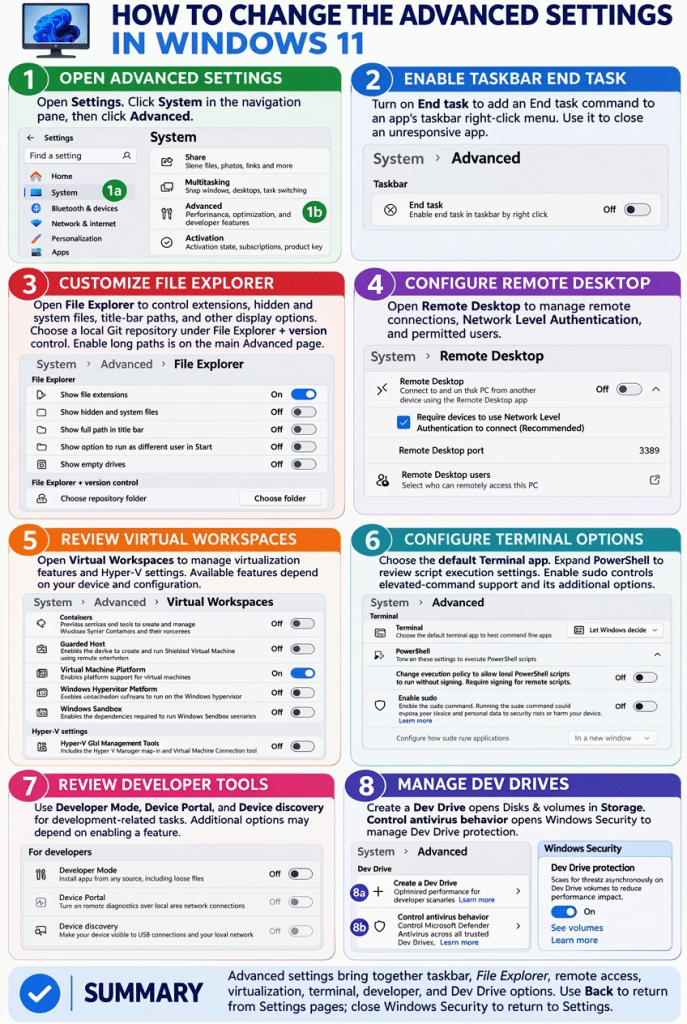
A picture showing how to change the Advanced settings in Windows 11.

Tagged under: advanced settings, antivirus settings, create Dev Drive, Dev Drive, developer mode, developer settings, Device Discovery, Device Portal, enable Sudo, File Explorer settings, PowerShell settings, Remote Desktop, Sudo for Windows, system settings, teachucomp, Terminal settings, virtual workspaces, Windows 11, windows 11 tutorial, Windows advanced settings, Windows development, Windows Security, windows settings, Windows tips, windows training

About Joseph Brownell

Joseph Brownell is founder and Vice President of TeachUcomp, Inc. He is the author of dozens of titles across the TeachUcomp, Inc. product line.
Team Training. Solutions for all team sizes.


Windows 11 Quick Reference Guide. Buy Now.
 

Categories

  • GET SOCIAL

© 2001-2026 Copyright TeachUcomp, Inc. All rights reserved.

TOP
25% Off Everything 0 Days 6 Hours 37 Minutes 0 Seconds      Coupon Code: SAVE25
Shop Now