
 MY CART
Customer Refund Options in QuickBooks Online
Customer Refund Options in QuickBooks Online: Video
This video lesson, titled “Learn about Customer Refund Options in QuickBooks Online,” discusses different customer refund options in QuickBooks Online. This video lesson is from our complete QuickBooks Online tutorial, titled “Mastering QuickBooks Online Made Easy.”
Overview:
To Create a Customer Credit for a Refund, Create Either a Credit Memo or Delayed Credit
There are many options for processing customer refunds in QuickBooks Online. If the customer would rather take the value of the return or refund as a credit they can apply to current or future invoices, then you can create either a credit memo or a delayed credit. The main difference between a credit memo and a delayed credit is that a credit memo is a separate transaction applied to a customer’s open balance in the “Receive Payment” window, either immediately or later, depending on whether QuickBooks automatically applies customer credits or not; while a delayed credit is a line item credit you must manually apply within future invoices when you later create invoices for the customer.
If Using Customer Credits, Set Whether to Automatically or Manually Apply Customer Credits
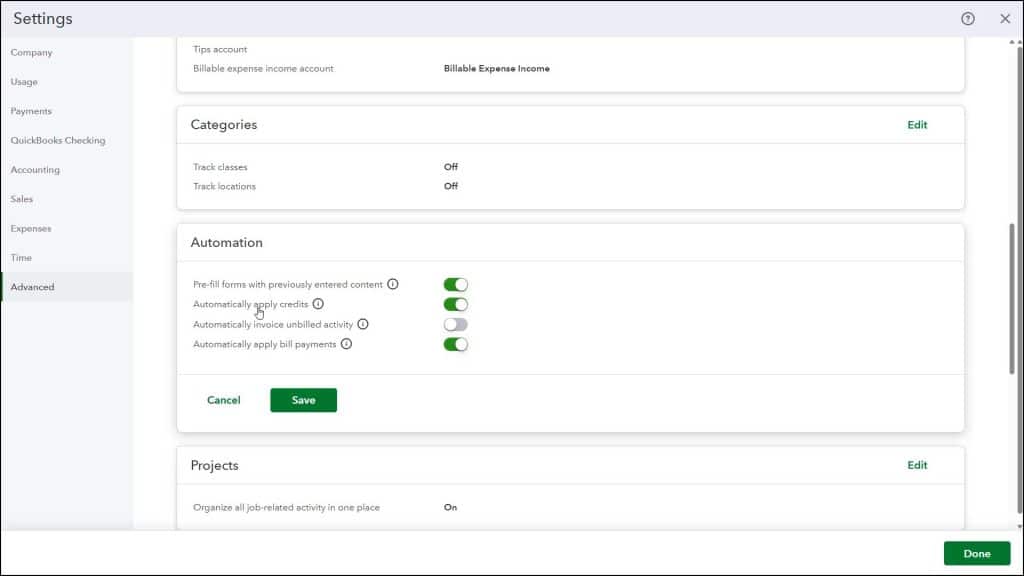
To change whether QuickBooks Online automatically applies customer credits to invoices or whether you must manually apply customer credits, toggle the “Automatically apply credits” toggle switch option in the “Automation” section of the “Advanced” category in the “Account and Settings” window on or off and then save your changes. This setting determines if QuickBooks Online automatically applies credit memos to the oldest invoice when you next receive a payment from the customer in the “Receive Payment” window or if you manually apply them in the “Receive Payment” window.
Use a Refund Receipt to Refund Non-Invoice Customer Purchases or Create a Check or Expense to Refund Customer Credits
Apart from creating customer credits, to process an immediate customer refund or return via cash, check, or credit card, you can create a refund receipt. Additionally, if a customer gives you a down payment or prepayment which you manually record in the “Receive Payment” window and then later wants a refund, you can write them a check or expense and then match it to the existing credit, if needed. Ultimately, when handling refunds and returns in QuickBooks Online, you and the customer must decide the best option to use for your situation. The next lessons in this chapter show how to create all these transactions in QuickBooks Online.



