 MY CART
How to Change the Share Settings in Windows 11: Video Lesson
This video lesson, titled “How to Change the Share Settings in Windows 11: A Windows 11 Training Tutorial,” shows you how to change the Share settings in Windows 11. This video lesson is from our complete Windows tutorial, titled “Mastering Windows Made Easy.”
Overview:
How to Open the Share Settings in Windows 11:
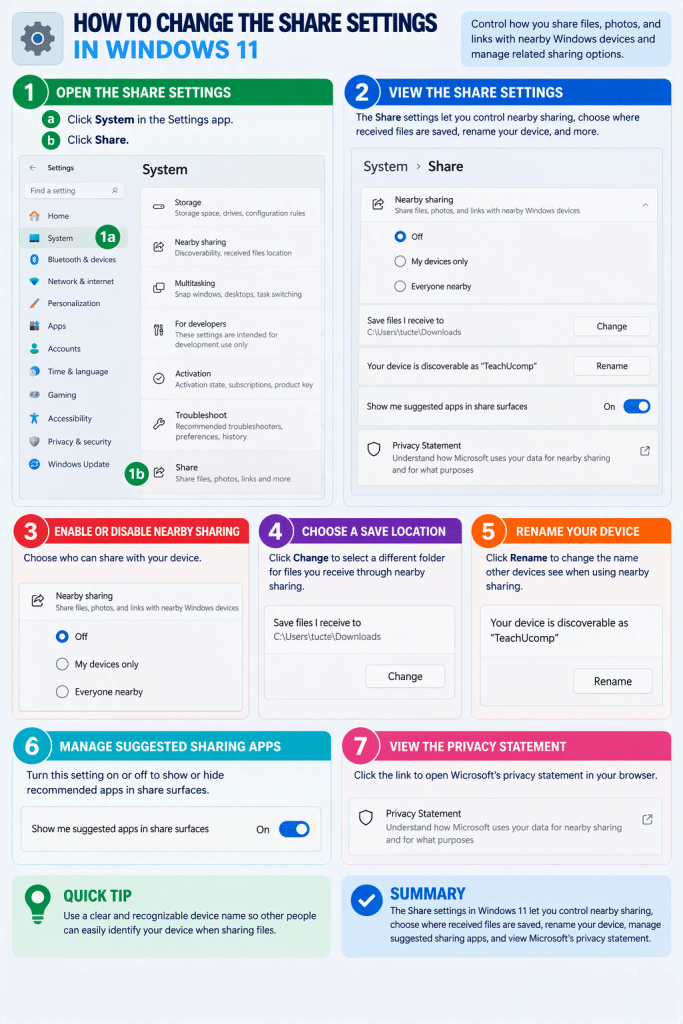
To change the share settings in Windows 11, open the “Settings” app and then click the “System” category in the navigation pane. Then click the “Share” setting to view the sharing settings for your device.
How to Enable or Disable Nearby Sharing in Windows 11:
The “Nearby sharing” setting controls whether you can send and receive files, photos, links, and other content with nearby Windows devices. To disable nearby sharing, select the “Off” option. Alternatively, to allow sharing only between devices that use the same Microsoft account, select the “My devices only” option. Finally, to allow sharing with any nearby Windows device, select the “Everyone nearby” option.
How to Change the Nearby Sharing Settings in Windows 11:
The “Save files I receive to” setting shows the folder where nearby sharing saves received files. To change this location, click the “Change” button and then use the “Select Folder” dialog box that appears to choose a different destination folder. After selecting the desired folder, click the “Select Folder” button to save the change.
The “Your device is discoverable as” setting shows the name other devices see when using nearby sharing. To change this name, click the “Rename” button. Windows then opens the PC renaming tools, where you can enter a new device name. After renaming the device, return to the “Nearby sharing” settings by clicking the “Back” button in the upper-left corner of the window.
How to Enable or Disable Suggested Sharing Apps:
The “Show me suggested apps in share surfaces” setting lets you turn on or off suggested or recommended apps, which you may not have installed yet, to help you share content. To limit sharing only to installed apps, toggle this setting to “Off.”
How to View Microsoft’s Nearby Sharing Privacy Statement and Close the Settings App:
The page also contains a link to Microsoft’s privacy statement, which you can click to open a web page that provides information about how Microsoft uses your data for nearby sharing, and which you can close when finished reading it. When finished changing your settings, close the “Settings” window by clicking the “Close” button in its upper-right corner.