
 MY CART
How to Preview Sales Forms in QuickBooks Online
How to Preview Sales Forms in QuickBooks Online: Video
This video lesson, titled “How to Preview Sales Forms in QuickBooks Online,” shows how to preview sales forms in QuickBooks Online. This video lesson is from our complete QuickBooks Online tutorial, titled “Mastering QuickBooks Online Made Easy.”
Overview:
How to Preview an Estimate or Invoice in QuickBooks Online:
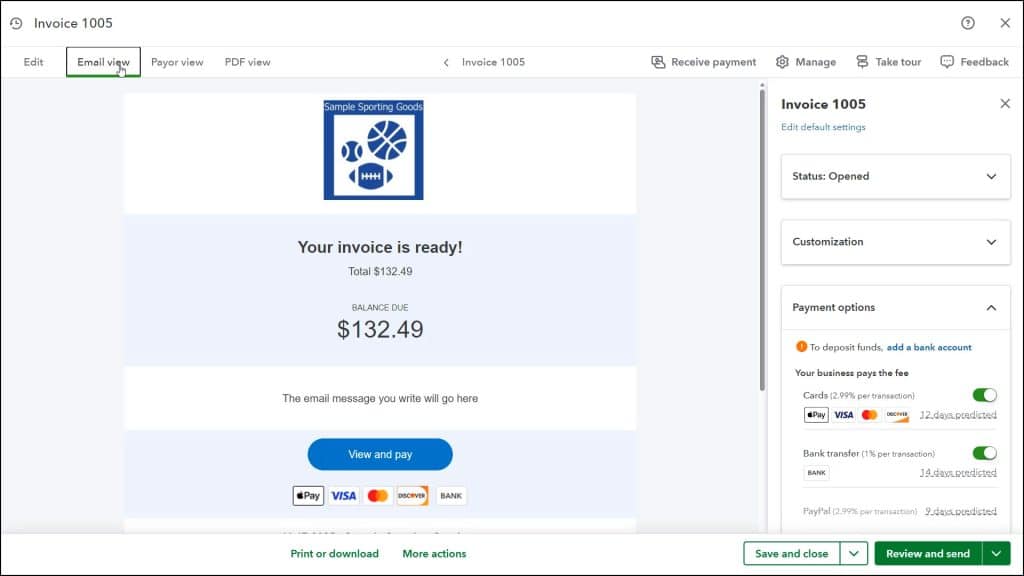
QuickBooks Online Plus lets you preview sales forms like estimates, invoices, and sales receipts before sending or printing them. This lets you make sure they are correctly formatted and that the correct information appears. To preview the different views of an estimate or invoice, open the invoice or estimate and then click the “Email view,” “Payor view” for invoices only, or “PDF view” tab to preview the way the customer’s email looks, their invoice payment page looks, and the PDF copy of the form looks.
How to View a PDF Preview of a Sales Form in QuickBooks Online:
Alternatively, to open a PDF preview of a sales form, open the sales form. In the toolbar at the bottom of the form’s window then click either the “Print or Preview” button for credit memos, refund receipts, and sales receipts, the “Print or download” button for invoices and estimates, or the “Print” button for sales orders and received payments. For credit memos, refund receipts, and sales receipts, then select the “Print or Preview” command. For invoices, estimates, and sales orders, then select the “Print” command.
Doing any of these actions then opens the PDF preview of the sales form in a new window or tab. Use the PDF preview to ensure the form looks the way you want it to look. If anything needs to be changed, close the PDF preview and return to the sales form’s editing page to make the necessary corrections.



