MY CART
Record a Down Payment or Prepayment in QuickBooks Online
How to Record a Down Payment or Prepayment in QuickBooks Online: Video
This video lesson, titled “How to Enter Down Payments or Prepayments in QuickBooks Online,” shows you how to record a down payment or prepayment in QuickBooks Online. This video lesson is from our complete QuickBooks Online tutorial, titled “Mastering QuickBooks Online Made Easy.”
Overview:
To record a customer down payment or prepayment in QuickBooks Online, manually record the payment in the “Receive Payment” window for the customer. Doing this then generates a customer credit, which you can later apply to future invoices you create for the customer.
How to Enter a Customer Prepayment or Down Payment in QuickBooks Online:
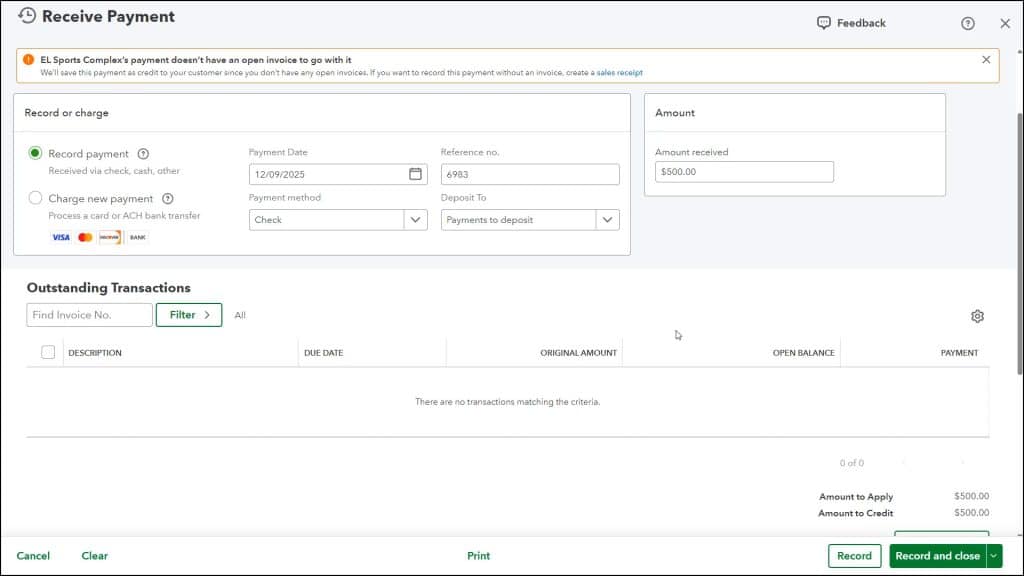
To manually record a customer’s down payment or prepayment, hover over the “+ Create” button in the Navigation Bar and then click the “Receive payment” link under the “Customers” heading in the drop-down menu to open the “Receive Payment” window. Select the customer for whom to record the down payment or prepayment from the “Customer” drop-down. Then follow the same steps as when recording a full customer payment for a single invoice. Simply record the received payment’s date, payment method, deposit account, and amount.
Double-check the Payment Allocation:
If you are recording a down payment or prepayment for a current customer, double-check to ensure none of the items in the “Outstanding Transactions” list are checked. If any are checked, the received payment amount is applied to them and not recorded as a separate down payment or prepayment. So, uncheck all these transactions, if needed, to ensure you convert the total amount received in the payment into a customer credit.
When you then record the down payment or prepayment using the one of the buttons in the toolbar at the bottom of the screen, you create a customer credit for the total amount, which you can later apply to a customer invoice.