
 MY CART
The QuickBooks Online Interface: Video Lesson
This video lesson, titled “The QuickBooks Online Interface,” shows you how to use the new QuickBooks Online interface.
Overview of the User Interface for QuickBooks Online
The QuickBooks Online Toolbar:
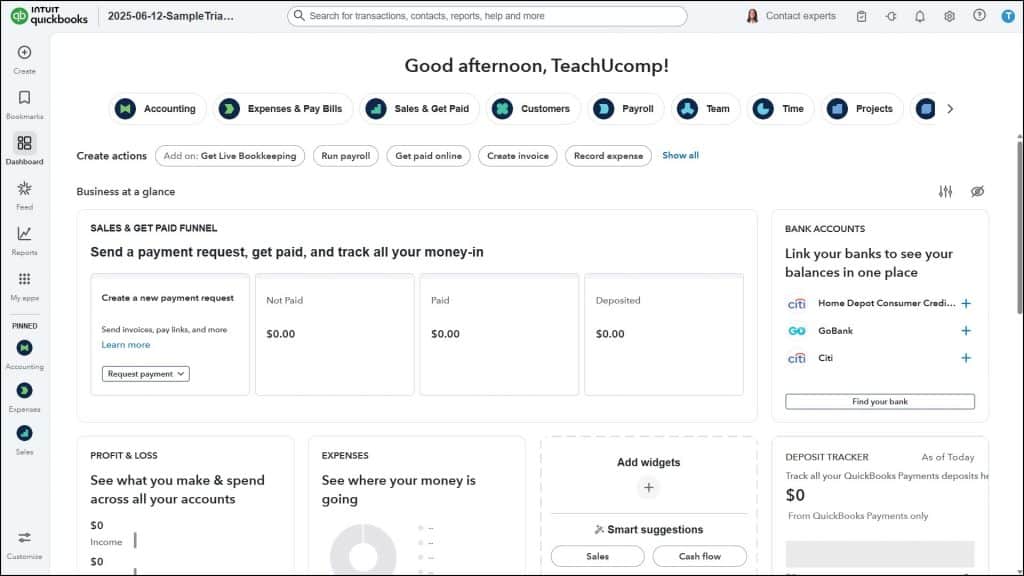
After you open a company file in QuickBooks Online, the QuickBooks Online interface then appears. The top of the interface shows the QuickBooks Online toolbar, which contains buttons you can access from almost every page in QuickBooks Online. The left end of the toolbar shows the company name. Moving to the right, the search bar then appears in the center of the toolbar. The right end of the QuickBooks Online toolbar shows the “Contact experts” button, the “Tasks” button, the “My integrations” button (which shows connected apps), the “Notifications” button, the “Settings” button, the “Help” button, and the user account button.
The Navigation Bar and Its Buttons:
The + Create Button and the Bookmarks Button
At the left side of the QuickBooks Online interface is the Navigation Bar. The Navigation Bar also appears at the left side of almost every page in QuickBooks Online. At the top of the Navigation Bar is the “+ Create” button that lets you create new transactions, customers, vendors, contractors, employees, and products and services. This is followed by the “Bookmarks” button, which you use to bookmark frequently accessed pages in QuickBooks Online for easy access.
The Dashboard Button and the Feed Button
The next button in the Navigation Bar is the “Dashboard,” which you can click to then show an overview of your company in the page content area to the right. This is followed by the “Feed” button, which you can click to then show tasks you may want to complete and which provides access to the new AI agents in QuickBooks Online in the page content area to the right.
The Reports Button
The next button in the Navigation Bar is the “Reports” button. To access reports in QuickBooks Online, either click the “Reports” button in the Navigation Bar or hover over the “Reports” button and then click to select a specific report category from the side menu that appears. Either way, a new “Reports & Analytics” bar then appears to the right of the Navigation Bar, showing the different report categories, like “Standard reports,” “Custom reports,” and so on.

The Reports & Analytics Bar
To select a different report category, click a report category in the “Reports & Analytics” bar. The reports in that category then appear in the page content window to the right, where you can run them. To hide or show the “Reports & Analytics” bar, click the “Show/Hide” button in its upper-right corner. When hidden, this button appears to the right of the “+ Create” button.
The My Apps Button
The next button in the Navigation Bar is the “My apps” button. To access the different pages in QuickBooks Online, hover over the “My apps” button in the Navigation Bar to show different categories of “apps” in a side menu. Then either click an app or hover over an app to see its links in another side menu and then click the desired link.

The My Apps Bar
At that point, a new “My apps” bar appears to the right of the Navigation Bar, and the selected category or link’s page appears in the page content window. To continue to open different pages in QuickBooks Online, click an “app” category in the “My apps” bar to expand it and show its links. Then click the desired link to show its content in the page content area to the right.
After you open the “My apps” bar for the first time in a QuickBooks Online session, it then appears to the right of the Navigation Bar unless you return to the “Dashboard” or “Feed” page or open the “Reports & Analytics” bar. To hide or show the “My apps” bar in the QuickBooks Online interface, click the “Show/Hide” button in its upper-right corner. When hidden, this button appears to the right of the “+ Create” button.
Pinned Apps
The bottom section of the Navigation Bar in QuickBooks Online shows any “Pinned” apps from the “My apps” bar. These are the apps you access the most frequently and want to make easily available. It shows up to 3 apps in this section, although you may need to click a “More” button that may appear here to see them, depending on your screen resolution.
To customize the apps shown in the “Pinned” section, click the “Customize” button to open a new “Customize your app menu” window. To reorder the apps in the list, click and drag them up or down by the 6-dot handles to their lefts and release them into the desired order. If you want to pin or unpin an app, click its “Pin” button to its left. You can only pin up to 3 apps. Finally, click “Save” to save your changes.
The Page Content Area:
Most of the pages you access by clicking buttons in the Navigation Bar of QuickBooks Online appear to the right in the page content area. You simply navigate to a new page to change the currently displayed page’s content.
However, many of the transaction windows you open by clicking a choice after hovering over the “+ Create” button instead appear within their own full screen windows, like the “Invoice” window, for example. In these windows, you no longer see the QuickBooks Online toolbar, the Navigation Bar, or the page content.
However, when you later close one of these full screen transaction windows, you then return to the last page content shown and all the toolbars reappear. Now that you have an overview of the tools in the QuickBooks Online interface, the following lessons in this tutorial will cover using these different tools in the QuickBooks Online interface in more detail.
