MY CART
How to Invoice for Billable Costs in QuickBooks Online
How to Invoice for Billable Costs in QuickBooks Online: Video
This video lesson, titled “How to Invoice for Billable Costs in QuickBooks Online,” shows you how to add billable expenses to a customer invoice in QuickBooks Online. This video lesson is from our complete QuickBooks Online tutorial, titled “Mastering QuickBooks Online Made Easy.”
Overview:
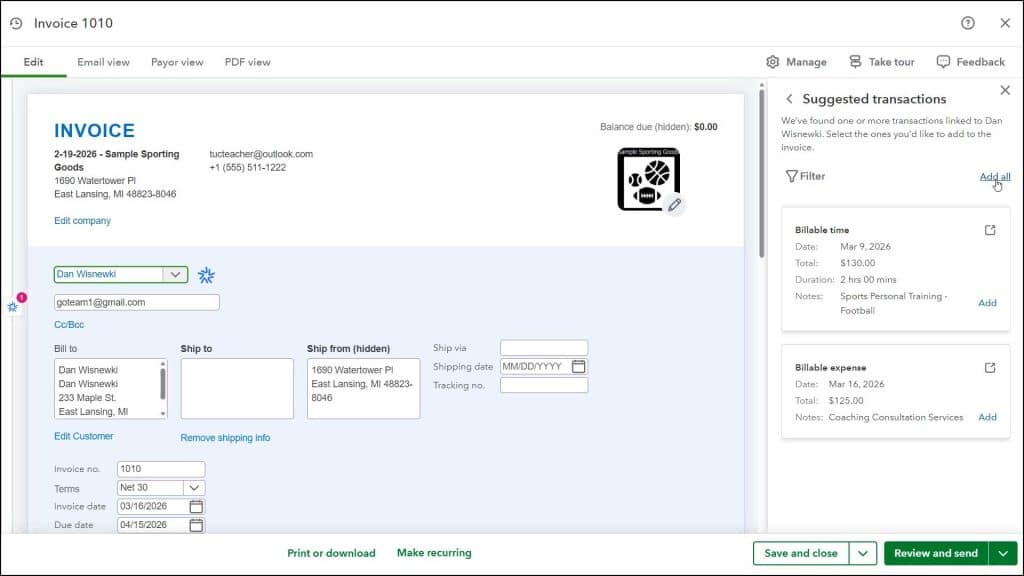
To add billable expenses to invoices in QuickBooks Online after creating them, hover over the “+ Create” button in the Navigation Bar. Then click the “Invoice” link under the “Customers” heading in the menu to open the “Invoice” window. Then select the name of the customer or project for whom you entered the billable expenses to invoice from the “Customer” drop-down.
Then a “Suggested transactions” pane appears at the right side of the invoice window. This pane lists all billable expenses and time for the selected customer or project. Click the “Add” link in the desired “Billable expense” to add it to the invoice.
Alternatively, to add all billable expense and time you have entered for the selected customer or project, click the “Add all” link in this pane to add all the items in this pane to the invoice. After adding the billable costs, enter any other invoice information you need. Then click a “Save” button choice in the toolbar at the bottom of the “Invoice” window to save it.