MY CART
How to Reopen a Frequently Opened File or Folder in File Explorer in Windows 11: Video Lesson
This video lesson, titled “How to Reopen a Frequently Opened File or Folder in File Explorer in Windows 11: A Training Tutorial,” shows you how to quickly find recently used files and folders in File Explorer in Windows 11. This video lesson is from our complete Windows tutorial, titled “Mastering Windows Online Made Easy.”
Overview:
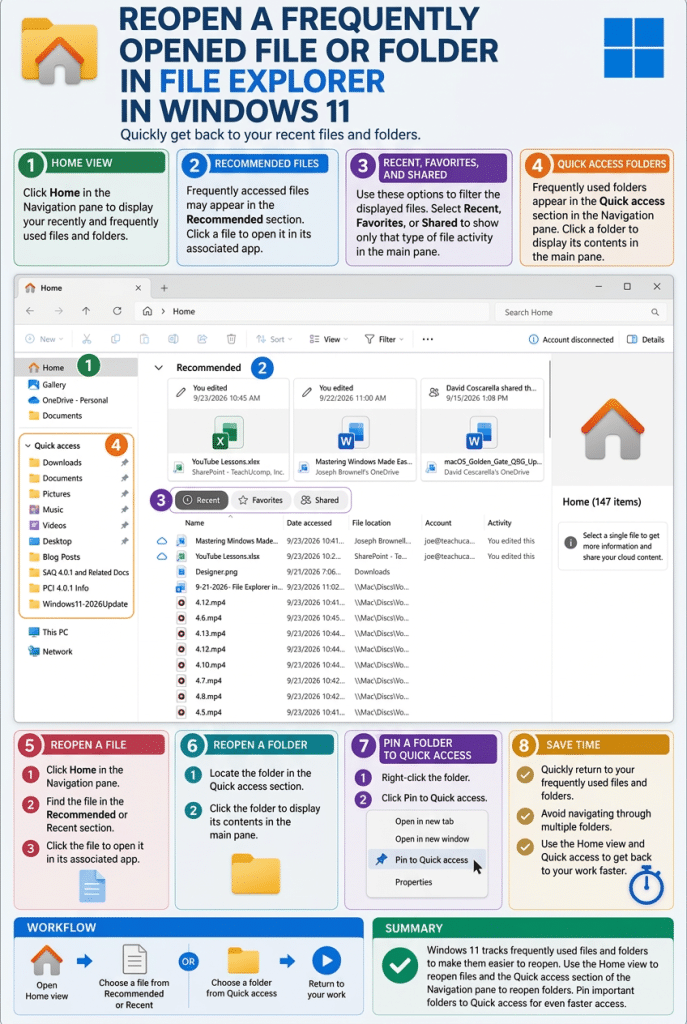
Windows 11 records information about files and folders you use frequently to help you quickly return to them. This information appears in the “Home” view in File Explorer. Using this feature can save time by eliminating the need to navigate through multiple folders to find commonly used items.
How to Reopen a Frequently Used File in File Explorer:
To reopen a frequently used file, open the File Explorer window and then click “Home” in the Navigation pane at the left side of the window. In the main pane, frequently accessed files appear in sections like “Recommended” or “Recent.” You can click any file shown in this area to open it in its associated app.
The “Home” view also provides filtering options for displayed files. For example, you may see options like “Recent,” “Favorites,” or “Shared” near the top of the file list. Click one of these options to display only that type of file activity in the main pane.
How to Reopen a Frequently Used Folder in File Explorer:
To reopen a frequently used folder, locate it in the Navigation pane at the left side of the File Explorer window. The middle section of the Navigation pane, called “Quick access,” displays frequently used folders so they are easy to find. You can click any folder shown in the Navigation pane to display its contents in the main pane.
How to Pin a Folder to the Quick Access Section of the Navigation Pane:
You can also “pin” folders to the Quick access section of the Navigation pane to make them easier to find. To pin a folder, right-click it and then select the “Pin to Quick access” command. When you pin a folder, it then also appears in the “Quick access” section for quick access in the future.
Using the “Home” view along with the Navigation pane provides two convenient ways to reopen frequently used files and folders. Files are typically shown in the main pane based on your recent activity, while folders are accessed through the Navigation pane. Together, these features make it easier to return to your work quickly.