 MY CART
How to Change the Multitasking Settings in Windows 11: Video Lesson
This video lesson, titled “Windows 11 Multitasking Settings: Snap Layouts and Virtual Desktops – A Windows 11 Training Tutorial,” shows you how to change the Multitasking settings in Windows 11. This video lesson is from our complete Windows tutorial, titled “Mastering Windows Made Easy.”
Overview:
How to Open the Multitasking Settings in Windows 11:
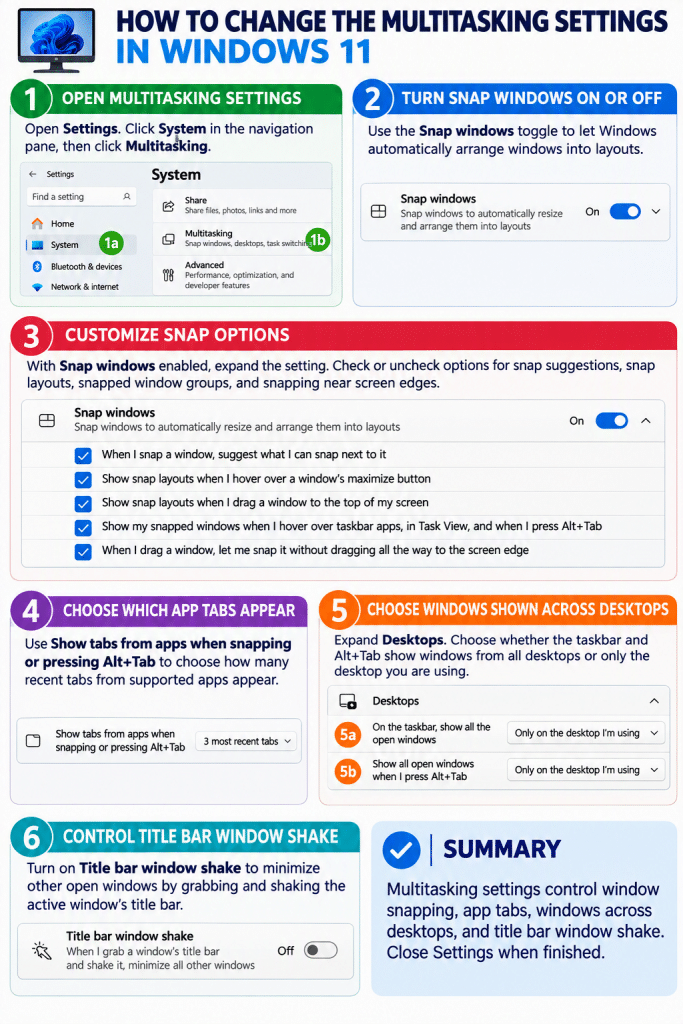
To change the multitasking settings in Windows 11, open the “Settings” app and then click the “System” category in the navigation pane. Then click the “Multitasking” setting to view the multitasking settings for your device. The multitasking settings control how Windows manages snapped windows, multiple desktops, task switching, and other multitasking features.
How to Change the Snap Windows Settings:
The “Snap windows” setting lets Windows automatically arrange and organize windows on the desktop. To turn Snap windows on or off, use the “Snap windows” toggle switch. If Snap windows is enabled, click the “Snap windows” setting to expand it and view additional options. These options let you control features such as snap suggestions, when to show snap layouts, displaying snapped windows when pointing to taskbar apps or using “Alt+Tab,” and snapping windows without dragging them completely to the edge of the screen. Check or uncheck the desired option to enable or disable it.
How to Change Which Tabs Appear When Snapping or Pressing Alt + Tab:
The “Show tabs from apps when snapping or pressing Alt+Tab” setting controls whether tabs from supported applications appear when using Snap layouts or switching between open windows by using the “Alt+Tab” keyboard shortcut. Select the desired option from the drop-down list to control how many recent tabs appear.
How to Change Which Windows Appear When Working with Multiple Desktops:
The “Desktops” section contains settings for users who work with multiple desktops. To view these settings, click the “Desktops” section to expand it. Use the available drop-down lists to choose whether open windows appear on all desktops or only on the desktop currently in use when viewing the taskbar or pressing the “Alt+Tab” keyboard shortcut.
How to Enable or Disable the Title Bar Window Shake to Minimize All Other Windows:
The “Title bar window shake” setting controls whether you can minimize all other open windows by clicking and shaking the title bar of the active window. To enable or disable this feature, use the “Title bar window shake” toggle switch. When finished changing your settings, close the “Settings” window by clicking the “Close” button in its upper-right corner.