 MY CART
How to Change the Focus Settings in Windows 11: Video Lesson
This video lesson, titled “How to Change the Focus Settings in Windows 11: A Windows 11 Training Tutorial,” shows you how to change the Focus settings in Windows 11. This video lesson is from our complete Windows tutorial, titled “Mastering Windows Made Easy.”
Overview:
How to Open the Focus Settings in Windows 11:
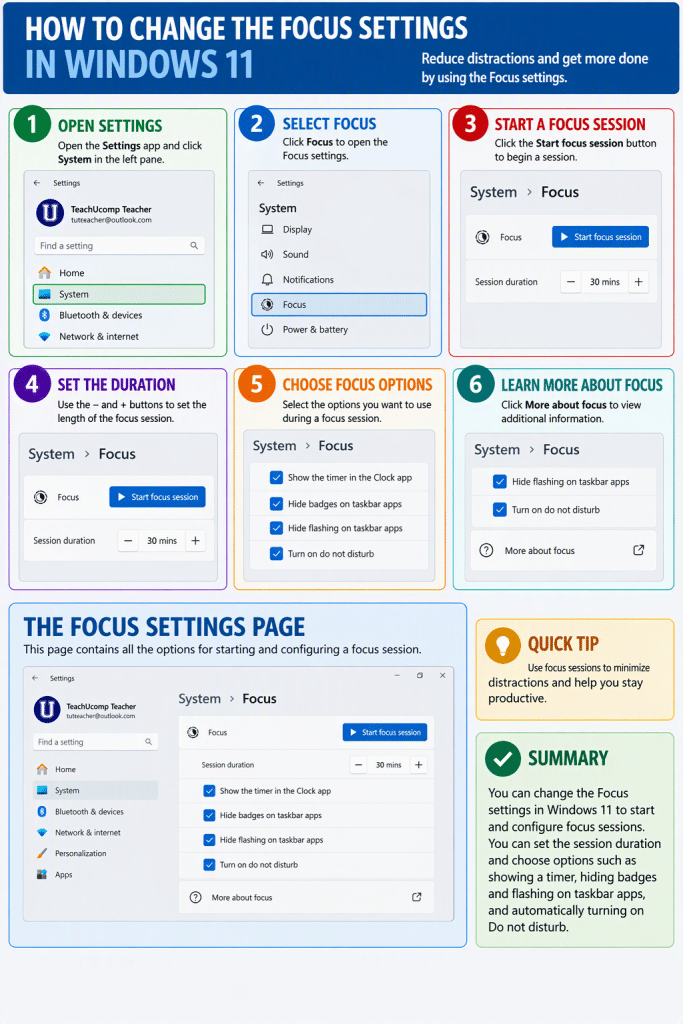
To change the focus settings in Windows 11, open the “Settings” app and then click the “System” category in the navigation pane. Then click the “Focus” setting to view the focus settings for your device. The focus settings help reduce distractions while you work by limiting notifications and minimizing interruptions for a specified period of time.
How to Start a Focus Session in Windows 11 and Set Its Duration:
The “Focus” section contains the settings used to start and configure a focus session. To start a focus session immediately, click the “Start focus session” button. Use the controls in the “Session duration” setting to increase or decrease the length of the focus session. During a focus session, Windows can perform additional actions that help reduce distractions.
How to Change the Settings for a Focus Session:
The available focus options let you choose what happens during a focus session. You can show a timer in the Clock app, hide badges on taskbar apps, hide flashing on taskbar apps, and automatically turn on “Do not disturb” while the focus session is active. To enable or disable any of these features, check or uncheck the associated setting.
How to Learn More about Focus Sessions and Close the Settings App:
The “More about focus” setting provides additional information about focus sessions and their purpose. Clicking this setting opens related information in a separate window or webpage. When finished, close the “Settings” window by clicking the “Close” button in its upper-right corner.