
TeachUcomp, Inc.

 MY CART
  • HOME
  • PRODUCTS
    • Books
      • QuickBooks Online
    • Manuals
      • Adobe
        • Acrobat
        • Lightroom Classic
        • Photoshop
        • Photoshop Elements
      • Crystal Reports
      • For Lawyers
        • Excel for Lawyers
        • Outlook for Lawyers
        • QuickBooks for Lawyers
        • Word for Lawyers
      • HTML
      • JavaScript
      • Microsoft Office
        • Access
        • Excel
        • OneNote
        • Outlook
        • Outlook on the Web
        • PowerPoint
        • Publisher
        • Word
      • Microsoft Project
      • Microsoft Teams
      • QuickBooks Online
      • QuickBooks Pro
      • Sage
        • Peachtree
        • Sage 50
      • SQL
      • Windows
    • Reference Guides
      • Adobe
        • Acrobat
        • Lightroom Classic
        • Photoshop
        • Photoshop Elements 2027
        • Photoshop Elements 2026
        • Photoshop Elements 2025
        • Photoshop Elements 2024
        • Photoshop Elements 2023
        • Photoshop Elements 2022
        • Photoshop Elements 2021
        • Photoshop Elements 2020
        • Photoshop Elements 2019
        • Photoshop Elements 2018
        • Photoshop Elements 15
      • Chrome OS
        • Chrome OS Keyboard Shortcuts
      • FreshBooks
      • Google
        • Google Classroom for Teachers
        • Google Docs
        • Google Drive
        • Google Forms
        • Google Sheets
        • Google Slides
      • macOS
        • macOS Keyboard Shortcuts
        • macOS Tahoe
      • Microsoft Office
        • Excel Formulas and Functions
        • Excel Keyboard Shortcuts (macOS)
        • Excel Keyboard Shortcuts (PC/Windows)
        • Excel Tables PivotTables and Charts
        • Microsoft 365
          • Access for Microsoft 365
          • Excel for Microsoft 365
          • Microsoft Office 365
          • Outlook for Microsoft 365 Classic Edition
          • Outlook for Microsoft 365 (New Outlook)
          • PowerPoint for Microsoft 365
          • Publisher for Microsoft 365
          • Word for Microsoft 365
        • Microsoft Office 2021
          • Access 2021
          • Excel 2021
          • Microsoft Office 2021
          • OneNote for Windows 10
          • Outlook 2021
          • PowerPoint 2021
          • Publisher 2021
          • Word 2021
        • Microsoft Office 2019
          • Access 2019
          • Excel 2019
          • Microsoft Office 2019
          • Outlook 2019
          • PowerPoint 2019
          • Publisher 2019
          • Word 2019
        • Microsoft Office 2016
          • Access 2016
          • Excel 2016
          • Microsoft Office 2016
          • OneNote 2016
          • Outlook 2016
          • PowerPoint 2016
          • Publisher 2016
          • Word 2016
        • Microsoft Office 2013
          • Excel 2013
          • Microsoft Office 2013
          • OneNote 2013
          • Outlook 2013
          • PowerPoint 2013
          • Word 2013
        • Microsoft Office for iPad
          • Microsoft Office for iPad
        • Word Keyboard Shortcuts (macOS)
        • Word Keyboard Shortcuts (PC/Windows)
      • Microsoft Teams
      • QuickBooks Online
      • QuickBooks Pro
        • QuickBooks Pro 2024
        • QuickBooks Pro 2023
        • QuickBooks Pro 2022
        • QuickBooks Pro 2021
        • QuickBooks Pro 2020
        • QuickBooks Pro 2019
        • QuickBooks Pro 2018
        • QuickBooks Pro 2017
        • QuickBooks Pro 2016
        • QuickBooks Pro 2015
        • QuickBooks Pro 2014
      • Sage 50 Accounting
      • SQL
      • Windows
        • Windows 11
        • Windows 11 and 10 Keyboard Shortcuts
        • Windows 10
    • Video Courses
      • All-Access Subscriptions
      • Course List
        • Accounting
        • Adobe
          • Acrobat
          • Lightroom Classic
          • Photoshop
          • Photoshop Elements
        • Crystal Reports
        • Employment Skills
          • Interview Skills
          • Resume Skills
        • For Lawyers
          • Excel for Lawyers
          • Outlook for Lawyers
          • QuickBooks for Lawyers
          • Word for Lawyers
        • HTML
        • JavaScript
        • Microsoft Office
          • Access
          • Excel
          • Microsoft Office Suite
          • OneNote
          • Outlook
          • Outlook on the Web
          • PowerPoint
          • Publisher
          • Word
        • Microsoft Project
        • Microsoft Teams
        • QuickBooks Online
        • QuickBooks Pro
        • Sage
          • Peachtree
          • Sage 50
        • SQL
        • Windows
      • My Courses
      • Video Course Options
    • Shortcut Stickers
      • Chrome OS
      • macOS
      • Microsoft Office
        • Word and Excel (Mac)
        • Word and Excel (PC/Windows)
      • QuickBooks Desktop
        • QuickBooks Desktop (PC/Windows) 2024
        • QuickBooks Desktop (PC/Windows) 2023
        • QuickBooks Desktop (PC/Windows) 2022-2015
      • QuickBooks Online
      • Windows
  • SHOP BY TOPIC
  • FOR TEAMS
  • SUPPORT
    • Company
      • About Us
      • Blog
      • Our History
      • Our Philosophy
        • Customer Service
        • Mission
      • Policies
      • Testimonials
    • Contact Us
    • FAQ
    • Help
    • Lost Password
    • Register a Product
  • LOGIN
    • Manage My Account
    • Member Login
    • My Courses
Shop Now

How to Change the Multitasking Settings in Windows 11

by Joseph Brownell / Monday, November 16 2026 / Published in Latest, Microsoft, Windows 11

How to Change the Multitasking Settings in Windows 11: Video Lesson

    This video lesson, titled “Windows 11 Multitasking Settings: Snap Layouts and Virtual Desktops – A Windows 11 Training Tutorial,” shows you how to change the Multitasking settings in Windows 11. This video lesson is from our complete Windows tutorial, titled “Mastering Windows Made Easy.”

Overview:

How to Open the Multitasking Settings in Windows 11:

To change the multitasking settings in Windows 11, open the “Settings” app and then click the “System” category in the navigation pane. Then click the “Multitasking” setting to view the multitasking settings for your device. The multitasking settings control how Windows manages snapped windows, multiple desktops, task switching, and other multitasking features.

How to Change the Snap Windows Settings:

            The “Snap windows” setting lets Windows automatically arrange and organize windows on the desktop. To turn Snap windows on or off, use the “Snap windows” toggle switch. If Snap windows is enabled, click the “Snap windows” setting to expand it and view additional options. These options let you control features such as snap suggestions, when to show snap layouts, displaying snapped windows when pointing to taskbar apps or using “Alt+Tab,” and snapping windows without dragging them completely to the edge of the screen. Check or uncheck the desired option to enable or disable it.

How to Change Which Tabs Appear When Snapping or Pressing Alt + Tab:

            The “Show tabs from apps when snapping or pressing Alt+Tab” setting controls whether tabs from supported applications appear when using Snap layouts or switching between open windows by using the “Alt+Tab” keyboard shortcut. Select the desired option from the drop-down list to control how many recent tabs appear.

How to Change Which Windows Appear When Working with Multiple Desktops:

            The “Desktops” section contains settings for users who work with multiple desktops. To view these settings, click the “Desktops” section to expand it. Use the available drop-down lists to choose whether open windows appear on all desktops or only on the desktop currently in use when viewing the taskbar or pressing the “Alt+Tab” keyboard shortcut.

How to Enable or Disable the Title Bar Window Shake to Minimize All Other Windows:

            The “Title bar window shake” setting controls whether you can minimize all other open windows by clicking and shaking the title bar of the active window. To enable or disable this feature, use the “Title bar window shake” toggle switch. When finished changing your settings, close the “Settings” window by clicking the “Close” button in its upper-right corner.
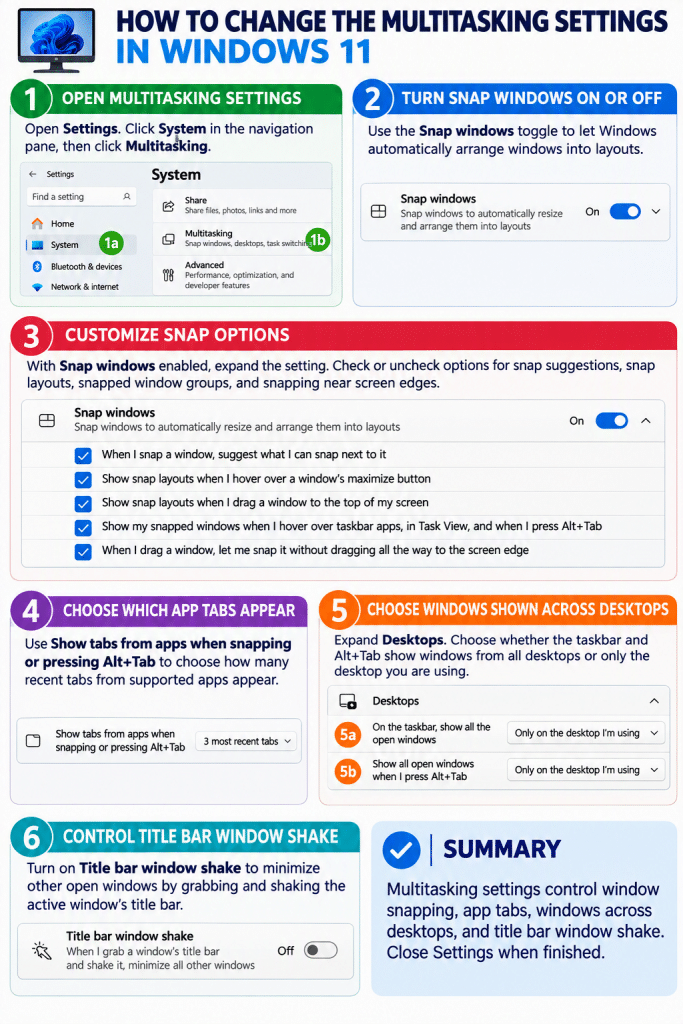
A picture showing how to change the Multitasking settings in Windows 11.

Tagged under: Alt Tab, Alt Tab settings, app tabs, arrange windows, multiple desktops, multitasking features, multitasking settings, snap apps, snap layouts, snap suggestions, Snap windows, switch desktops, system settings, task switching, taskbar apps, teachucomp, title bar window shake, virtual desktops, window management, Windows 11, windows 11 tutorial, Windows desktops, Windows multitasking, Windows productivity, windows settings, Windows tips, windows training

About Joseph Brownell

Joseph Brownell is founder and Vice President of TeachUcomp, Inc. He is the author of dozens of titles across the TeachUcomp, Inc. product line.
Team Training. Solutions for all team sizes.


Windows 11 Quick Reference Guide. Buy Now.
 

Categories

  • GET SOCIAL

© 2001-2026 Copyright TeachUcomp, Inc. All rights reserved.

TOP