
 MY CART
How to Use the Vendors List in QuickBooks Online
How to Use the Vendors List in QuickBooks Online: Video
This video lesson, titled “How to Use the Vendors Page and Vendors List in QuickBooks Online,” shows you how to use the Vendors list in QuickBooks Online. This video lesson is from our complete QuickBooks Online tutorial, titled “Mastering QuickBooks Online Made Easy.”
Overview:
To open the Vendors page in QuickBooks Online, click the “Vendors” link under the “Expenses & Bills” app in the “My Apps” bar. After adding vendors to your vendors list, a Money Bar appears at the top of the page that shows vendor transactions grouped by billing and payment status. Clicking any section in the Money Bar filters the Vendors list that appears below it to only show vendors with that type of transaction.
To remove the filter, click the “Clear Filter/View All” link below the Money Bar. In the lower-right corner of the Money Bar is a small arrow button you can click to collapse or expand the Money Bar.
How to Perform Batch Actions on Vendors:
Below the Money Bar is the Vendors list. To perform batch actions on vendors, check the checkboxes to the left to the names of vendors in the “Vendors” list on which to perform a batch action, click the “Batch actions” button that then appears, and then select the desired batch action to perform from the drop-down.
How to Find Vendors and Sort the Vendors List:
To find a vendor, enter a search term into the “Search” field at the top of the Vendors list. Then press the “Enter” key on your keyboard. If needed, you can delete the entry you typed into the “Search” field and then press the “Enter” key on your keyboard to show all the vendors again.
To sort the vendors list, click the sort button in the “Vendor,” “Company name,” “Attachments” or “Open Balance” column heading to sort by the values in the column label you click. You can click the same sort button to change the sort order, if needed. The sort order, either ascending or descending, is shown by a small arrow pointing up or down next to the name of the column label by which you are sorting the data.
How to Print, Export, and Change the Display of the Vendors List:
In the upper-right corner, above the Vendors list, are three buttons for “Print,” “Export to Excel,” and “Settings.” To open a printer-friendly Vendors list page and also open your web browser’s “Print” dialog box, click the “Print” button. To download the Vendors list as an Excel workbook, click the “Export to Excel” button.
To show the Vendors list’s display options in a drop-down menu, click the “Settings” button. To show or hide columns in the list, check or uncheck the column names under the “Columns” heading in the drop-down menu. To show any inactive vendors in the list, check the “Include inactive” checkbox under the “Other” heading in the drop-down menu. To select the number of vendor rows to show per page in the list, click the desired number’s option button in the “Page size” section of the drop-down menu. To close the drop-down menu, click the “Settings” button again.
How to Perform Actions on Vendors:
The “Action” column in the Vendors list contains a link and a drop-down that lets you choose an action, depending on which actions are currently available for the selected vendor. The choices may include: “Create bill,” “Make payment” (after entering bills), “Schedule payment,” “Create Expense,” “Write check,” “Create purchase order” and “Make inactive.”
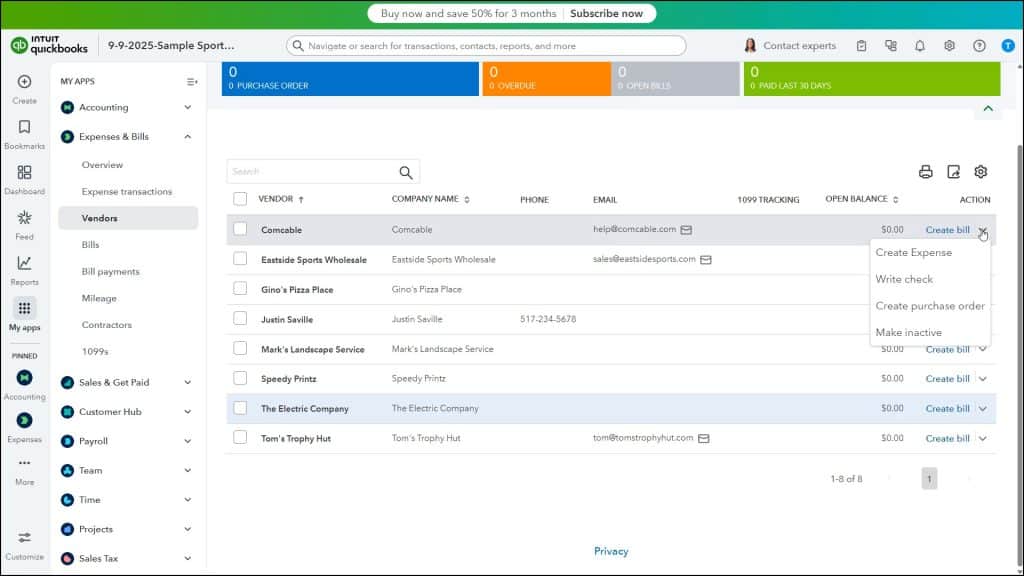
Other than the “Make inactive” choice, clicking each choice opens a page where you can perform the task. To navigate through multiple pages of the Vendors list, if needed, click the “First,” “Previous,” “Next” and “Last” links in the lower-right corner of the Vendors list.
How to Edit Vendors and View Vendor Information:
To edit a vendor, click the vendor’s name to open a vendor detail page that contains a “Transaction List,” “Vendor Details,” and “Notes” tab. Either click the “Vendor Details” tab and then click the “Edit” button in the upper-right corner of the tab or click the “Edit” button at the top, right-hand side of the vendor detail page to open the “Vendor” pane again. Change the information in the pane and then click the “Save” button. Note that clicking the “Transaction List” tab in the vendor detail page shows the vendor’s transactions and clicking the “Notes” tab lets you view and add notes about the vendor.
How to Inactivate a Vendor:
While you cannot delete a vendor, QuickBooks Online Plus lets you inactivate vendors. One way to inactivate a vendor is to click the vendor to inactivate in the Vendors list to open the vendor’s detail page. Then click the drop-down arrow on the “Edit” button in the upper-right corner of the page and then select the “Make inactive” command.
If the vendor has a zero (0) balance, a window opens, asking if you want to make this vendor inactive. Click the “Yes, make inactive” button to confirm it. If the vendor has an open balance, a warning window instead appears, asking to confirm that “Making this vendor inactive will cause an adjusting transaction to be created. Is this OK?” If so, click “Yes, make inactive” to make the vendor inactive and create the adjusting transaction. Alternatively, to inactivate a vendor with a zero open balance, select the “Make inactive” choice from the “Action” column for the vendor in the Vendors list.
How to Show Inactive Vendors and Reactivate a Vendor:
To reactivate an inactive vendor, click the “Settings” button above the Vendors list in the “Vendors” page. Then check the “Include inactive” checkbox in the drop-down menu to show inactive vendors in the list. Then click the “Make active” link in the “Action” column of the vendor record to reactivate.



