
TeachUcomp, Inc.

 MY CART
  • VIDEO COURSES
    • All-Access Subscriptions
    • Business Licensing
    • Course List
      • Accounting
      • Adobe
        • Acrobat
        • Lightroom Classic
        • Photoshop
        • Photoshop Elements
      • Crystal Reports
      • Employment Skills
        • Interview Skills
        • Resume Skills
      • For Lawyers
        • Excel for Lawyers
        • Outlook for Lawyers
        • QuickBooks for Lawyers
        • Word for Lawyers
      • HTML
      • JavaScript
      • Microsoft Office
        • Access
        • Excel
        • Microsoft Office Suite
        • OneNote
        • Outlook
        • Outlook on the Web
        • PowerPoint
        • Publisher
        • Word
      • Microsoft Project
      • Microsoft Teams
      • QuickBooks Online
      • QuickBooks Pro
      • Sage
        • Peachtree
        • Sage 50
      • SQL
      • Windows
    • My Courses
    • Video Course Options
  • SUBSCRIPTIONS
  • MANUALS
    • Adobe
      • Acrobat
      • Lightroom Classic
      • Photoshop
      • Photoshop Elements
    • Crystal Reports
    • For Lawyers
      • Excel for Lawyers
      • Outlook for Lawyers
      • QuickBooks for Lawyers
      • Word for Lawyers
    • HTML
    • JavaScript
    • Microsoft Office
      • Access
      • Excel
      • OneNote
      • Outlook
      • Outlook on the Web
      • PowerPoint
      • Publisher
      • Word
    • Microsoft Project
    • Microsoft Teams
    • QuickBooks Online
    • QuickBooks Pro
    • Sage
      • Peachtree
      • Sage 50
    • SQL
    • Windows
  • BOOKS
    • QuickBooks Online
  • REFERENCE CARDS
    • Adobe
      • Acrobat
      • Lightroom Classic
      • Photoshop
      • Photoshop Elements 2026
      • Photoshop Elements 2025
      • Photoshop Elements 2024
      • Photoshop Elements 2023
      • Photoshop Elements 2022
      • Photoshop Elements 2021
      • Photoshop Elements 2020
      • Photoshop Elements 2019
      • Photoshop Elements 2018
      • Photoshop Elements 15
    • FreshBooks
    • Google
      • Google Classroom for Teachers
      • Google Docs
      • Google Drive
      • Google Forms
      • Google Sheets
      • Google Slides
    • Mac OS
      • Mac OS Keyboard Shortcuts
    • Microsoft Office
      • Excel Formulas and Functions
      • Excel Keyboard Shortcuts
      • Excel Tables PivotTables and Charts
      • Microsoft 365
        • Access for Microsoft 365
        • Excel for Microsoft 365
        • Microsoft Office 365
        • Outlook for Microsoft 365 Classic Edition
        • Outlook for Microsoft 365 (New Outlook)
        • PowerPoint for Microsoft 365
        • Publisher for Microsoft 365
        • Word for Microsoft 365
      • Microsoft Office 2021
        • Access 2021
        • Excel 2021
        • Microsoft Office 2021
        • OneNote for Windows 10
        • Outlook 2021
        • PowerPoint 2021
        • Publisher 2021
        • Word 2021
      • Microsoft Office 2019
        • Access 2019
        • Excel 2019
        • Microsoft Office 2019
        • Outlook 2019
        • PowerPoint 2019
        • Publisher 2019
        • Word 2019
      • Microsoft Office 2016
        • Access 2016
        • Excel 2016
        • Microsoft Office 2016
        • OneNote 2016
        • Outlook 2016
        • PowerPoint 2016
        • Publisher 2016
        • Word 2016
      • Microsoft Office 2013
        • Excel 2013
        • Microsoft Office 2013
        • OneNote 2013
        • Outlook 2013
        • PowerPoint 2013
        • Word 2013
      • Microsoft Office for iPad
        • Microsoft Office for iPad
      • Word Keyboard Shortcuts
    • Microsoft Teams
    • QuickBooks Online
    • QuickBooks Pro
      • QuickBooks Pro 2024
      • QuickBooks Pro 2023
      • QuickBooks Pro 2022
      • QuickBooks Pro 2021
      • QuickBooks Pro 2020
      • QuickBooks Pro 2019
      • QuickBooks Pro 2018
      • QuickBooks Pro 2017
      • QuickBooks Pro 2016
      • QuickBooks Pro 2015
      • QuickBooks Pro 2014
    • Sage 50 Accounting
    • SQL
    • Windows
      • Windows 11
      • Windows 11 and 10 Keyboard Shortcuts
      • Windows 10
  • SUPPORT
    • Company
      • About Us
      • Blog
      • Contact Us
      • Our History
      • Our Philosophy
        • Customer Service
        • Mission
      • Policies
      • Testimonials
    • FAQ
      • Contact Us
    • Help
    • Lost Password
    • Register a Product
  • LOGIN
    • Manage My Account
    • Member Login
    • My Courses
Shop Now

Hyperlink in PowerPoint – Instructions

Thursday, December 02 2021 by Joseph Brownell
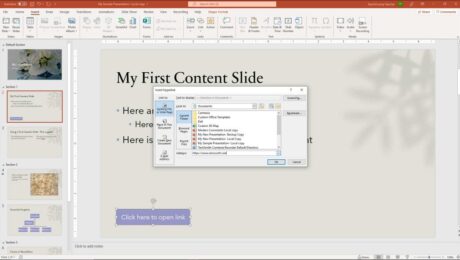
A picture of a user adding a hyperlink in PowerPoint to a selected shape in a slide.
How to Hyperlink in PowerPoint: Video             This video lesson, titled “Using Links,” shows you how to hyperlink in PowerPoint. This video lesson is from our complete PowerPoint tutorial, titled “Mastering PowerPoint Made Easy v.2019 and 365.” Overview of How to Hyperlink in PowerPoint: What are Hyperlinks in PowerPoint?             A hyperlink in PowerPoint is
addAdd Hyperlinks in PowerPointcoursecreatehelpHow to Add a Hyperlink in PowerPointhow to add hyperlink in powerpointhow to add hyperlink in pptHow to Automatically Insert a Hyperlink in PowerPointhow to create hyperlink in powerpointhow to create hyperlink in ppthow to hyperlink in powerpointhow to hyperlink in ppthow to insert hyperlink in powerpointhow to insert hyperlink in ppthow to make hyperlink in powerpointhow to put hyperlink in ppthow to use hyperlink in powerpointhow-tohyperlinkhyperlink in powerpointhyperlink in ppthyperlink powerpointhyperlinksinsertinsert linksinstructionslearnlessonlinkoverviewpowerpointPowerPoint 2013PowerPoint 2016PowerPoint 2019PowerPoint for Microsoft 365PowerPoint for Office 365powerpoint linkpptpresentationpresentationsslideslidesteachto insert a hyperlink in a slidetrainingtutorialvideowhat are hyperlinks in powerpointwhat is hyperlink in powerpoint
Read more
  • Published in Latest, Microsoft, Office 2013, Office 2016, Office 2019, Office 365, PowerPoint 2013, PowerPoint 2016, PowerPoint 2019, PowerPoint for Office 365
No Comments

Action Buttons in PowerPoint- Instructions

Monday, November 29 2021 by Joseph Brownell
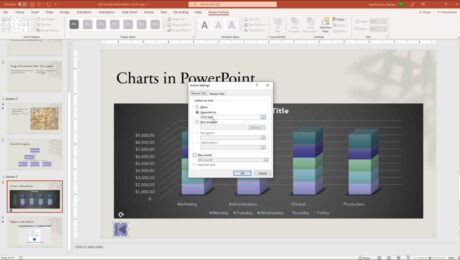
A picture of a user programming an action for one of the action buttons in PowerPoint.
How to Create Action Buttons in PowerPoint: Video             This video lesson, titled “Inserting Actions,” shows how to insert action buttons in PowerPoint. This video lesson is from our complete PowerPoint tutorial, titled “Mastering PowerPoint Made Easy v.2019 and 365.” How to Insert Action Buttons in PowerPoint:             You can add action buttons in PowerPoint
actionaction buttonaction button in powerpointaction button powerpointaction buttonsAction Buttons in PowerPointaction settingsactionsaddcoursecreatedialog boxhelphow to add action button in powerpointhow to add an action button in powerpointHow to Create Action Buttons in PowerPointhow to insert action button in powerpointhow to insert an action button in powerpointhow-toinsertinstructionslearnlessonmouse clickmouse overobject action in powerpointoverviewpowerpointPowerPoint 2013PowerPoint 2016PowerPoint 2019powerpoint action buttonpowerpoint buttonpowerpoint buttonspowerpoint buttons to slidePowerPoint for Microsoft 365PowerPoint for Office 365presentationpresentationsself studyslideslidesteachtrainingtutorialvideowhat are action buttonswhat is action buttonwhat is an action button
Read more
  • Published in Latest, Microsoft, Office 2013, Office 2016, Office 2019, Office 365, PowerPoint 2013, PowerPoint 2016, PowerPoint 2019, PowerPoint for Office 365
No Comments

Add Text to Slides in PowerPoint – Instructions

Wednesday, November 24 2021 by Joseph Brownell
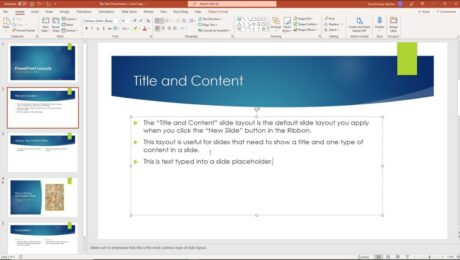
A picture showing how to add text to slides in PowerPoint by typing text into a slide placeholder.
How to Add Text to Slides in PowerPoint: Video             This video lesson, titled “Adding Text to Slides,” shows how to add text to slides in PowerPoint. This video is from our complete PowerPoint tutorial, titled “Mastering PowerPoint Made Easy v.2019 and 365.” Overview of How to Add Text to Slides in PowerPoint:             You
20132016addadd text to powerpointadd text to powerpoint slideAdd Text to Slides in PowerPointaddingcoursehelphow to add text in a blank slide in powerpointhow to add text in powerpointhow to add text in ppthow to add text on powerpointhow to add text to a powerpoint slideHow to Add Text to a Shape in PowerPointHow to Add Text to a Slide Placeholder in PowerPointHow to Add Text to a Text Box in PowerPointhow to add text to powerpointhow to insert text in powerpointHow to Switch Modes for Text-Containing Objects in PowerPointhow-toinsertinsert text in powerpointinsertinginstructionslearnlessonoverviewplaceholderplaceholderspowerpointPowerPoint 2013PowerPoint 2016PowerPoint 2019PowerPoint for Microsoft 365PowerPoint for Office 365powerpoint trainingpowerpoint tutorialpresentationpresentationsshapeshapesslideslidesteachtexttext boxtext boxestrainingtutorialvideo
Read more
  • Published in Latest, Microsoft, Office 2013, Office 2016, Office 2019, Office 365, PowerPoint 2013, PowerPoint 2016, PowerPoint 2019, PowerPoint for Office 365
No Comments

Slide Transition Animation in PowerPoint – Instructions

Tuesday, November 23 2021 by Joseph Brownell
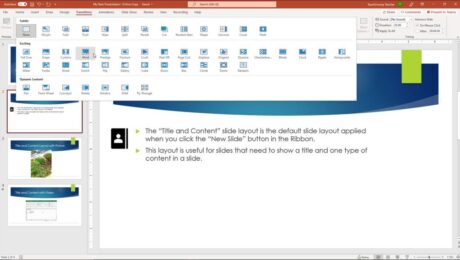
A picture of a user selecting a slide transition animation in PowerPoint from the expanded menu of choices.
How to Apply Slide Transition Animation in PowerPoint: Video             This video lesson, titled “Adding Slide Transition Animation,” shows how to add slide transition animation in PowerPoint. This video lesson is from our complete PowerPoint tutorial, titled “Mastering PowerPoint Made Easy v.2019 and 365.” Overview of How to Apply Slide Transition Animation in PowerPoint:            
2013addadvance slide in powerpointadvance slides in PowerPointadvancing slides in PowerPointanimationanimationsapplychangechange slide transition directionchoosecoursecourseseffecteffectsguidehelphowhow-toinstructionslearnlessonmicrosoftmodifymsofficeoptionsoverviewpowerpointPowerPoint 2013PowerPoint 2016PowerPoint 2019PowerPoint for Microsoft 365PowerPoint for Office 365powerpoint transitionspresentationpresentationssettingsslideslide advancement settingsslide animation in powerpointslide transitionslide transition animationSlide Transition Animation in PowerPointslide transition in powerpointslide transition optionsslide transition settingsslide transition soundslide transition speedslide transitionsslide transitions in PowerPointslidesteachtrainingtransition effect durationtransition in powerpointtransitionstutorialvideowhat is slide transition in powerpoint
Read more
  • Published in Latest, Microsoft, Office 2013, Office 2016, Office 2019, Office 365, PowerPoint 2013, PowerPoint 2016, PowerPoint 2019, PowerPoint for Office 365
No Comments

Slide Layouts in PowerPoint- Instructions

Friday, November 19 2021 by Joseph Brownell
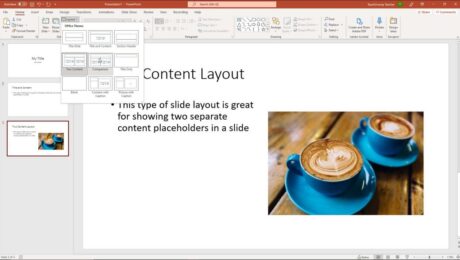
A picture of a user applying a new slide layout to a selected slide from the slide layouts in PowerPoint.
Slide Layouts in PowerPoint: Video             This video lesson, titled “Applying Slide Layouts,” shows you how to apply, change, and reset slide layouts in PowerPoint. This video is from our complete PowerPoint tutorial, titled “Mastering PowerPoint Made Easy v.2019 and 365.” Overview of Applying Slide Layouts in PowerPoint What is a Slide Layout?             Slide
20132016applyapplyingchangechangingcoursedefaulthelphow to apply a slide layouthow to change a slide layouthow to reset a slide layouthow-toinstructionslayoutlayout in powerpointlayout powerpointlayoutslearnlessonoverviewplaceholderspowerpointPowerPoint 2013PowerPoint 2016PowerPoint 2019PowerPoint for Microsoft 365PowerPoint for Office 365powerpoint layoutpresentationpresentationsresetslideslide layoutslide layout powerpointslide layoutsSlide Layouts in PowerPointslide placeholdersslidesteachtrainingtutorialvideowhat is a layout in powerpointwhat is a slide layoutwhat is layout in powerpoint
Read more
  • Published in Latest, Microsoft, Office 2013, Office 2016, Office 2019, Office 365, PowerPoint 2013, PowerPoint 2016, PowerPoint 2019, PowerPoint for Office 365
No Comments

Insert a Chart in PowerPoint – Instructions

Thursday, November 18 2021 by Joseph Brownell
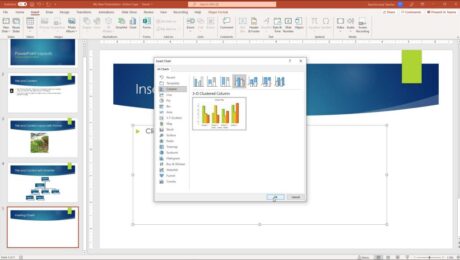
A picture showing how to insert a chart in PowerPoint and select its chart type in the “Insert Chart” dialog box.
How to Insert a Chart in PowerPoint: Video             This video lesson, titled “Inserting Charts,” shows how to insert a chart in PowerPoint. This video is from our complete PowerPoint tutorial, titled “Mastering PowerPoint Made Easy v.2019 and 365.” Overview of How to Insert a Chart in PowerPoint:             To insert a chart in PowerPoint
addchange chart data in powerpointchartchartscourseedit chart data in powerpointhelphow to add a chart in powerpointhow to add chart in powerpointHow to Edit Chart Data in PowerPointhow to insert a chart in powerpointhow to insert chart in powerpointhow to insert charts in powerpointhow-toinsertInsert a Chart in PowerPointinsert chart in powerpointinsert chart powerpointinserting chartsinstructionslearnlessonoverviewpowerpointPowerPoint 2013PowerPoint 2016PowerPoint 2019PowerPoint for Microsoft 365PowerPoint for Office 365presentationpresentationsself studyslideslidesteachtrainingtutorialvideowhere is the chart button in powerpoint
Read more
  • Published in Latest, Microsoft, Office 2016, Office 2019, Office 365, PowerPoint 2016, PowerPoint 2019, PowerPoint for Office 365
No Comments

Microsoft 365 Training

Wednesday, November 17 2021 by Joseph Brownell
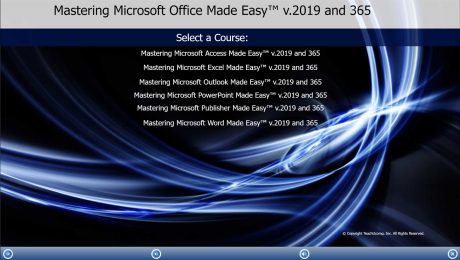
A picture of the training interface for the DVD and digital download version of our Microsoft 365 training, titled “Mastering Microsoft Office Made Easy™ v. 2019 and 365.”
Microsoft 365 Training Now Available from TeachUcomp, Inc.             You can now buy Microsoft 365 training and Microsoft Office 2019 training from TeachUcomp, Inc. Our newest product, the “Mastering Microsoft Office Made Easy™ v. 2019 and 365” tutorial, helps you learn how to use the Microsoft 365 productivity software programs. This single product contains complete
Access for Microsoft 365coursedigital downloaddigital downloadsdvdExcel for Microsoft 365exerciseslearnlessonmanualsMicrosoft 365Microsoft 365 TrainingMicrosoft OfficeMicrosoft Office 365new productnewsoffice 365onlineonline trainingOutlook for Microsoft 365PDF manualsPowerPoint for Microsoft 365product releasePublisher for Microsoft 365reviewself studyteachtesttestingtrainingtutorialvideovideosWord for Microsoft 365
Read more
  • Published in Access 2019, Access for Office 365, Excel 2019, Excel for Office 365, Latest, Marketing, Microsoft, News, Office 2019, Office 365, Outlook 2019, Outlook for Office 365, PowerPoint 2019, PowerPoint for Office 365, Publisher 2019, What's New at TeachUcomp?, Word 2019, Word for Office 365
No Comments

PowerPoint Reading View – Instructions

Tuesday, November 16 2021 by Joseph Brownell
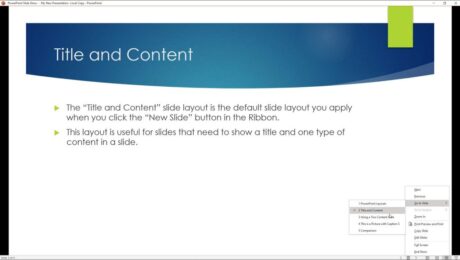
A picture of a user selecting commands in a PowerPoint presentation in PowerPoint Reading view.
PowerPoint Reading View: Video Lesson             This video lesson, titled “Reading View,” shows you how to use PowerPoint Reading view. This video is from our complete PowerPoint tutorial, titled “Mastering PowerPoint Made Easy v.2019 and 365.” PowerPoint Reading View: Overview             PowerPoint Reading view lets you view the presentation’s content as if using Slide Show
coursehelphow to switch to reading view in powerpointhow to use reading view in powerpointhow-toinstructionslearnlessonnavigateoverviewpowerpointPowerPoint 2013PowerPoint 2016PowerPoint 2019PowerPoint for Microsoft 365PowerPoint for Office 365PowerPoint Reading Viewpresentationpresentation viewspresentationsReading Viewreading view in powerpointreading view powerpointself studyteachtrainingtutorialusevideoviewviewswhat is reading view in powerpoint
Read more
  • Published in Latest, Microsoft, Office 2013, Office 2016, Office 2019, Office 365, PowerPoint 2013, PowerPoint 2016, PowerPoint 2019, PowerPoint for Office 365
No Comments
  • 1
  • 2
  • 3
  • 4
Sale! One Year Online Entire Library $29. Click here to see the deals.


Categories

  • GET SOCIAL

© 2001-2026 Copyright TeachUcomp, Inc. All rights reserved.

TOP
SALE! $29 All-Access 7 Days 5 Hours 3 Minutes 50 Seconds      $199 $29 Entire Library!
See Deal