
TeachUcomp, Inc.

 MY CART
  • VIDEO COURSES
    • All-Access Subscriptions
    • Business Licensing
    • Course List
      • Accounting
      • Adobe
        • Acrobat
        • Lightroom Classic
        • Photoshop
        • Photoshop Elements
      • Crystal Reports
      • Employment Skills
        • Interview Skills
        • Resume Skills
      • For Lawyers
        • Excel for Lawyers
        • Outlook for Lawyers
        • QuickBooks for Lawyers
        • Word for Lawyers
      • HTML
      • JavaScript
      • Microsoft Office
        • Access
        • Excel
        • Microsoft Office Suite
        • OneNote
        • Outlook
        • Outlook on the Web
        • PowerPoint
        • Publisher
        • Word
      • Microsoft Project
      • Microsoft Teams
      • QuickBooks Online
      • QuickBooks Pro
      • Sage
        • Peachtree
        • Sage 50
      • SQL
      • Windows
    • My Courses
    • Video Course Options
  • SUBSCRIPTIONS
  • MANUALS
    • Adobe
      • Acrobat
      • Lightroom Classic
      • Photoshop
      • Photoshop Elements
    • Crystal Reports
    • For Lawyers
      • Excel for Lawyers
      • Outlook for Lawyers
      • QuickBooks for Lawyers
      • Word for Lawyers
    • HTML
    • JavaScript
    • Microsoft Office
      • Access
      • Excel
      • OneNote
      • Outlook
      • Outlook on the Web
      • PowerPoint
      • Publisher
      • Word
    • Microsoft Project
    • Microsoft Teams
    • QuickBooks Online
    • QuickBooks Pro
    • Sage
      • Peachtree
      • Sage 50
    • SQL
    • Windows
  • BOOKS
    • QuickBooks Online
  • REFERENCE CARDS
    • Adobe
      • Acrobat
      • Lightroom Classic
      • Photoshop
      • Photoshop Elements 2026
      • Photoshop Elements 2025
      • Photoshop Elements 2024
      • Photoshop Elements 2023
      • Photoshop Elements 2022
      • Photoshop Elements 2021
      • Photoshop Elements 2020
      • Photoshop Elements 2019
      • Photoshop Elements 2018
      • Photoshop Elements 15
    • Chrome OS
      • Chrome OS Keyboard Shortcuts
    • FreshBooks
    • Google
      • Google Classroom for Teachers
      • Google Docs
      • Google Drive
      • Google Forms
      • Google Sheets
      • Google Slides
    • macOS
      • macOS Keyboard Shortcuts
      • macOS Tahoe
    • Microsoft Office
      • Excel Formulas and Functions
      • Excel Keyboard Shortcuts (macOS)
      • Excel Keyboard Shortcuts (PC/Windows)
      • Excel Tables PivotTables and Charts
      • Microsoft 365
        • Access for Microsoft 365
        • Excel for Microsoft 365
        • Microsoft Office 365
        • Outlook for Microsoft 365 Classic Edition
        • Outlook for Microsoft 365 (New Outlook)
        • PowerPoint for Microsoft 365
        • Publisher for Microsoft 365
        • Word for Microsoft 365
      • Microsoft Office 2021
        • Access 2021
        • Excel 2021
        • Microsoft Office 2021
        • OneNote for Windows 10
        • Outlook 2021
        • PowerPoint 2021
        • Publisher 2021
        • Word 2021
      • Microsoft Office 2019
        • Access 2019
        • Excel 2019
        • Microsoft Office 2019
        • Outlook 2019
        • PowerPoint 2019
        • Publisher 2019
        • Word 2019
      • Microsoft Office 2016
        • Access 2016
        • Excel 2016
        • Microsoft Office 2016
        • OneNote 2016
        • Outlook 2016
        • PowerPoint 2016
        • Publisher 2016
        • Word 2016
      • Microsoft Office 2013
        • Excel 2013
        • Microsoft Office 2013
        • OneNote 2013
        • Outlook 2013
        • PowerPoint 2013
        • Word 2013
      • Microsoft Office for iPad
        • Microsoft Office for iPad
      • Word Keyboard Shortcuts (PC/Windows)
    • Microsoft Teams
    • QuickBooks Online
    • QuickBooks Pro
      • QuickBooks Pro 2024
      • QuickBooks Pro 2023
      • QuickBooks Pro 2022
      • QuickBooks Pro 2021
      • QuickBooks Pro 2020
      • QuickBooks Pro 2019
      • QuickBooks Pro 2018
      • QuickBooks Pro 2017
      • QuickBooks Pro 2016
      • QuickBooks Pro 2015
      • QuickBooks Pro 2014
    • Sage 50 Accounting
    • SQL
    • Windows
      • Windows 11
      • Windows 11 and 10 Keyboard Shortcuts
      • Windows 10
  • STICKERS
    • Chrome OS
    • macOS
    • Microsoft Office
      • Word and Excel (Mac)
      • Word and Excel (PC/Windows)
    • QuickBooks Desktop
      • QuickBooks Desktop (PC/Windows) 2024
      • QuickBooks Desktop (PC/Windows) 2023
      • QuickBooks Desktop (PC/Windows) 2022-2015
    • QuickBooks Online
    • Windows
  • SUPPORT
    • Company
      • About Us
      • Blog
      • Contact Us
      • Our History
      • Our Philosophy
        • Customer Service
        • Mission
      • Policies
      • Testimonials
    • FAQ
      • Contact Us
    • Help
    • Lost Password
    • Register a Product
  • LOGIN
    • Manage My Account
    • Member Login
    • My Courses
Shop Now

Create HTML Bullet Points – Instructions

Monday, October 11 2021 by Joseph Brownell
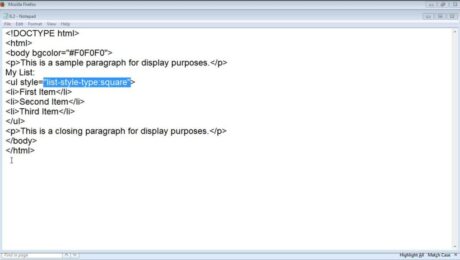
A picture of a user creating HTML bullet points in a simple web page created in Notepad.
How to Create HTML Bullet Points: Video          This video lesson, titled “Bulleted (Unordered) Lists,” shows you how to create HTML bullet points, also called unordered lists in HTML. This video lesson is from our introductory HTML5 and CSS3 tutorial, titled “Mastering HTML5 and CSS3 Made Easy v.1.0.” Overview of How to
bullet list htmlbullet point html codebullet point list htmlbullet points in htmlbullets in htmlcreateCreate HTML Bullet Pointshelphow tohow to create lists in htmlHow to Make HTML Bullet Pointshow to make html bulletshow-tohtmlhtml bullethtml bullet listhtml bullet pointshtml bullet symbolhtml bulletsHTML codehtml code bullet listhtml helphtml list stylehtml taghtml unordered listhtml5learnlessonli tag in htmllistlistsol tag in htmloverviewtagteachtrainingtutorialul list styleul tagul tag in htmlunordered listunordered list htmlunordered listsvideowrite HTML
Read more
  • Published in HTML, Latest
No Comments

Create a Navigation Form in Access – Instructions

Thursday, September 23 2021 by Joseph Brownell
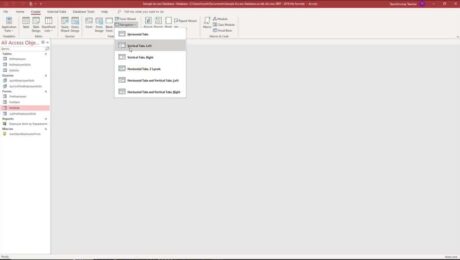
A picture that shows how to create a navigation form in Access.
How to Create a Navigation Form in Access: Video             This video lesson, titled “Creating a Navigation Form,” shows how to create a navigation form in Access. This video lesson is from our complete Access tutorial, titled “Mastering Access Made Easy v.2019 and 365.” Overview of How to Create a Navigation Form in Access            
accessAccess 2016Access 2019Access for Microsoft 365Access for Office 365access form navigation buttonsaccess navigation formaddcoursecreateCreate a Navigation Form in Accessdatabasedatabasesformformshelphow to create a navigation form in accesshow to create navigation form in accesshow-toinstructionslearnlessonmakemicrosoft access navigation formms access navigation formnavigation buttons accessnavigation formnavigation form accessnavigation form in accessnavigation formsoverviewself studyteachtrainingtutorialtypes of navigation that you can create in accessvideowhat is a navigation form in access
Read more
  • Published in Access 2016, Access 2019, Access for Office 365, Latest, Microsoft, Office 2016, Office 2019, Office 365
No Comments

Create a Calculated Field in Access – Instructions

Tuesday, September 21 2021 by Joseph Brownell
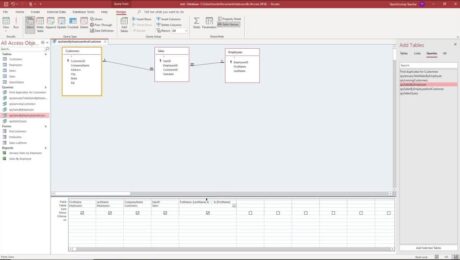
A picture that shows how to create a calculated field in Access in query design view.
Video Lesson on How to Create a Calculated Field in Access:             This video lesson, titled “Creating a Calculated Field,” shows how to create a calculated field in Access. This video lesson is from our complete Access tutorial, titled “Mastering Access Made Easy v.2019 and 365.” Overview:             You can easily create a calculated field
aboutaccessaccess 2013Access 2016Access 2019access add calculated field to queryaccess calculated fieldaccess calculated field in queryaccess databaseAccess for Microsoft 365Access for Office 365access formulas in queriesaccess query calculated fieldaddadd a calculated field in accessaddingcalculated fieldcalculated field accesscalculated field access querycalculated field in accesscalculated field in access querycalculated fieldscalculationcalculationscolumncolumnscoursecreateCreate a Calculated Field in Accesscreate calculated field in access querycreatingdesign viewfieldformulaformulasfunctionfunctionshelphow to add a calculated field in accesshow to add a calculated field in access queryhow to add a calculated field to a query in accesshow to add calculated field in accesshow to add calculated field in access queryhow to create a calculated field in a query in accesshow to create a calculated field in accesshow to create a calculated field in access queryhow-toinfoinformationinsertinsertinginstructionslearnlessonMicrosoft Accessms access calculated fieldms access query calculated fieldoverviewqueriesqueryself studyteachtrainingtutorialvideo
Read more
  • Published in Access 2013, Access 2016, Access 2019, Access for Office 365, Latest, Microsoft, Office 2013, Office 2016, Office 2019, Office 365
No Comments

Standalone Macros in Access – Instructions

Thursday, September 09 2021 by Joseph Brownell
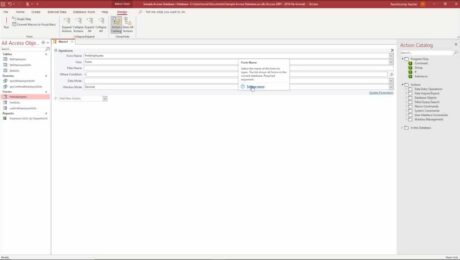
A picture of a user creating a standalone macro in Access.
Standalone Macros in Access: Video             This video lesson, titled “Creating a Standalone Macro,” shows you how to use standalone macros in Access. This video lesson is from our complete Access tutorial, titled “Mastering Access Made Easy v.2019 and 365.” Overview of Standalone Macros in Access             Standalone macros in Access are programs you create
2013accessaccess 2013Access 2016Access 2019access edit macroAccess for Microsoft 365Access for Office 365access macroaccess macro tutorialaccess macrosaccess macros examplesaccess standalone macrosactionsargumentsassigncreateCreating Standalone Macros in AccessdatabasedatabaseseditEditing Standalone Macros in Accessguidehelphow tohow to create macros in accessHow to Create Standalone Macros in AccessHow to Edit a Standalone Macro in Accesshow to edit macro in accesshow to edit macros in accesshow to run macros in accessHow to Run Standalone Macros in Accesshow-toinstructionslearnlessonmacromacro accessmacro in accessmacro in ms accessmacrosmacros accessmacros in accessmacros in ms accessmicrosoftMicrosoft Accessmicrosoft access macrosms accessms access macroms access macrosoverviewrunRunning Standalone Macros in Accesssettingsstandalone macrostandalone macrosStandalone Macros in Accessteachtraintrainingtutorialusevideo
Read more
  • Published in Access 2013, Access 2016, Access 2019, Access for Office 365, Latest, Office 2013, Office 2016, Office 2019, Office 365
No Comments

Combo Box Controls in Access- Instructions

Wednesday, September 08 2021 by Joseph Brownell
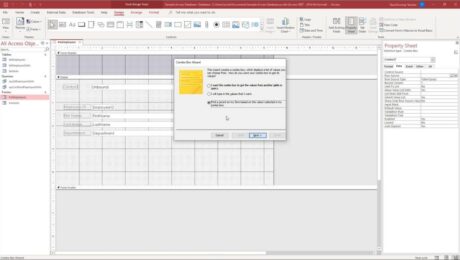
A picture of the “Combo Box Wizard” used to create combo box controls in Access.
Combo Box Controls in Access: Video             This video lesson, titled “Adding Combo Box Controls,” shows you how to add combo box controls in Access. This video is from our complete Access tutorial, titled “Mastering Access Made Easy v.2019 and 365.” Overview of How to Create Combo Box Controls in Access             Combo box controls
access 2013Access 2016Access 2019access combo boxaccess combo box wizardAccess for Microsoft 365Access for Office 365addaddingcombo boxcombo box accesscombo box controlsCombo Box Controls in Accesscombo box in accesscombo box in access formcombo box wizardcombo box wizard accesscombobox accesscontrolcontrolscoursecreatecreatingdesign viewdrop down menu accessdrop-downdrop-down menuformformshelphow to add a combo box in accesshow to create a combo box in accesshow to create combo box in accesshow to make a combo box in accesshow to use combo box in accesshow-toinsertinsertinginstructionslearnlessonMicrosoft Accessoverviewteachtrainingtutorialuseusingvideowhat is a combo box in access
Read more
  • Published in Access 2013, Access 2016, Access 2019, Access for Office 365, Latest, Microsoft, Office 2013, Office 2016, Office 2019, Office 365
No Comments

Create Input Masks in Access – Instructions

Thursday, August 26 2021 by Joseph Brownell
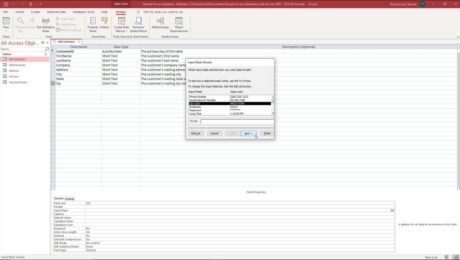
A picture of the “Input Mask Wizard” in Access you use to create input masks in Access.
Create Input Masks in Access: Video             This video lesson, titled “Setting Input Masks,” shows you how to create input masks in Access. This video lesson on how to create input masks in Access is from our complete Access tutorial, titled “Mastering Access Made Easy v.2019 and 365.” Overview of Creating Input Masks in Access
accessaccess 2013Access 2016Access 2019Access for Microsoft 365Access for Office 365access input maskapplyapply an input mask in accessclasscoursecreatecreate an input mask in accessCreate Input Masks in Accesscreating input masks in accessdata entrydatabasedatabasesfieldfield propertiesfieldshelphow to apply an input mask in accesshow to create an input mask in accesshow-toinput maskinput mask accessinput mask in accessinput mask property accessinput mask wizard accessinput masksinstructionslearnlessonMicrosoft Accessmicrosoft access input maskms access input maskoverviewpropertytabletablesteachtrainingtutorialvideowhat is input maskwhat is input mask in access
Read more
  • Published in Access 2010, Access 2013, Access 2016, Access 2019, Access for Office 365, Latest, Microsoft, Office 2010, Office 2013, Office 2016, Office 2019, Office 365
No Comments

Create a Form in Word- Instructions and Video Lesson

Friday, August 06 2021 by Joseph Brownell
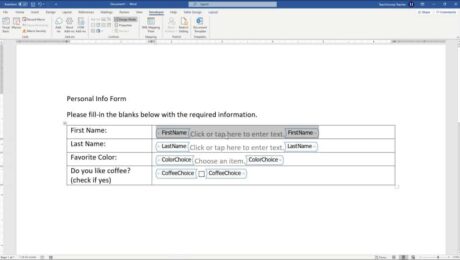
Create a Form in Word- Instructions and Video Lesson: A picture of a user creating a form in Word by using the “Developer” tab in the Ribbon.
Create a Form in Word: Video Lesson             This video lesson, titled “Creating a Form,” shows you how to create a form in Word. This video lesson about how to create a form in Word is from our complete Word tutorial, titled “Mastering Word Made Easy v.2019 and 365.” Create a Form in Word: Overview
controlscoursecreateCreate a Form in Wordcreate a form using wordcreate form in wordcreate form template in wordcreatingcreating a form in wordcreating form in wordcreating forms in worddocumentdocumentsformformshelphow to create a fillable form in wordhow to create a form in wordhow to create a form template in wordhow to design a form in wordhow to make a form in wordhow-toinformationinsertinsertinginstructionslearnlessonmakemake a form in wordmakingmicrosoft wordoverviewpropertiesprotectprotectingsavesavingself studyteachtemplatetemplatestrainingtutorialvideowordWord 2013Word 2016Word 2019Word for Microsoft 365word for Office 365
Read more
  • Published in Latest, Office 2013, Office 2016, Office 2019, Office 365, Word 2013, Word 2016, Word 2019, Word for Office 365
No Comments

Create Columns in Word – Instructions and Video Lesson

Wednesday, August 04 2021 by Joseph Brownell
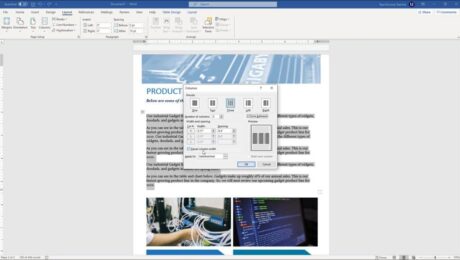
Create Columns in Word - Instructions and Video Lesson: A picture of a user adding columns to a Word document by using the “Columns” dialog box.
Create Columns in Word: Video Lesson             This video lesson, titled “Creating Columns in a Document,” shows you how to create columns in Word. This video lesson is from our complete Word tutorial, titled “Mastering Word Made Easy v.2019 and 365.” Creating Columns in Word: Overview             You may need to create columns in Word
addaddingapplyapplyingcolumncolumnscolumns in wordcreateCreate Columns in Wordcreatingdocumentdocumentsediteditingfilefileshelphow to add columns in wordhow to create columns in wordhow to do columns in wordhow to insert columns in wordhow to make columns in wordhow to put columns in wordhow-toinstructionslearnlessonmicrosoft wordmicrosoft word columnsoptionsoverviewsectionsectionsself studysettingsteachtrainingtutorialvideowordWord 2013Word 2016Word 2019word columnsWord for Microsoft 365word for Office 365
Read more
  • Published in Latest, Microsoft, Office 2016, Office 2019, Office 365, Word 2016, Word 2019, Word for Office 365
No Comments
  • 7
  • 8
  • 9
  • 10
  • 11
Sale! One Year Online Entire Library $29. Click here to see the deals.


Categories

  • GET SOCIAL

© 2001-2026 Copyright TeachUcomp, Inc. All rights reserved.

TOP
SALE! $29 All-Access 3 Days 0 Hours 50 Minutes 37 Seconds      $199 $29 Entire Library!
See Deal