MY CART
Microsoft Windows Tutorial Course
 |


| Course Title: | Mastering Windows Made Easy |
|---|---|
| Versions Covered: | 11, 10, 8.1, 8 & 7 |
| Hours of Content: | 8 |
| Video Lessons: | 183 |
| Manual: | 308 Pages |
| This Course: | $ |
| All Courses: | Every course. One price. | |
| Multi-User: | Group discounts |  |
Course Description
Learn Microsoft Windows with this comprehensive course from TeachUcomp, Inc. Mastering Windows Made Easy features 183 video lessons with over 8 hours of introductory through advanced instruction. Watch, listen and learn as your expert instructor guides you through each lesson step-by-step. During this media-rich learning experience, you will see each function performed just as if your instructor were there with you. Reinforce your learning with the text of our printable classroom instruction manual, additional images and practice exercises. You will learn the basics of Windows, including creating basic documents, file management, using the internet with the Edge web browser, and much more.
Whether you are completely new to Windows or upgrading from an older version, this course will empower you with the knowledge and skills necessary to be a proficient user. We have incorporated years of classroom training experience and teaching techniques to develop an easy-to-use course that you can customize to meet your personal learning needs. Simply launch the easy-to-use interface, click to launch a start lesson or open the manual and you are on your way to mastering Windows.
Course Syllabus & Sample Lessons
Click any hyperlinked video lesson in the course syllabus table below to open a new window containing a YouTube ad-supported, watermarked free version of the video lesson and a lesson transcript.
To view a sample of the instruction manual in PDF, click here: Introductory Windows
| CHAPTER 1- | GETTING STARTED WITH WINDOWS 11 |
| Lesson 1.1- | About Windows 11 This lesson answers the question “What is Windows 11?” and discusses why people use it. |
| Lesson 1.2- | Sign-in to Windows 11 with a Microsoft User Account This lesson shows you the advantages to signing in to Windows 11 with a Microsoft Account during new device setup. |
| Lesson 1.3- | How to Use the Mouse in Windows 11 This lesson shows you how to use and hold a mouse and how to perform the basic mouse clicks you need to use Windows 11. |
| Lesson 1.4- | How to Use Touch Gestures in Windows 11 This lesson shows you how to use touch gestures in Windows 11 to select items, shows additional commands, and zoom in or out. |
| Lesson 1.5- | The Windows 11 Desktop This lesson shows you the names, locations, and purposes of the many items you will see on a standard desktop in Windows 11. |
| Lesson 1.6- | How to Use the Start Button in Windows 11 This lesson shows you how to to use the Start button in Windows 11. |
| Lesson 1.7- | How to Use the Start Menu in Windows 11 This lesson shows you how to to use the Start menu in Windows 11. |
| Lesson 1.8- | How to Customize the Start Menu in Windows 11 This lesson shows you how to customize the Start menu in Windows 11 by changing the Start settings in Windows 11. |
| Lesson 1.9- | How to Search in Windows 11 This lesson shows you how to perform a search in Windows 11. |
| CHAPTER 2- | WORKING WITH WINDOWS |
| Lesson 2.1- | How to Use Windows Apps in Windows 11 This lesson shows you how to use Windows 11 apps and their app windows. |
| Lesson 2.2- | How to Resize a Desktop Window in Windows 11 This lesson shows you how to resize desktop windows in Windows 11. |
| Lesson 2.3- | How to Scroll a Window in Windows 11 This lesson shows you how to scroll a window in Windows 11 to view the content of long web pages or files. |
| Lesson 2.4- | How to Use Snap Layouts in Windows 11 This lesson shows you how to use snap layouts in Windows 11 to view multiple windows at the same time. |
| Lesson 2.5- | How to Use Multiple Desktops in Windows 11 This lesson shows you how to use multiple desktops in Windows 11 by using the Task View button in the taskbar. |
| Lesson 2.6- | How to Shut Down Windows 11 This lesson shows you different ways to lock, restart, sign out, put to sleep, or shut down Windows 11. |
| CHAPTER 3- | WINDOWS FEATURES AND SERVICES |
| Lesson 3.1- | How to Use Widgets in Windows 11 This lesson shows you how to use widgets in Windows 11, the Widgets pane, and its new “Widgets” and “Discovery” dashboards. |
| Lesson 3.2- | How to Use the Microsoft Store in Windows 11 This lesson shows you how to use the Microsoft Store app in Windows 11 to find, install, and manage others apps for your signed-in account. |
| Lesson 3.3- | Sign-in Options in Windows 11 This lesson shows you the different passwordless and Windows Hello sign-in options in Windows 11 and how to access them to set them up or change them. |
| Lesson 3.4- | How to Change Your PIN in Windows 11 This lesson shows you how to change your Windows Hello PIN in Windows 11. |
| Lesson 3.5- | Accessing Settings in Windows 11 This lesson shows you how to use the Settings app in Windows 11 to find and change Windows settings. |
| CHAPTER 4- | FILE EXPLORER |
| Lesson 4.1- | File Explorer in Windows 11 This lesson provides you an overview of how to use File Explorer in Windows 11. |
| Lesson 4.2- | Navigating Folders This lesson shows you how to navigate drives and folders and open files in File Explorer in Windows 11. It also shows you how to use the Preview pane or Details pane in File Explorer. |
| Lesson 4.3- | Home View in File Explorer in Windows 11 This lesson shows you how to use the Home view of File Explorer in Windows 11 to quickly access recent and frequently used files. |
| Lesson 4.4- | Reopening a Frequently Opened File or Folder This lesson shows you how to quickly find recently used files and folders in File Explorer in Windows 11. |
| Lesson 4.5- | Changing Folder Views This lesson shows you how to change the view of a folder within File Explorer in Windows 11. |
| Lesson 4.6- | Sorting Files and Folders This lesson shows you how to sort files and folders in File Explorer in Windows 11. |
| Lesson 4.7- | Selecting Files This lesson shows you many different ways to select files within File Explorer in Windows 11. |
| Lesson 4.8- | Opening a File This lesson shows you how to open a file within File Explorer in Windows 11. |
| Lesson 4.9- | Creating a New Folder This lesson shows you how to create a new folder within File Explorer in Windows 11. |
| Lesson 4.10- | Renaming Files and Folders This lesson shows you how to rename files and folders within File Explorer in Windows 11. |
| Lesson 4.11- | Cutting, Copying, and Pasting Files and Folders This lesson shows you how to cut, copy, and paste files and folders in Windows 11 using File Explorer. |
| Lesson 4.12- | Deleting Files This lesson shows you how to delete files in Windows 11 using File Explorer. |
| Lesson 4.13- | The Recycle Bin in Windows 11 This lesson shows you how to use the Recycle Bin in Windows 11 to restore deleted files and permanently delete files. |
| Lesson 4.14- | Creating Desktop Shortcuts in Windows 11 This lesson shows you how to create and use desktop shortcuts in Windows 11 for quick access to your most-used files, folders, and apps. |
| Lesson 4.15- | Zip Folders in File Explorer This lesson shows you how to compress, or zip, files and folders in Windows 11. |
| Lesson 4.16- | Unzip Files in File Explorer This lesson shows you how to decompress, or unzip, a zipped file in Windows 11 to open it and view its contents. |
| Lesson 4.17- | Burning a CD or DVD This lesson shows you how to burn a CD or DVD in Windows 11. |
| Lesson 4.18- | Managing Libraries in Windows 11 This lesson shows you what libraries are in Windows 11 and how you can use and manage libraries in Windows 11, if desired. |
| Lesson 4.19- | Managing the Computer and Drives in Windows 11 This lesson shows you how to manage your computer’s drives and storage locations using File Explorer in Windows 11. |
| CHAPTER 5- | ONEDRIVE |
| Lesson 5.1- | OneDrive Folders in File Explorer This lesson shows you how to use the OneDrive folders in File Explorer in Windows 11 and how to manage their sync and backup settings. |
| Lesson 5.2- | OneDrive Settings in Windows 11 This lesson shows you how to configure the settings in the OneDrive app in Windows 11 to best suit your needs. |
| CHAPTER 6- | DAILY WINDOWS TASKS |
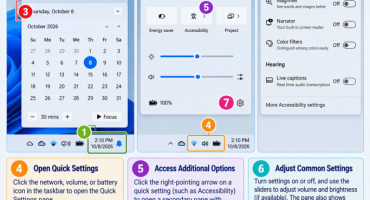
| Lesson 6.1- | Notification Center and Quick Settings in Windows 11 This lesson shows you how to use the Notification Center and calendar and how to change Quick Settings in Windows 11. |
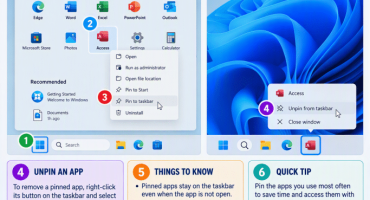
| Lesson 6.2- | Pinning Apps to the Taskbar in Windows 11 This lesson shows you how to pin your most-used apps to the taskbar in Windows 11 for quick and easy access and how to unpin those apps, if needed. |
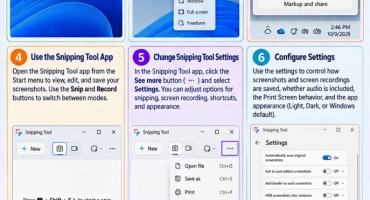
| Lesson 6.3- | Taking Screenshots in Windows 11 This lesson shows you how to take screenshots in Windows 11 and use the Snipping Tool app. |
| Lesson 6.4- | How to Enable Bluetooth in Windows 11 This lesson shows you how to turn Bluetooth on or off in Windows 11 and manage Bluetooth settings. |
| Lesson 6.5- | How to Add a Device in Windows 11 This lesson shows you how to manually add a device in Windows 11, if needed. |
| Lesson 6.6- | How to Manage Devices in Windows 11 |
| Lesson 6.7- | How to Manage Printers & Scanners in Windows 11 |
| Lesson 6.8- | Using Microsoft Teams in Windows 11 |
| Lesson 6.9- | Using Microsoft Edge in Windows 11 |
| Lesson 6.10- | Installing and Uninstalling Software |
| CHAPTER 7- | SYSTEM SETTINGS |
| Lesson 7.1- | Display Settings in Windows 11 |
| Lesson 7.2- | Sound Settings in Windows 11 |
| Lesson 7.3- | Notifications Settings in Windows 11 |
| Lesson 7.4- | Focus Settings in Windows 11 |
| Lesson 7.5- | Power & Battery Settings in Windows 11 This lesson shows you how to change the power and battery settings for devices in Windows 11. |
| Lesson 7.6- | Storage Settings in Windows 11 |
| Lesson 7.7- | Nearby Sharing Settings in Windows 11 |
| Lesson 7.8- | Multitasking Settings in Windows 11 |
| Lesson 7.9- | Advanced Settings in Windows 11 |
| Lesson 7.10- | Activation Settings in Windows 11 |
| Lesson 7.11- | Troubleshoot Settings in Windows 11 |
| Lesson 7.12- | Recovery Settings in Windows 11 This lesson shows you how to access your system recovery options in Windows 11. |
| Lesson 7.13- | Projecting to This PC Settings in Windows 11 |
| Lesson 7.14- | Remote Desktop Settings in Windows 11 |
| Lesson 7.15- | Clipboard Settings in Windows 11 This lesson shows you how to change the Windows 11 Clipboard settings to enable clipboard history and share it across your devices, if desired. |
| Lesson 7.16- | System Components Settings in Windows 11 |
| Lesson 7.17- | AI Components Settings in Windows 11 |
| Lesson 7.18- | Optional Features Settings in Windows 11 |
| Lesson 7.19- | About Settings in Windows 11 This lesson shows you how to find information about your device and Windows 11 and rename your PC. |
| CHAPTER 8- | BLUETOOTH & DEVICES SETTINGS |
| Lesson 8.1- | Advanced Bluetooth Settings in Windows 11 |
| Lesson 8.2- | Mobile Devices Settings in Windows 11 |
| Lesson 8.3- | Cameras Settings in Windows 11 |
| Lesson 8.4- | Mouse Settings in Windows 11 |
| Lesson 8.5- | Keyboard Settings in Windows 11 |
| Lesson 8.6- | Touchpad Settings in Windows 11 |
| Lesson 8.7- | Pen & Windows Ink Settings in Windows 11 |
| Lesson 8.8- | AutoPlay Settings in Windows 11 |
| Lesson 8.9- | USB Settings in Windows 11 |
| CHAPTER 9- | NETWORK & INTERNET SETTINGS |
| Lesson 9.1- | Wi-Fi Settings in Windows 11 |
| Lesson 9.2- | Ethernet Settings in Windows 11 |
| Lesson 9.3- | VPN Settings in Windows 11 |
| Lesson 9.4- | Mobile Hotspot Settings in Windows 11 |
| Lesson 9.5- | Airplane Mode Settings in Windows 11 This lesson shows you how to turn airplane mode on or off in Windows 11. |
| Lesson 9.6- | Proxy Settings in Windows 11 |
| Lesson 9.7- | Dial-up Settings in Windows 11 |
| Lesson 9.8- | Advanced Network Settings in Windows 11 |
| CHAPTER 10- | PERSONALIZATION SETTINGS |
| Lesson 10.1- | Background Settings in Windows 11 This lesson shows you how to change the desktop background in Windows 11. |
| Lesson 10.2- | Colors Settings in Windows 11 This lesson shows you how to change app and windows colors in Windows 11. |
| Lesson 10.3- | Themes Settings in Windows 11 This lesson shows you how to save and apply themes in Windows 11 and change your desktop icons. |
| Lesson 10.4- | Dynamic Lighting Settings in Windows 11 |
| Lesson 10.5- | Lock Screen Settings in Windows 11 This lesson shows you how to personalize the lock screen in Windows 11. |
| Lesson 10.6- | Text Input Settings in Windows 11 |
| Lesson 10.7- | Start Settings in Windows 11 |
| Lesson 10.8- | Taskbar Settings in Windows 11 |
| Lesson 10.9- | Fonts Settings in Windows 11 This lesson shows you how to install fonts and uninstall fonts in Windows 11. |
| Lesson 10.10- | Device Usage Settings in Windows 11 |
| CHAPTER 11- | APPS SETTINGS |
| Lesson 11.1- | Installed Apps in Windows 11 |
| Lesson 11.2- | Advanced App Settings in Windows 11 |
| Lesson 11.3- | Default Apps in Windows 11 |
| Lesson 11.4- | Actions Settings in Windows 11 |
| Lesson 11.5- | Offline Maps Settings in Windows 11 |
| Lesson 11.6- | Apps for Websites Settings in Windows 11 |
| Lesson 11.7- | Video Playback Settings in Windows 11 |
| Lesson 11.8- | Startup Settings in Windows 11 This lesson shows you how to change which apps run at startup in Windows 11. |
| Lesson 11.9- | Resume Settings in Windows 11 |
| CHAPTER 12- | ACCOUNTS SETTINGS |
| Lesson 12.1- | Your Account Settings in Windows 11 |
| Lesson 12.2- | Your Info Settings in Windows 11 |
| Lesson 12.3- | Sign-in Options Settings in Windows 11 |
| Lesson 12.4- | Linked Devices Settings in Windows 11 |
| Lesson 12.5- | Email & Accounts Settings in Windows 11 |
| Lesson 12.6- | Family Settings in Windows 11 |
| Lesson 12.7- | Windows Backup Settings in Windows 11 |
| Lesson 12.8- | Other Users Settings in Windows 11 |
| Lesson 12.9- | Access Work or School Settings in Windows 11 |
| Lesson 12.10- | Passkeys Settings in Windows 11 |
| CHAPTER 13- | TIME & LANGUAGE SETTINGS |
| Lesson 13.1- | Date & Time Settings in Windows 11 This lesson shows you how to change the date and time in Windows 11. |
| Lesson 13.2- | Language & Region Settings in Windows 11 |
| Lesson 13.3- | Typing Settings in Windows 11 |
| Lesson 13.4- | Speech Settings in Windows 11 |
| CHAPTER 14- | GAMING SETTINGS |
| Lesson 14.1- | Xbox Mode Settings in Windows 11 |
| Lesson 14.2- | Game Bar Settings in Windows 11 |
| Lesson 14.3- | Captures Settings in Windows 11 |
| Lesson 14.4- | Game Mode Settings in Windows 11 |
| CHAPTER 15- | ACCESSIBILITY SETTINGS |
| Lesson 15.1- | Text Size Settings in Windows 11 |
| Lesson 15.2- | Visual Effects Settings in Windows 11 |
| Lesson 15.3- | Mouse Pointer and Touch Settings in Windows 11 |
| Lesson 15.4- | Text Cursor Settings in Windows 11 |
| Lesson 15.5- | Magnifier Settings in Windows 11 |
| Lesson 15.6- | Color Filters Settings in Windows 11 |
| Lesson 15.7- | Screen Tint Settings in Windows 11 |
| Lesson 15.8- | Contrast Themes Settings in Windows 11 |
| Lesson 15.9- | Narrator Settings in Windows 11 |
| Lesson 15.10- | Audio Accessibility Settings in Windows 11 |
| Lesson 15.11- | Hearing Devices Settings in Windows 11 |
| Lesson 15.12- | Captions Settings in Windows 11 |
| Lesson 15.13- | Speech Accessibility Settings in Windows 11 |
| Lesson 15.14- | Keyboard Accessibility Settings in Windows 11 |
| Lesson 15.15- | Mouse Accessibility Settings in Windows 11 |
| Lesson 15.16- | Eye Control Settings in Windows 11 |
| CHAPTER 16- | PRIVACY & SECURITY SETTINGS |
| Lesson 16.1- | Windows Security Settings in Windows 11 |
| Lesson 16.2- | Find My Device Settings in Windows 11 |
| Lesson 16.3- | Recommendations & Offers Settings in Windows 11 |
| Lesson 16.4- | Speech Privacy Settings in Windows 11 |
| Lesson 16.5- | Inking & Typing Personalization Settings in Windows 11 |
| Lesson 16.6- | Diagnostics & Feedback Settings in Windows 11 |
| Lesson 16.7- | Search Permissions Settings in Windows 11 |
| Lesson 16.8- | App Permissions Settings in Windows 11 |
| CHAPTER 17- | WINDOWS UPDATE SETTINGS |
| Lesson 17.1- | Windows Update in Windows 11 |
| Lesson 17.2- | Pause Windows Updates in Windows 11 |
| Lesson 17.3- | Update History in Windows 11 |
| Lesson 17.4- | Advanced Windows Update Options in Windows 11 |
| Lesson 17.5- | Windows Insider Program Settings |
| CHAPTER 18- | ADVANCED WINDOWS FEATURES |
| Lesson 18.1- | The Control Panel in Windows 11 |
| Lesson 18.2- | File History in Windows 11 |
| Lesson 18.3- | System Restore in Windows 11 |
| Lesson 18.4- | Task Manager in Windows 11 |
Microsoft Windows Training Course Overview
Microsoft Windows is the most popular operating system on the market today. During this 8 hour Windows video training course, our expert instructor will show you the basics of Windows, including creating basic documents, file management, using the internet and much more. This Windows tutorial covers the same material as our classroom training and was designed to provide a solid foundation in Windows.
Course includes video lessons, printable instruction manual, a practice exam with evaluative feedback (find out why your answers are right or wrong), your final exam submission, and a course certificate of completion.
At TeachUcomp, Inc., you choose how you want your Windows training delivered.
Online subscriptions offer the most flexibility and value. With online training, you can access your courses anytime and anywhere you have an internet connection (including all new releases and updates). Your subscription grants you instant access to ALL of our courses for one low price. There are no contracts and you can cancel at any time. You may choose between a monthly or annual plan.
Courses are also available individually via digital download and online for a one-time charge.