MY CART
QuickBooks Online Tutorial Course
 |


| Course Title: | Mastering QuickBooks Online Made Easy |
|---|---|
| Versions Covered: | Online Plus |
| Hours of Content: | 12.5 |
| Video Lessons: | 178 |
| Manual: | 413 Pages |
| This Course: | $ |
| All Courses: | Every course. One price. | |
| Multi-User: | Group discounts |  |
Course Description
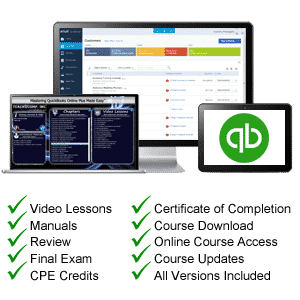
This QuickBooks Online tutorial from TeachUcomp, Inc., titled Mastering QuickBooks Online Made Easy, features 178 video lessons with over 12.5 hours of introductory through advanced instruction. Watch, listen, and learn as your expert instructor guides you through each lesson step-by-step. This media-rich learning experience shows each lesson’s activities just as if your instructor were there with you. Our QuickBooks Online tutorial’s 413-page printable classroom instruction manual provides lesson transcriptions, step-by-step instructions for activities, and practice exercises. This QuickBooks Online tutorial teaches you how to set up a QuickBooks Online company file, pay employees and vendors, create custom reports, reconcile accounts, create estimates, track time, and much more.
Whether you are completely new to QuickBooks Online or migrating from a different version, this QuickBooks Online course empowers you with the knowledge and skills required for user proficiency. This QuickBooks Online tutorial incorporates years of classroom training experience and teaching techniques into an easy-to-use course you can customize to meet your personal learning needs. Simply launch the easy-to-use interface, click to start a video lesson or open the manual and you’re on your way to mastering QuickBooks Online.
QuickBooks Online Tutorial Course Syllabus & Sample Lessons
Click any hyperlinked video lesson in the course syllabus table below to open a new window containing a YouTube ad-supported, watermarked free version of the video lesson and a lesson transcript.
To view a PDF sample of the instruction manual, click here: QuickBooks Online Manual
| CHAPTER 1- | The QuickBooks Online Plus Environment |
| Lesson 1.1- | The QuickBooks Online Interface This lesson shows you the names, locations, and uses of the primary tools in QuickBooks Online. |
| Lesson 1.2- | The Dashboard Page This lesson shows you how to use the Dashboard page in QuickBooks Online. |
| Lesson 1.3- | The Navigation Bar This lesson shows you how to use the Navigation Bar in QuickBooks Online. |
| Lesson 1.4- | The + Create Button This lesson shows you how to use the + Create button in QuickBooks Online to create new transactions and items. |
| Lesson 1.5- | The Settings Button This lesson shows you how to use the Settings button in QuickBooks Online. |
| Lesson 1.6- | Accountant View and Business View This lesson shows you how to switch between the Accountant view and view and Business view in QuickBooks Online. |
| CHAPTER 2- | Creating a Company File |
| Lesson 2.1- | Signing Up for QuickBooks Online Plus This lesson shows you how to sign up for a free trial subscription for QuickBooks Online. |
| Lesson 2.2- | Importing Company Data This lesson shows you how to import data into a company in QuickBooks Online. |
| Lesson 2.3- | Creating a New Company File This lesson shows you how to create a new company in QuickBooks Online. |
| Lesson 2.4- | How Backups Work in QuickBooks Online Plus This lesson discusses how backups work in QuickBooks Online. |
| Lesson 2.5- | Setting Up and Managing Users This lesson shows you how to create and manage users in QuickBooks Online. |
| Lesson 2.6- | Transferring the Primary Admin This lesson shows you how to transfer the Primary admin role in QuickBooks Online. |
| Lesson 2.7- | Customizing Company File Settings This lesson shows you how to change the Company settings in QuickBooks Online. |
| Lesson 2.8- | Customizing Subscriptions and Billing Settings This lesson shows you how to customize the Subscriptions and billing settings for a company in QuickBooks Online. |
| Lesson 2.9- | Usage Settings This lesson shows you how to view the Usage settings for a company in QuickBooks Online and adjust the limits, as needed. |
| Lesson 2.10- | Customizing Sales Settings This lesson shows you how to change the Sales settings for a company in QuickBooks Online. |
| Lesson 2.11- | Customizing Expenses Settings This lesson shows you how to change the Expenses settings for a company in QuickBooks Online. |
| Lesson 2.12- | Customizing Payments Settings This lesson shows you how to change the Payments settings for a company in QuickBooks Online. |
| Lesson 2.13- | Customizing Time Settings This lesson shows you how to change the Time settings for a company in QuickBooks Online that has a QuickBooks Time or Payroll Premium subscription. |
| Lesson 2.14- | Customizing Advanced Settings This lesson shows you how to change the Advanced settings for a company in QuickBooks Online. |
| Lesson 2.15- | Signing Out of QuickBooks Online This lesson shows you how to sign out of QuickBooks Online. |
| Lesson 2.16- | Switching Companies in QuickBooks Online This lesson shows you how to switch between multiple company files in QuickBooks Online. |
| Lesson 2.17- | Cancelling a Company File This lesson shows you how to cancel the subscriptions for a company file in QuickBooks Online. It also shows you how to purge a new company file to delete all its data if you need to start over again. |
| CHAPTER 3- | Using Pages and Lists |
| Lesson 3.1- | Using Lists and Pages This lesson shows you how to access common lists and pages in QuickBooks Online. |
| Lesson 3.2- | The Chart of Accounts This lesson shows you how to use the Chart of Accounts in QuickBooks Online. |
| Lesson 3.3- | Adding New Accounts This lesson shows you how to add new accounts in QuickBooks Online by using the “New account” pane. |
| Lesson 3.4- | Assigning Account Numbers This lesson shows you how to enable and assign account numbers to accounts in the Chart of Accounts in QuickBooks Online. |
| Lesson 3.5- | Adding New Customers This lesson shows you how to manually add new customers in QuickBooks Online. |
| Lesson 3.6- | The Customers Page and List This lesson shows you how to manage customers in QuickBooks Online. |
| Lesson 3.7- | Adding Employees to the Employees List This lesson shows you how to add employees in QuickBooks Online and manage the Employees list. |
| Lesson 3.8- | Adding New Vendors This lesson shows you how to manually add new vendors in QuickBooks Online. |
| Lesson 3.9- | The Vendors Page and List This lesson shows you how to manage vendors in QuickBooks Online. |
| Lesson 3.10- | Sorting Lists This lesson shows you how to sort lists in QuickBooks Online. |
| Lesson 3.11- | Inactivating and Reactivating List Items This lesson shows you how to make items inactive in QuickBooks Online. It also shows how to reactivate an inactive list item. |
| Lesson 3.12- | Printing Lists This lesson shows you how to print lists in QuickBooks Online. |
| Lesson 3.13- | Renaming and Merging List Items This lesson shows you how to rename items and merge items within lists in QuickBooks Online. |
| Lesson 3.14- | Creating and Applying Customer Types This lesson shows you how to create and apply customer types to customers in QuickBooks Online. |
| CHAPTER 4- | Setting Up Sales Tax |
| Lesson 4.1- | Enabling Sales Tax This lesson shows you how to enable sales tax in QuickBooks Online and set up sales tax agencies and sales tax rates. |
| Lesson 4.2- | Adding, Editing, and Inactivating Sales Tax Agencies This lesson shows you how to manage sales tax agencies in QuickBooks Online, check your company’s economic nexus, and turn off sales tax, if needed. |
| Lesson 4.3- | Adding, Editing, and Inactivating Custom Sales Tax Rates This lesson shows you how to add, edit, and inactivate custom sales tax rates in QuickBooks Online to manually calculate and track sales tax, if needed. |
| Lesson 4.4- | Indicating Taxable and Non-taxable Customers and Items This lesson shows you how to set the taxable and non-taxable status of your customers and items in QuickBooks Online. |
| CHAPTER 5- | Setting Up Inventory Items |
| Lesson 5.1- | Setting Up Inventory This lesson shows you how to enable inventory tracking in QuickBooks Online. |
| Lesson 5.2- | Creating Inventory Items This lesson shows you how to create inventory items in QuickBooks Online. |
| Lesson 5.3- | Enabling Purchase Orders This lesson shows you how to enable purchase orders in QuickBooks Online. |
| Lesson 5.4- | Creating a Purchase Order This lesson shows you how to create purchase orders in QuickBooks Online. |
| Lesson 5.5- | Applying Purchase Orders to Vendor Transactions This lesson shows you how to add items received from a purchase order to a bill, check, or expense in QuickBooks Online. |
| Lesson 5.6- | Adjusting Inventory This lesson shows you how to adjust inventory in QuickBooks Online to create a quantity adjustment or starting value adjustment. |
| CHAPTER 6- | Setting Up Other Items |
| Lesson 6.1- | Creating a Non-inventory or Service Item This lesson shows you how to create non-inventory items and service items in QuickBooks Online. |
| Lesson 6.2- | Creating a Bundle This lesson shows you how to create a bundle in QuickBooks Online for products and services you sell as a set. |
| Lesson 6.3- | Creating a Discount Line Item This lesson shows you how to create and use a discount line item in QuickBooks Online to discount a percentage or amount from a subtotal in an invoice or sales receipt. |
| Lesson 6.4- | Creating a Payment Line Item This lesson shows you how to create and use a payment line item in QuickBooks Online to record multiple payment types in a single sales form, like a sales receipt. |
| Lesson 6.5- | Changing Item Prices and Using Price Rules This lesson shows you both how to change the default sales price of a single product or service and how to use prices rules to change the prices of selected products and services for selected customers in a sales form in QuickBooks Online Plus. |
| CHAPTER 7- | Basic Sales |
| Lesson 7.1- | Creating Custom Fields This lesson shows you how to create and use custom fields in QuickBooks Online. |
| Lesson 7.2- | Creating an Invoice This lesson shows you how to create an invoice in QuickBooks Online. |
| Lesson 7.3- | Creating Recurring Invoices This lesson shows you how to create a recurring invoice in QuickBooks Online. |
| Lesson 7.4- | Automatically Invoicing Unbilled Activity This lesson shows you how to automatically create invoices for unbilled activity in QuickBooks Online Plus. |
| Lesson 7.5- | Creating a Sales Receipt This lesson shows you how to create a sales receipt in QuickBooks Online to record a customer payment or charge a new customer payment at the time of sale. |
| Lesson 7.6- | Finding Transaction Forms This lesson shows you how to find a transaction in QuickBooks Online Plus by looking in the recent transactions, by searching, or by using the advanced transactions search feature. |
| Lesson 7.7- | Previewing Sales Forms This lesson shows you how to preview sales forms in QuickBooks Online, like estimates, invoices, sales receipts, and more. |
| Lesson 7.8- | Printing Sales Forms This lesson shows you how to individually print and batch print sales forms in QuickBooks Online, like estimates, invoices, sales receipts, and more. |
| Lesson 7.9- | Grouping and Subtotaling Items in Invoices This lesson shows you how to create a custom form style for invoices in QuickBooks Online that applies grouping and subtotaling to its line items by date or by type. It also shows how to manually add subtotals to any type of invoices, if needed. |
| Lesson 7.10- | Entering a Delayed Charge This lesson shows you how to create a delayed charge in QuickBooks Online and then add it to an invoice later. |
| Lesson 7.11- | Managing Sales Transactions This lesson shows you how to manage sales transactions in QuickBooks Online so you can filter, sort, print, download, and perform other actions on sales. |
| Lesson 7.12- | Checking and Changing Sales Tax in Sales Forms This lesson shows you how to check the sales tax amounts and change the sales tax, if needed, within the sales forms, like invoices and sales receipts, in QuickBooks Online. |
| Lesson 7.13- | Sales Orders This lesson shows you how to create sales orders in QuickBooks Online Plus and how to manage your company’s sales orders. |
| CHAPTER 8- | Creating Billing Statements |
| Lesson 8.1- | About Statements and Customer Charges This lesson explains why companies may use different types of statements and customer charges in QuickBooks Online. |
| Lesson 8.2- | Automatic Late Fees This lesson shows you how to set the default automatic late fee settings in QuickBooks Online, customize late fees per customer, if needed, and manually apply a late fee, if needed. |
| Lesson 8.3- | Creating Customer Statements This lesson shows you how to create statements in QuickBooks Online. |
| CHAPTER 9- | Payment Processing |
| Lesson 9.1- | Recording Customer Payments This lesson shows you how to record customer payments in QuickBooks Online using the “Receive Payment” window. It also shows how to find and edit saved customer payments. |
| Lesson 9.2- | Entering Overpayments This lesson shows you how to record a customer overpayment on invoices in QuickBooks Online by using the “Receive Payment” window to generate a customer credit. |
| Lesson 9.3- | Entering Down Payments or Prepayments This lesson shows you how to record a customer down payment or prepayment in QuickBooks Online by using the “Receive Payment” window to generate a customer credit. |
| Lesson 9.4- | Applying Customer Credits This lesson shows you how to automatically apply credits or manually apply a customer credit in QuickBooks Online by using the “Receive Payment” window. |
| Lesson 9.5- | Making Deposits This lesson shows you how to manually record a bank deposit of the customer payments you manually recorded when using the “Receive Payment” window if you deposited them into the “Payments to deposit” or “Undeposited funds” account. |
| Lesson 9.6- | Handling Bounced Checks This lesson shows you the tasks you need to perform to handle a bounced check from a customer that was invoiced through “Accounts Receivable.” |
| Lesson 9.7- | Handling Bad Debt This lesson shows you the tasks you need to perform to handle bad debt from uncollectable customer invoices. |
| CHAPTER 10- | Handling Refunds |
| Lesson 10.1- | Customer Refund Options in QuickBooks Online This lesson shows you the different options you and your customer should consider to handle customer refunds or returns in QuickBooks Online. |
| Lesson 10.2- | Creating a Credit Memo in QuickBooks Online This lesson shows you how to create a credit memo for a customer refund or return in QuickBooks Online to record a customer credit. |
| Lesson 10.3- | Creating a Refund Receipt in QuickBooks Online This lesson shows you how to create a refund receipt for a customer refund or return in QuickBooks Online to provide the customer with cash, a check, or a credit card credit for a refund or return not related to invoicing. |
| Lesson 10.4- | Refunding Customer Payments by Check in QuickBooks Online This lesson shows you how to create a refund check for a customer down payment or prepayment in QuickBooks Online. |
| Lesson 10.5- | Creating a Delayed Credit |
| CHAPTER 11- | Entering and Paying Bills |
| Lesson 11.1- | Entering Bills |
| Lesson 11.2- | Paying Bills |
| Lesson 11.3- | Creating Terms for Early Bill Payment |
| Lesson 11.4- | Early Bill Payment Discounts |
| Lesson 11.5- | Entering a Vendor Credit This lesson shows you how to create a vendor credit in QuickBooks Online. |
| Lesson 11.6- | Applying a Vendor Credit |
| Lesson 11.7- | Managing Expense Transactions |
| CHAPTER 12- | Using Bank Accounts |
| Lesson 12.1- | Using Registers |
| Lesson 12.2- | Writing Checks This lesson shows you how to write checks in QuickBooks Online. |
| Lesson 12.3- | Printing Checks |
| Lesson 12.4- | Transferring Funds Between Accounts |
| Lesson 12.5- | Reconciling Accounts This lesson shows you how to reconcile an account in QuickBooks Online. |
| Lesson 12.6- | Voiding Checks |
| Lesson 12.7- | Creating an Expense |
| Lesson 12.8- | Managing Bank and Credit Card Transactions |
| Lesson 12.9- | Creating and Managing Rules |
| Lesson 12.10- | Uploading Receipts and Bills |
| CHAPTER 13- | Paying Sales Tax |
| Lesson 13.1- | Sales Tax Reports |
| Lesson 13.2- | Using the Sales Tax Payable Register |
| Lesson 13.3- | Paying Your Tax Agencies |
| CHAPTER 14- | Reporting |
| Lesson 14.1- | Creating Customer and Vendor QuickReports |
| Lesson 14.2- | Creating Account QuickReports |
| Lesson 14.3- | Using QuickZoom |
| Lesson 14.4- | Standard Reports This lesson shows you how to run standard reports in QuickBooks Online. |
| Lesson 14.5- | Basic Standard Report Customization This lesson shows you how to customize a standard report in QuickBooks Online to change its most common settings. |
| Lesson 14.6- | Customizing General Report Settings |
| Lesson 14.7- | Customizing Rows and Columns Report Settings |
| Lesson 14.8- | Customizing Aging Report Settings This lesson shows you how to change the Aging report settings to customize a standard aging report in QuickBooks Online. |
| Lesson 14.9- | Customizing Filter Report Settings This lesson shows you how to change the Filter report settings to customize a standard report in QuickBooks Online. |
| Lesson 14.10- | Customizing Header and Footer Report Settings |
| Lesson 14.11- | Resizing Report Columns |
| Lesson 14.12- | Emailing, Printing, and Exporting Preset Reports |
| Lesson 14.13- | Saving Customized Reports This lesson shows you how to save a custom report in QuickBooks Online. |
| Lesson 14.14- | Using Report Groups |
| Lesson 14.15- | Management Reports |
| Lesson 14.16- | Customizing Management Reports |
| CHAPTER 15- | Using Graphs |
| Lesson 15.1- | Business Snapshot |
| CHAPTER 16- | Customizing Forms |
| Lesson 16.1- | Creating Custom Form Styles |
| Lesson 16.2- | Custom Form Design Settings |
| Lesson 16.3- | Custom Form Content Settings |
| Lesson 16.4- | Custom Form Emails Settings |
| Lesson 16.5- | Custom Form Styles |
| CHAPTER 17- | Projects and Estimating |
| Lesson 17.1- | Creating Projects |
| Lesson 17.2- | Adding Transactions to Projects |
| Lesson 17.3- | Creating Estimates |
| Lesson 17.4- | Changing the Term Estimate |
| Lesson 17.5- | Copy an Estimate to a Purchase Order |
| Lesson 17.6- | Invoicing from an Estimate |
| Lesson 17.7- | Duplicating Estimates |
| Lesson 17.8- | Tracking Costs for Projects |
| Lesson 17.9- | Invoicing for Billable Costs |
| Lesson 17.10- | Using Project Reports |
| CHAPTER 18- | Time Tracking |
| Lesson 18.1- | Time Tracking Settings |
| Lesson 18.2- | Basic Time Tracking This lesson shows you how to set up and perform basic time tracking in QuickBooks Online if you don’t subscribe to either the QuickBooks Payroll Premium and/or QuickBooks Time service. |
| Lesson 18.3- | QuickBooks Time Timesheet Preferences |
| Lesson 18.4- | Manually Recording Time in QuickBooks Online This lesson shows you how to manually record time in QuickBooks Online Plus when used with a subscription to Payroll Core and how to do it when used with a subscription to Payroll Premium and/or QuickBooks Time. |
| Lesson 18.5- | Approving QuickBooks Time |
| Lesson 18.6- | Invoicing from Time Data This lesson shows you how to add billable time to invoices in QuickBooks Online. |
| Lesson 18.7- | Using Time Reports |
| Lesson 18.8- | Entering Mileage |
| CHAPTER 19- | Payroll |
| Lesson 19.1- | Setting Up QuickBooks Online Payroll and Payroll Settings |
| Lesson 19.2- | Editing Employee Information |
| Lesson 19.3- | Creating Pay Schedules |
| Lesson 19.4- | Creating Scheduled Paychecks This lesson shows you how to run a scheduled payroll in QuickBooks Online. |
| Lesson 19.5- | Creating Commission Only or Bonus Only Paychecks This lesson shows you how to create Bonus only or Commission only paychecks in QuickBooks Online. |
| Lesson 19.6- | Changing an Employee’s Payroll Status |
| Lesson 19.7- | Print, Edit, Delete, or Void Paychecks |
| Lesson 19.8- | Manually Recording External Payroll |
| CHAPTER 20- | Using Credit Card Accounts |
| Lesson 20.1- | Creating Credit Card Accounts |
| Lesson 20.2- | Entering Charges on Credit Cards |
| Lesson 20.3- | Entering Credit Card Credits This lesson shows you how to enter a credit card credit in QuickBooks Online. |
| Lesson 20.4- | Reconciling and Paying Credit Cards |
| Lesson 20.5- | Pay Down Credit Card |
| CHAPTER 21- | Assets and Liabilities |
| Lesson 21.1- | Assets and Liabilities |
| Lesson 21.2- | Creating and Using Other Current Asset Accounts |
| Lesson 21.3- | Removing Value from Other current Asset Accounts |
| Lesson 21.4- | Creating Fixed Asset Accounts |
| Lesson 21.5- | Creating Liability Accounts |
| Lesson 21.6- | Setting the Original Cost of the Fixed Asset |
| Lesson 21.7- | Tracking Depreciation |
| CHAPTER 22- | Equity Accounts |
| Lesson 22.1- | Equity Accounts |
| Lesson 22.2- | Recording an Owner’s Draw |
| Lesson 22.3- | Recording a Capital Investment |
| CHAPTER 23- | Company Management |
| Lesson 23.1- | Viewing Your Company Information |
| Lesson 23.2- | Setting Up Budgets This lesson shows you how to create a budget in QuickBooks Online. |
| Lesson 23.3- | Using the Reminder List |
| Lesson 23.4- | Making General Journal Entries |
| CHAPTER 24- | Using QuickBooks Tools |
| Lesson 24.1- | Exporting Report and List Data to Excel |
| Lesson 24.2- | Using the Audit Log This lesson shows you how to use the Audit Log report in QuickBooks Online. |
| CHAPTER 25- | Using QuickBooks Other Lists |
| Lesson 25.1- | Using the Recurring Transactions List |
| Lesson 25.2- | Using the Location List |
| Lesson 25.3- | Using the Payment Methods List |
| Lesson 25.4- | Using the Terms List |
| Lesson 25.5- | Using the Classes List |
| Lesson 25.6- | Using the Attachments List |
| CHAPTER 26- | Using Help, Feedback, and Apps |
| Lesson 26.1- | Using Help |
| Lesson 26.2- | Submitting Feedback |
| Lesson 26.3- | Extending QuickBooks Online Using Apps |
QuickBooks Online Training Course Overview
Intuit’s QuickBooks is the most popular small business accounting software on the market today. During this 12.5 hour QuickBooks Online tutorial video training course, our expert instructor shows you how to set up a QuickBooks Online company file, enter sales, purchases, and payroll, create custom reports and forms, reconcile accounts, manage projects, perform time tracking and so much more. This QuickBooks Online tutorial covers the same material as our two-day classroom training and was designed to provide a solid foundation for using QuickBooks Online.
Our QuickBooks tutorial includes video lessons, a printable instruction manual, a practice exam with evaluative feedback (find out why your answers are right or wrong), and a certificate of completion upon passing the final exam.
TeachUcomp, Inc. help work with your busy schedule by providing delivery flexibility for our QuickBooks Online tutorial. Online subscriptions offer the most flexibility and value. With online training, you can access your courses anytime and anywhere you have an internet connection (including all new releases and updates). Your subscription grants you instant access to ALL of our courses for one low price. There are no contracts and you can cancel at any time. You may choose between a monthly or annual plan. Alternatively, we also provide courses individually via digital download and online for a one-time charge.